by Contributed | Dec 15, 2020 | Technology
This article is contributed. See the original author and article here.
In this article, I will demonstrate how to call a logic app with the Aouth2 approach
The problem that I going to solve is to provide a gatekeeper page that will not download files from the Storage account unless the user is authenticated.
I will utilize a static web site on the storage account to host small HTTP pages and javascripts
Spoiler (Highlight to read)
the Idea of a Static site is to provide simple hosting and the same solution can be hosted on the app service as well
the Idea of a Static site is to provide simple hosting and the same solution can be hosted on the app service as well
the web page will be responsible to obtain the Bearer token when the user Sign-in
then it will use this Token to pass it to the logic app
Spoiler (Highlight to read)
I have used the library GitHub – AzureAD/microsoft-authentication-library-for-js: Microsoft Authentication Library (MSAL) for JS to do the authentication
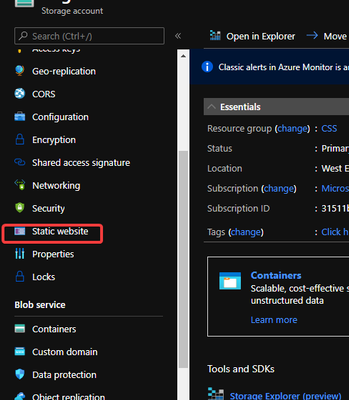
Create website.
You can create the static by following the Host a static website in Azure Storage | Microsoft Docs
Create the Active Directory application
I have followed the article https://docs.microsoft.com/en-us/azure/active-directory/develop/quickstart-v2-javascript
Register your application
- Sign in to the Azure portal.
- If you have access to multiple tenants, use the Directory + subscription filter

in the top menu to select the tenant in which you want to register an application.
- Search for and select Azure Active Directory.
- Under Manage, select App registrations > New registration.
- Enter a Name for your application. Users of your app might see this name, and you can change it later.
- Under Supported account types, select Accounts in any organizational directory and personal Microsoft accounts.
- Select Register. On the app Overview page, note the Application (client) ID value for later use.
- Under Platform Configurations, select Add a platform. A panel opens on the left. There, select the Web Applications region.
- Still on the left, set the Redirect URI value to [the static website URL] Then, select Access Token and ID Token.
- Select Configure.
1.2.2 Build the HTML page with msal.js
Create HTML with the below content
!DOCTYPE html>
<html lang="en">

<head>
  <meta charset="UTF-8">
  <meta name="viewport" content="width=device-width, initial-scale=1.0, shrink-to-fit=no">
  <title>Demo for using Logic app using Azure Active Directory Authorization Policies </title>
  <link rel="SHORTCUT ICON" href="./favicon.svg" type="image/x-icon">

  <!-- msal.min.js can be used in the place of msal.js; included msal.js to make debug easy -->
  https://alcdn.msauth.net/lib/1.4.4/js/msal.js

  <!-- msal.js with a fallback to backup CDN -->
  <script type="text/javascript">
    if (typeof Msal === 'undefined') document.write(unescape("%3Cscript src='https://alcdn.msftauth.net/lib/1.4.4/js/msal.js' type='text/javascript' %3E%3C/script%3E"));
  </script>

  <!-- adding Bootstrap 4 for UI components  -->
  <link rel="stylesheet" href="https://stackpath.bootstrapcdn.com/bootstrap/4.4.1/css/bootstrap.min.css"
    integrity="sha384-Vkoo8x4CGsO3+Hhxv8T/Q5PaXtkKtu6ug5TOeNV6gBiFeWPGFN9MuhOf23Q9Ifjh" crossorigin="anonymous">
</head>

<body>
  <nav class="navbar navbar-expand-lg navbar-dark bg-primary">
    <a class="navbar-brand" href="/">Storage account Gate keeper using logic app </a>
    <div class="btn-group ml-auto dropleft">
      <button type="button" id="signIn" class="btn btn-secondary" onclick="signIn()">Sign In</button>
      <button type="button" id="signOut" class="btn btn-success d-none" onclick="signOut()">Sign Out</button>
    </div>
  </nav>
  <br>
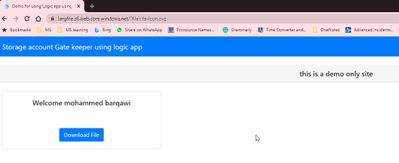
  <h5 class="card-header text-center">this is a demo only site </h5>
  <br>
  <div class="row" style="margin:auto">
    <div id="card-div" class="col-md-3 d-none">
      <div class="card text-center">
        <div class="card-body">
          <h5 class="card-title" id="welcomeMessage">Please sign-in to see your profile and read your mails</h5>
          <div id="profile-div"></div>
          <br>
          <br>
          <button class="btn btn-primary" id="seeProfile" onclick="downloadFile()">Download File</button>
          <br>
        </div>
      </div>
    </div>
    <br>
    <br>
    <div class="col-md-4">
      <div class="list-group" id="list-tab" role="tablist">
      </div>
    </div>
    <div class="col-md-5">
      <div class="tab-content" id="nav-tabContent">
      </div>
    </div>
  </div>
  <br>
  <br>
  <!-- importing bootstrap.js and supporting js libraries -->
  https://code.jquery.com/jquery-3.4.1.slim.min.js
  https://stackpath.bootstrapcdn.com/bootstrap/4.4.1/js/bootstrap.min.js
  <!-- importing app scripts (load order is important) -->
  http://./authConfig.js
  http://./ui.js
  http://./authPopup.js

</body>

</html>
Create file authPopup.js
// Create the main myMSALObj instance
// configuration parameters are located at authConfig.js
const myMSALObj = new Msal.UserAgentApplication(msalConfig);
var Bearer = ''
let searchParams = new URLSearchParams(window.location.search)
let fileParam = searchParams.get('file')
function signIn() {
  myMSALObj.loginPopup(loginRequest)
    .then(loginResponse => {
      console.log("id_token acquired at: " + new Date().toString());
      console.log(loginResponse);

      if (myMSALObj.getAccount()) {
        Bearer = loginResponse.idToken.rawIdToken;
        showWelcomeMessage(myMSALObj.getAccount());
      }
    }).catch(error => {
      console.log(error);
    });
}

function signOut() {
  myMSALObj.logout();
}

//endpoint, token, callback
function downloadFile() {

  const headers = new Headers();
  const bearer = `Bearer ${Bearer}`;

  headers.append("Authorization", bearer);
  headers.append("FileName", fileParam);

  const options = {
    method: "post",
    headers: headers
  };
  fetch(logicAppUrl, options)
    .then(resp => resp.blob())
    .then(blob => {
      const url = window.URL.createObjectURL(blob);
      const a = document.createElement('a');
      a.style.display = 'none';
      a.href = url;
      // the filename you want
      a.download = fileParam;
      document.body.appendChild(a);
      a.click();
      window.URL.revokeObjectURL(url);
      alert('your file has downloaded!'); // or you know, something with better UX...
    })
    .catch(error => console.log(error))
}
authConfig.js
// Config object to be passed to Msal on creation.
// For a full list of msal.js configuration parameters,
// visit https://azuread.github.io/microsoft-authentication-library-for-js/docs/msal/modules/_authenticationparameters_.html
const msalConfig = {
  auth: {
    clientId: "7ebe8908-7acd-4e20-b1f4-24715b364cf0",
    authority: "https://login.microsoftonline.com/common",
    redirectUri: "https://largfile.z6.web.core.windows.net",
  },
  cache: {
    cacheLocation: "sessionStorage", // This configures where your cache will be stored
    storeAuthStateInCookie: false, // Set this to "true" if you are having issues on IE11 or Edge
  }
};

// Add here the scopes to request when obtaining an access token for MS Graph API
// for more, visit https://github.com/AzureAD/microsoft-authentication-library-for-js/blob/dev/lib/msal-core/docs/scopes.md
const loginRequest = {
  scopes: ["openid", "profile", "User.Read"]
};

const logicAppUrl='https://prod-39.eastus.logic.azure.com:443/workflows/92083fac9d2c4805b153907db6976f86/triggers/manual/paths/invoke?api-version=2016-10-01'
Creating the logic app
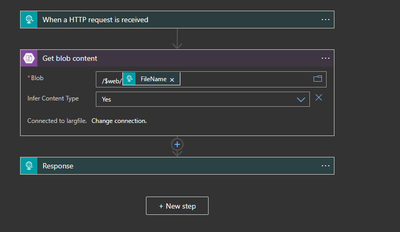
The logic app will receive the request using HTTP and will pass the file name to the storage account action
1.3.1 Enable logic app Azure Active Directory Authorization Policies
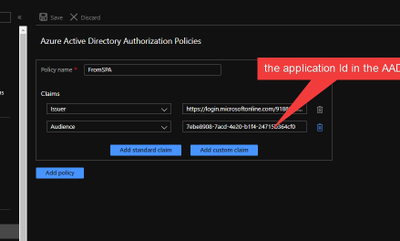
Make the issuer https://login.microsoftonline.com/9188040d-6c67-4c5b-b112-36a304b66dad/v2.0 The GUID that indicates that the user is a consumer user from a Microsoft account is 9188040d-6c67-4c5b-b112-36a304b66dad for information at
https://docs.microsoft.com/en-us/azure/active-directory/develop/access-tokens
More information on Secure access and data – Azure Logic Apps | Microsoft Docs
the HTML and JavaScript attached
by Contributed | Dec 15, 2020 | Technology
This article is contributed. See the original author and article here.
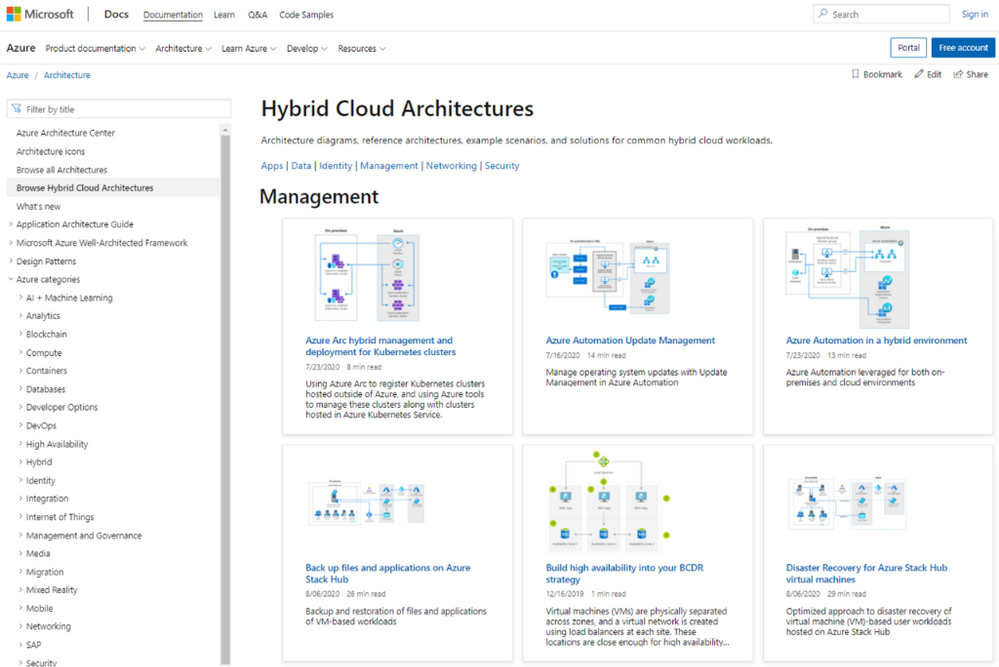
This past September at Ignite 2020, we made a ton of new hybrid announcements. And not only did new products go into GA and Preview, we showed how customers have been using our hybrid solutions every day in their own on-premises, multi-cloud, and multi-edge environments.
Organizations such as Africa’s Talking, Ferguson, Haivision, KPMG, RxR Realty, and Siemens Healthineers have been using Azure Arc and Azure Stack to bring Azure to any infrastructure and modernize on-premises datacenters. As more customers adopt these solutions, we are excited to share the new Hybrid and Multicloud Architectures section in Architecture Center – which is part of our Docs website – for how to bring these solutions to life.
Azure Hybrid Cloud Architectures
Azure Arc
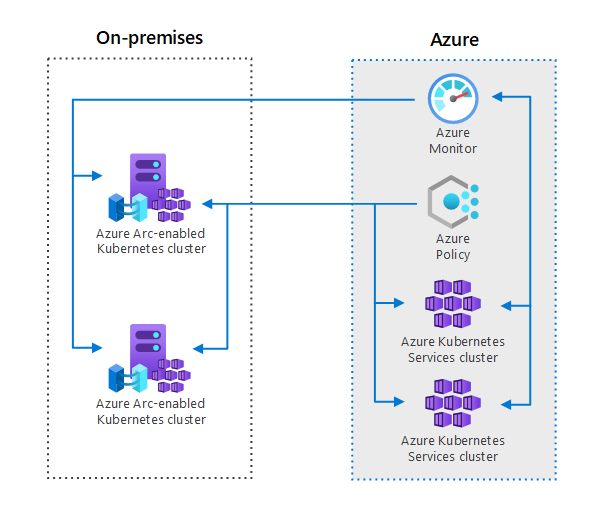
Azure Arc hybrid management and deployment for Kubernetes clusters demonstrates how Azure Arc extends Kubernetes cluster management and configuration across your datacenters, multi-cloud environments, and edge locations. By extending the Azure Resource Manager (ARM) control plane, Azure Arc allows you to project your Kubernetes clusters deployed outside of Azure alongside those in Azure – enabling you to have a single interface to manage the sprawl of clusters. You can register any CNCF Kubernetes cluster that is running and start using services like Azure Monitor and Azure Policy.
 Azure Arc
Azure Stack HCI
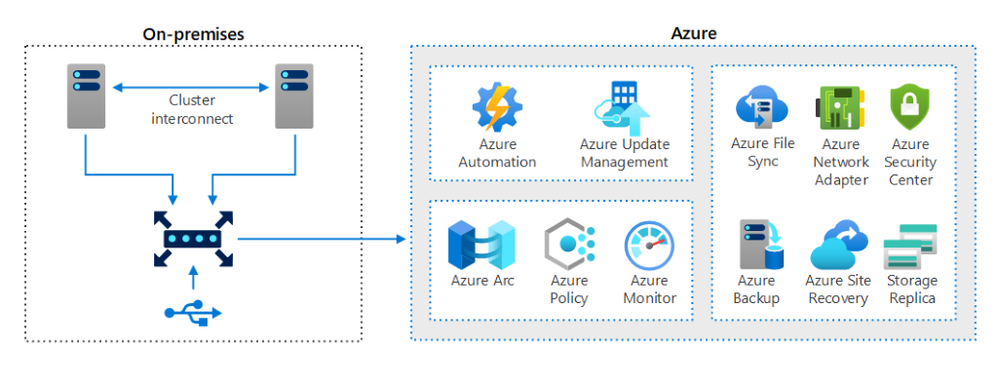
Use Azure Stack HCI switchless interconnect and lightweight quorum for Remote Office/Branch Office. In ROBO scenarios, a primary business concern is minimizing costs. Yet many ROBO workloads are of utmost criticality with very little tolerance for downtime. Azure Stack HCI offers the optimal solution by offering both resiliency and cost-effectiveness. Using Azure Stack HCI, you can leverage built-in resiliency of Storage Spaces Direct and Failover Clustering technologies to implement highly-available compute, storage, and network infrastructure for containerized and virtualized ROBO workloads.
 Azure Stack HCI
Azure Stack Hub
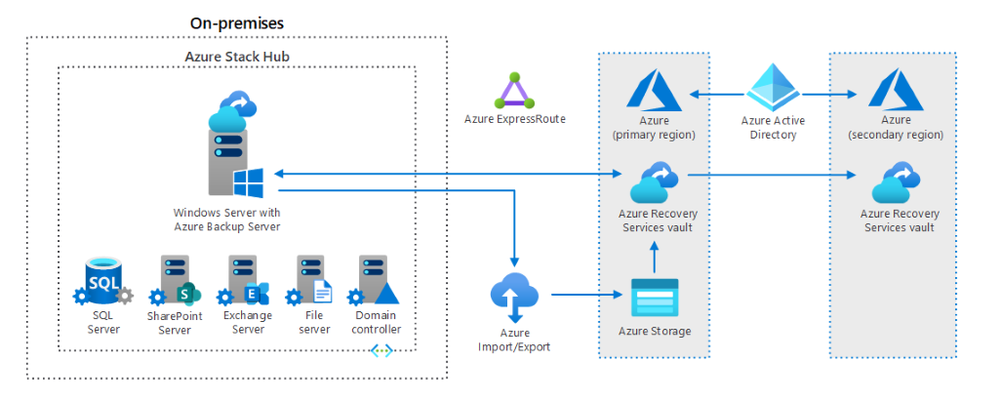
Back up files and applications on Azure Stack Hub describes an optimized approach to backup and restore of files and applications of VM-based user workloads hosted on Azure Stack Hub. With backup and restore being essential components of any BC/DR strategy, Azure Stack Hub delivers a scalable, resilient, easy-to-manage and cost-efficient backup solution that relies on a bomination and cloud and on-premises components.
 Azure Stack Hub
Azure Security Center and Azure Sentinel
Hybrid Security Monitoring using Azure Security Center and Azure Sentinel illustrates how to monitor the security configuration and telemetry of on-premises and Azure operation system workloads. Enabling Azure Security Center to monitor Windows and Linux servers, Azure Stack VMs, and integrating Azure Sentinel with Azure Security Center help you detect, hunt, prevent, and respond to threats across your entire hybrid estate – even resources hosted outside of Azure.
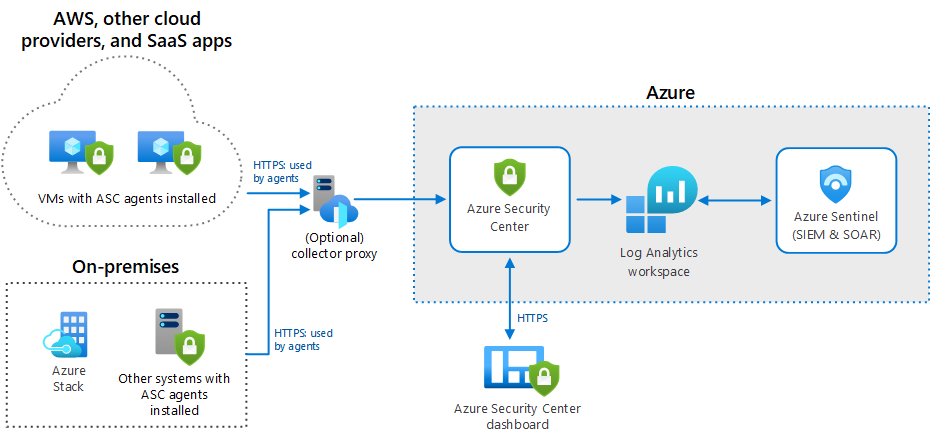 Azure Security Center
To learn more about our Azure hybrid offerings, visit the Azure hybrid solutions page and check out our newest module on Microsoft Learn: Introduction to Azure hybrid cloud services.
Written by Nate Waters, Product Marketing Manager Azure Hybrid.

by Contributed | Dec 14, 2020 | Business, Microsoft, Technology, Tips and Tricks
This article is contributed. See the original author and article here.
Hi there, I am Matt Balzan, and I am a Microsoft Modern Workplace Customer Engineer who specializes in SCCM, APP-V and SSRS/PowerBI reporting.
Today I am going to show you how to write up SQL queries, then use them in SSRS to push out beautiful dashboards, good enough to send to your boss and hopefully win that promotion you’ve been gambling on!
INGREDIENTS
- Microsoft SQL Server Management Studio (download from here)
- A SQL query
- Report Builder
- Your brain
Now that you have checked all the above, let us first go down memory lane and do a recap on SQL.
WHAT EXACTLY IS SQL?
SQL (Structured Query Language) is a standard language created in the early 70s for storing, manipulating and retrieving data in databases.
Does this mean that if I have a database with data stored in it, I can use the SQL [or T-SQL] language to grab the data based on conditions and filters I apply to it? Yep, you sure can!
A database is made up of tables and views and many more items but to keep things simple we are only interested in the tables and views.
Your table/view will contain columns with headers and in the rows is where all the data is stored.
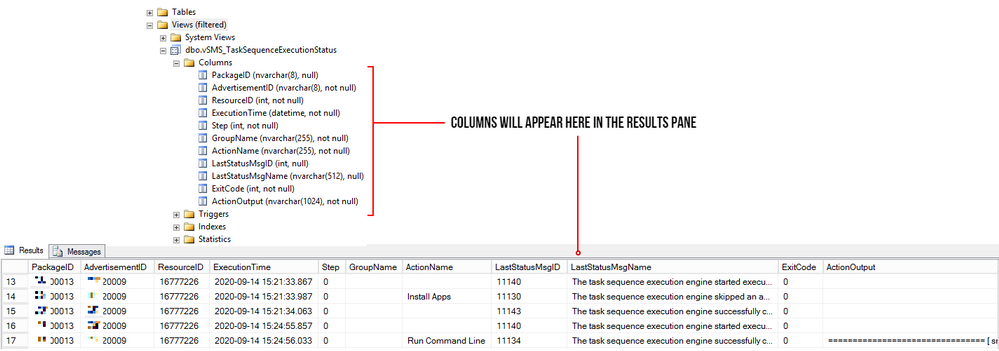
The rows are made up of these columns which contain cells of data. Each cell can be designed to have text, datetime, integers. Some cells can have no values (or NULL values) and some are mandatory to have data in them. These settings are usual setup by the database developer. But thankfully, for reporting we need not worry about this. What we need is data for our reports, and to look for data, we use t-SQL!
But wait! – I have seen these queries on the web, and they all look double-Dutch to me!
No need to worry, I will show you how to read these bad boys with ease!
ANATOMY OF A SQL QUERY
We have all been there before, someone sent you a SQL query snippet or you were browsing for a specific SQL query and you wasted the whole day trying to decipher the darn thing!
Here is one just for simplicity:
select Name0,Operating_System_Name_and0 from v_R_System where Operating_System_Name_and0 like ‘%server%’
My quick trick here is to go to an online SQL formatter, there are many of these sites but I find this one to be perfect for the job: https://sql-format.com/
Simply paste the code in and press the FORMAT button and BOOM!
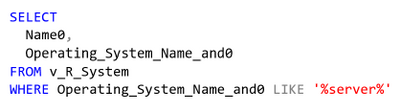
Wow, what a difference!!! Now that all the syntax has been highlighted and arranged, copy the script, open SSMS, click New Query, paste the script in it and press F5 to execute the query.
This is what happens:
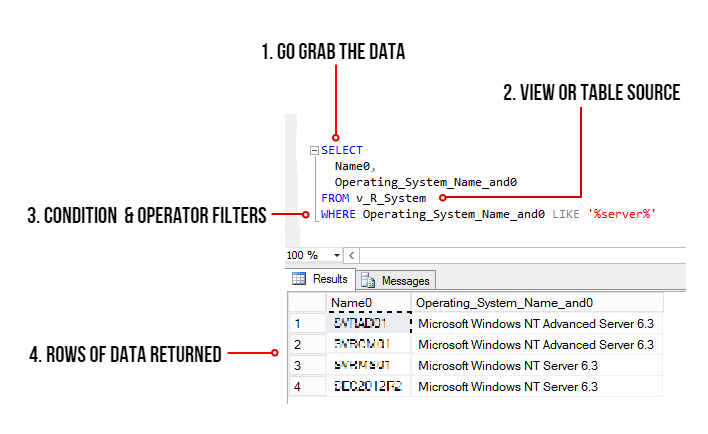
- The SELECT command tells the query to grab data, however in this case it will only display 2 columns (use asterisk * to get all the columns in the view)
- FROM the v_R_System view
- WHERE the column name contains the keyword called server using the LIKE operator (the % tells the filter to bring back zero, one, or multiple characters)
- The rows of data are then returned in the Results pane. In this example only all the server names are returned.
TIPS!
Try to keep all the commands in CAPITALS – this is good practice and helps make the code stand out for easier reading!
ALWAYS use single quotes for anything you are directing SQL to. One common mistake is to use code copied from the browser or emails which have different font types. Paste your code in Notepad and then copy them out after.
Here is another example: Grab all the rows of data and all the columns from the v_Collections view.
SELECT * FROM v_Collections
The asterisk * means give me every man and his dog. (Please be mindful when using this on huge databases as the query could impact SQL performance!)
Sometimes you need data from different views. This query contains a JOIN of two views:
SELECT vc.CollectionName
,vc.MemberCount
FROM v_Collections AS vc
INNER JOIN v_Collections_G AS cg ON cg.CollectionID = vc.CollectionID
WHERE vc.CollectionName LIKE ‘%desktop%‘
ORDER BY vc.CollectionName DESC
OK, so here is the above query breakdown:
- Grab only the data in the column called vc.CollectionName and vc.MemberCount from the v_Collections view
- But first JOIN the view v_Collections_G using the common column CollectionID (this is the relating column that both views have!)
- HOWEVER, only filter the data that has the word ‘desktop‘ in the CollectionName column.
- Finally, order the list of collection names in descending order.
SIDE NOTE: The command AS is used to create an alias of a table, view or column name – this can be anything but generally admin folk use acronyms of the names (example: v_collections will be vc) – Also noteworthy, is that when you JOIN tables or VIEWS you will need to create the aliases, they probably might have the same column names, so the alias also solves the problem of getting all of the joined columns mixed up.
T-SQL reference guide: https://docs.microsoft.com/en-us/sql/t-sql/language-reference?view=sql-server-ver15
OK, SO WHAT MAKES A GOOD REPORT?
It needs the following:
- A script that runs efficiently and does not impact the SQL server performance.
- The script needs to be written so that if you decide to leave the place where you work, others can understand and follow it!
- Finally, it needs to make sense to the audience who is going to view it – Try not to over engineer it – keep it simple, short and sweet.
SCENARIO: My customer wants to have a Task Sequence report which contains their company logo, the task sequence steps and output result for each step that is run, showing the last step run.
In my lab I will use the following scripts. The first one is the main one, it will join the v_r_System view to the vSMS_TaskSequenceExecutionStatus view so that I can grab the task sequence data and the name of the device.
SELECT vrs.Name0
,[PackageID]
,[AdvertisementID]
,vrs.ResourceID
,[ExecutionTime]
,[Step]
,[GroupName]
,[ActionName]
,[LastStatusMsgID]
,[LastStatusMsgName]
,[ExitCode]
,[ActionOutput]
FROM [vSMS_TaskSequenceExecutionStatus] AS vtse
JOIN v_R_System AS vrs ON vrs.ResourceID = vtse.ResourceID
WHERE AdvertisementID = @ADVERTID
ORDER BY ExecutionTime DESC
The second script is for the @ADVERTID parameter – When the report is launched, the user will be prompted to choose a task sequence which has been deployed to a collection. This @ADVERTID parameter gets passed to the first script, which in turn runs the query to grab all the task sequence data rows.
Also highlighted below, the second script concatenates the column name pkg.Name (this is the name of the Task Seq) with the word ‘ to ‘ and also with the column name col.Name (this is the name of the Collection), then it binds it altogether as a new column called AdvertisementName.
So, for example purposes, the output will be: INSTALL SERVER APPS to ALL DESKTOPS AND SERVERS – this is great, as we now know which task sequence is being deployed to what collection!
SELECT DISTINCT
adv.AdvertisementID,
col.Name AS Collection,
pkg.Name AS Name,
pkg.Name + ‘ to ‘ + col.Name AS AdvertismentName
FROM v_Advertisement adv
JOIN (SELECT
PackageID,
Name
FROM v_Package) AS pkg
ON pkg.PackageID = adv.PackageID
JOIN v_TaskExecutionStatus ts
ON adv.AdvertisementID = (SELECT TOP 1 AdvertisementID
FROM v_TaskExecutionStatus
WHERE AdvertisementID = adv.AdvertisementID)
JOIN v_Collection col
ON adv.CollectionID = col.CollectionID
ORDER BY Name
LET US BEGIN BY CREATING THE REPORT
- Open Microsoft Endpoint Configuration Manager Console and click on the Monitoring workspace.
- Right-click on REPORTS then click Create Report.
- Type in the name field – I used TASK SEQUENCE REPORT
- Type in the path field – I created a folder called _MATT (this way it sits right at the top of the folder list)
- Click Next and then Close – now the Report Builder will automatically launch.
- Click Run on the Report Builder popup and wait for the UI to launch. This is what it looks like:
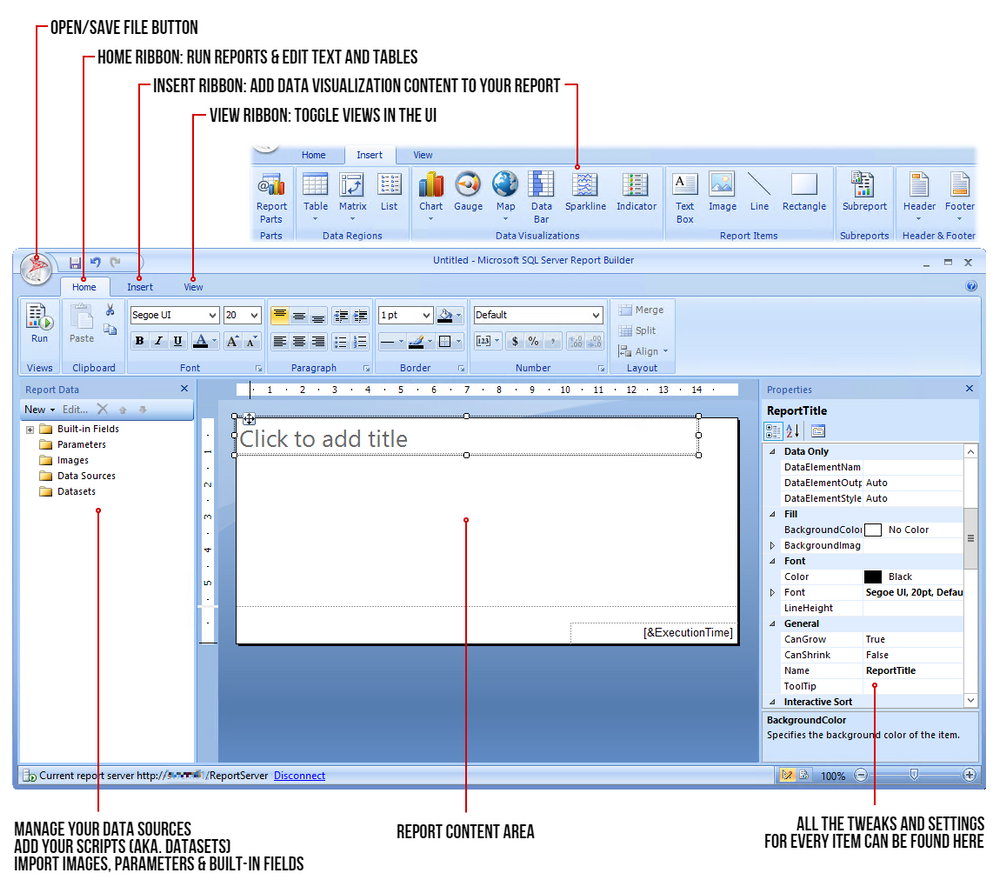
STEP 1 – ADD THE DATA SOURCE
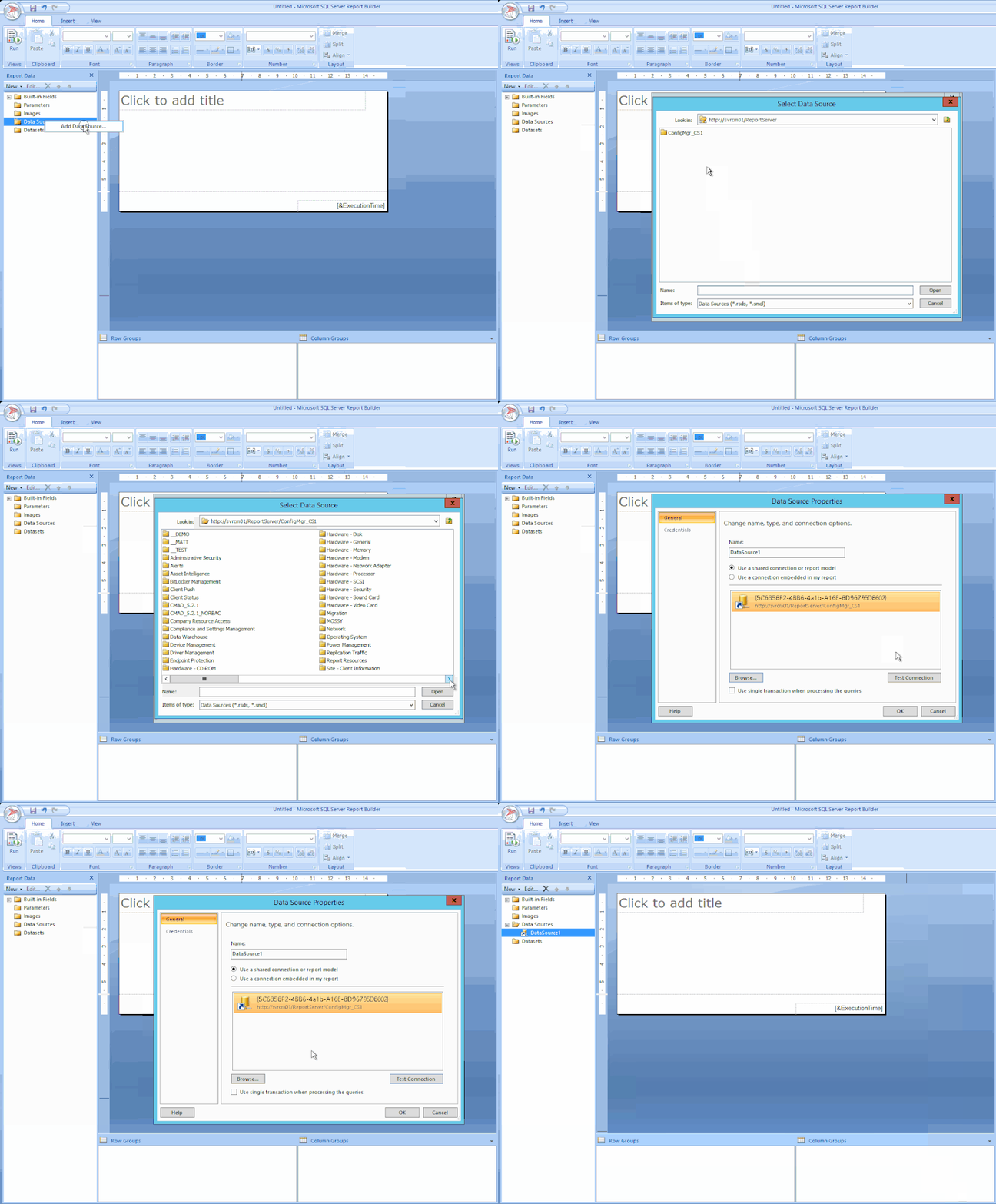
To get the data for our report, we need to make a connection to the server data source.
Right-click on Data Sources / Click Add Data Source… / Click Browse… / Click on Configmr_<yoursitecode> / Scroll down to the GUID starting with {5C63 and double-click it / Click Test Connection / Click OK and OK.
STEP 2 – ADD THE SQL QUERIES TO THEIR DATASETS
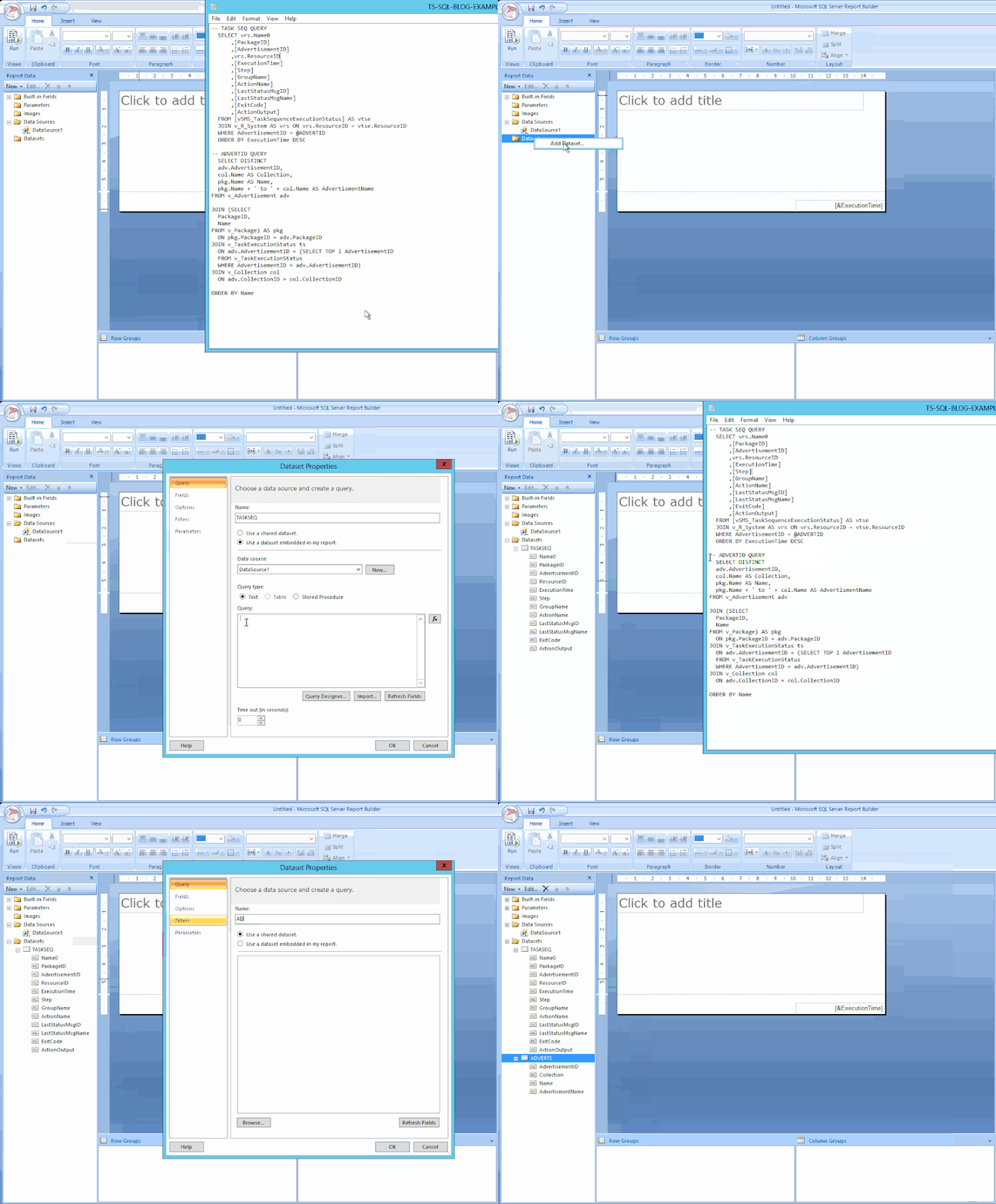
Copy your scripts / Right-click on Datasets / click on Add Dataset… / Type in the name of your dataset (no spaces allowed) / Select the radio button ‘Use a dataset embedded in my report’ / Choose your data source that was added in the previous step / Paste your copied script in the Query window and click OK / Click the radio button ‘Use the current Window user’ and click OK.
STEP 3 – ADJUST THE PARAMETER PROPERTIES
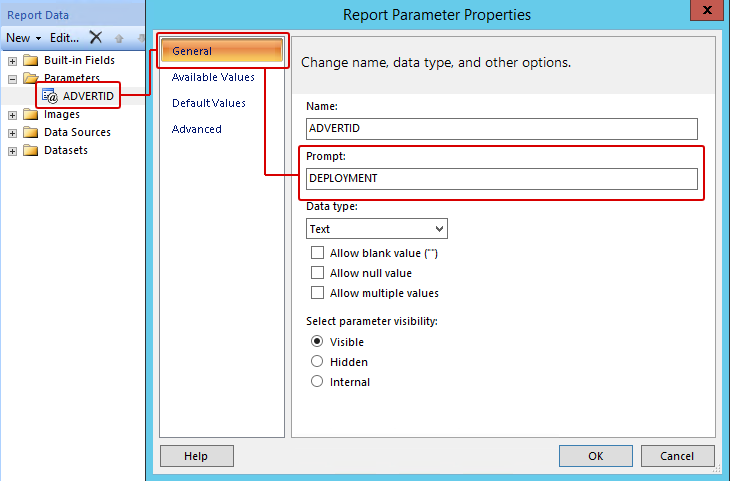
Expand the Parameters folder / Right-click the parameter ADVERTID / Select the General tab, under the Prompt: field type DEPLOYMENT – leave all the other settings as they are.
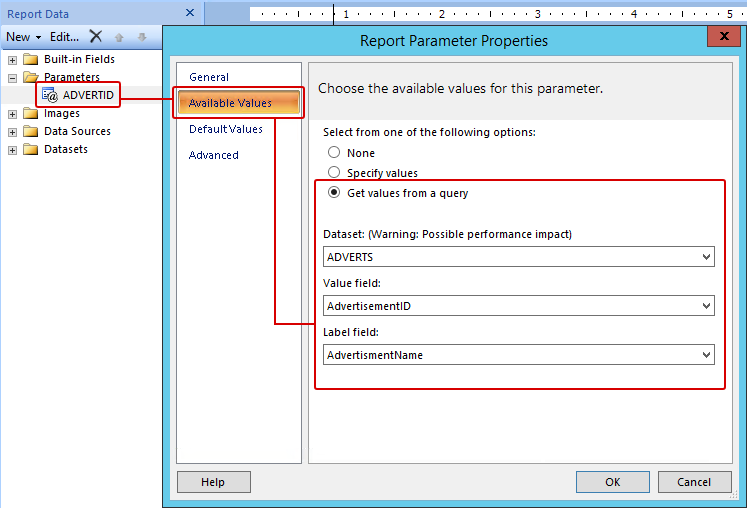
Click on Available Values / Click the radio button ‘Get values from a query’ / for Dataset: choose ADVERTS, for Value field choose AdvertisementID and for Label field choose AdvertisementName / Click OK.
Now when the report first runs, the parameter properties will prompt the user with the DEPLOYMENT label and grab the results of the ADVERTS query – this will appear on the top of the report and look like this (remember the concatenated column?):

OK cool – but we are not done yet. Now for the fun part – adding content!
STEP 4 – ADDING A TITLE / LOGO / TABLE
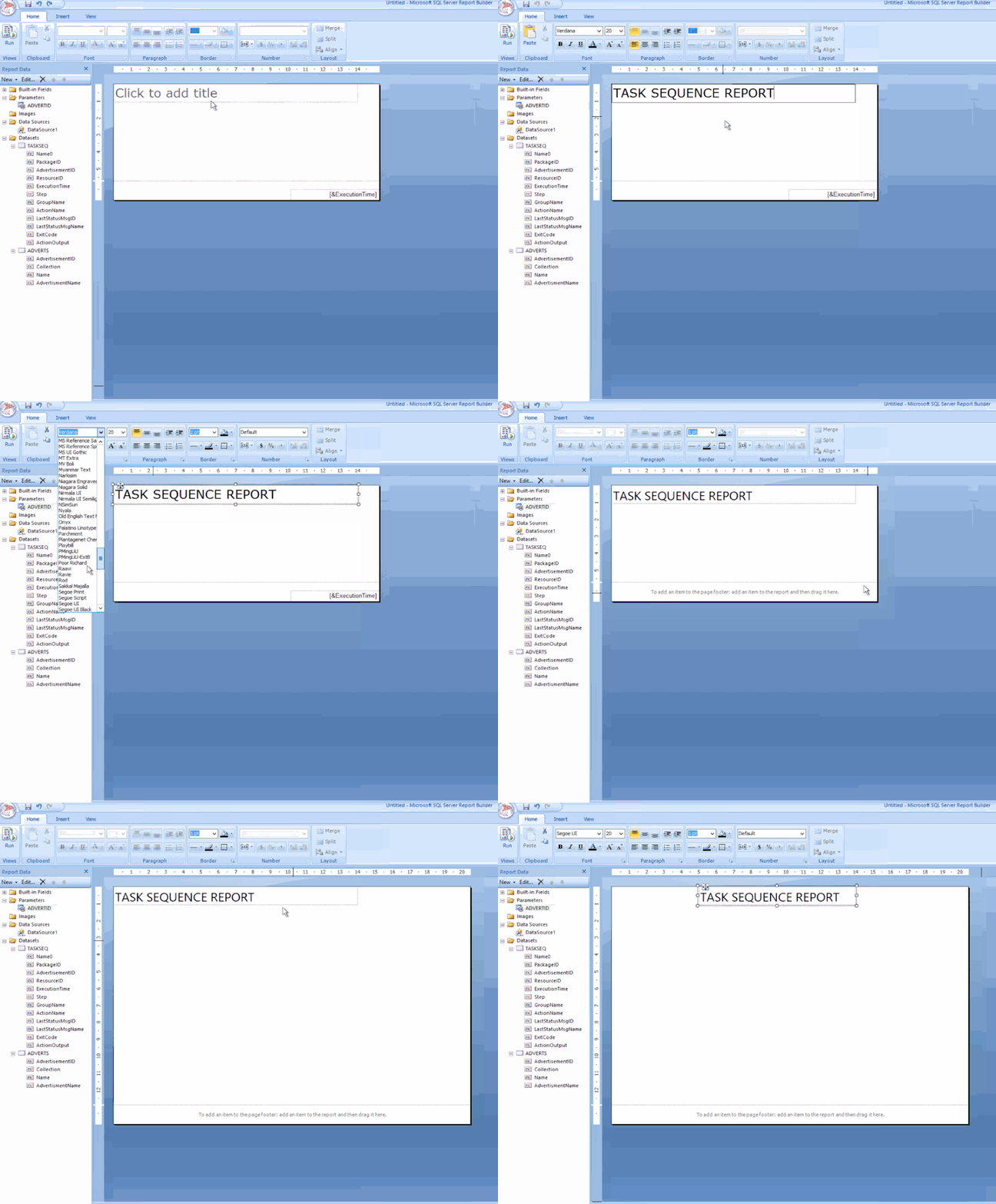
Click the label to edit your title / change the font to SEGOE UI then move its position to the centre / Adjust some canvas space then remove the [&ExecutionTime] field.
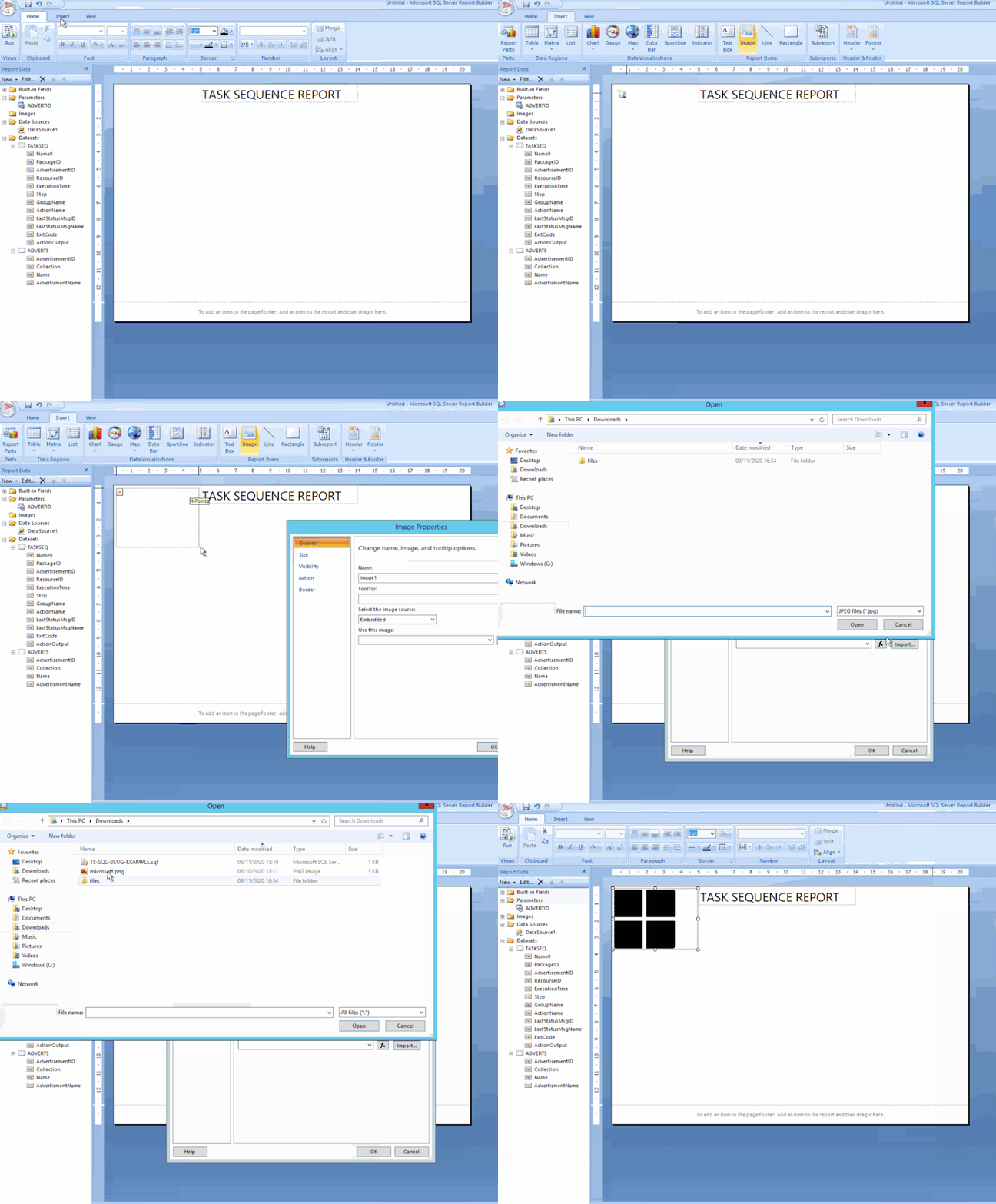
From the ribbon Insert tab / click Image, find a space on your canvas then drag-click an area / Click Import…, choose ALL files (*.*) image types then find and add your logo / Click OK.
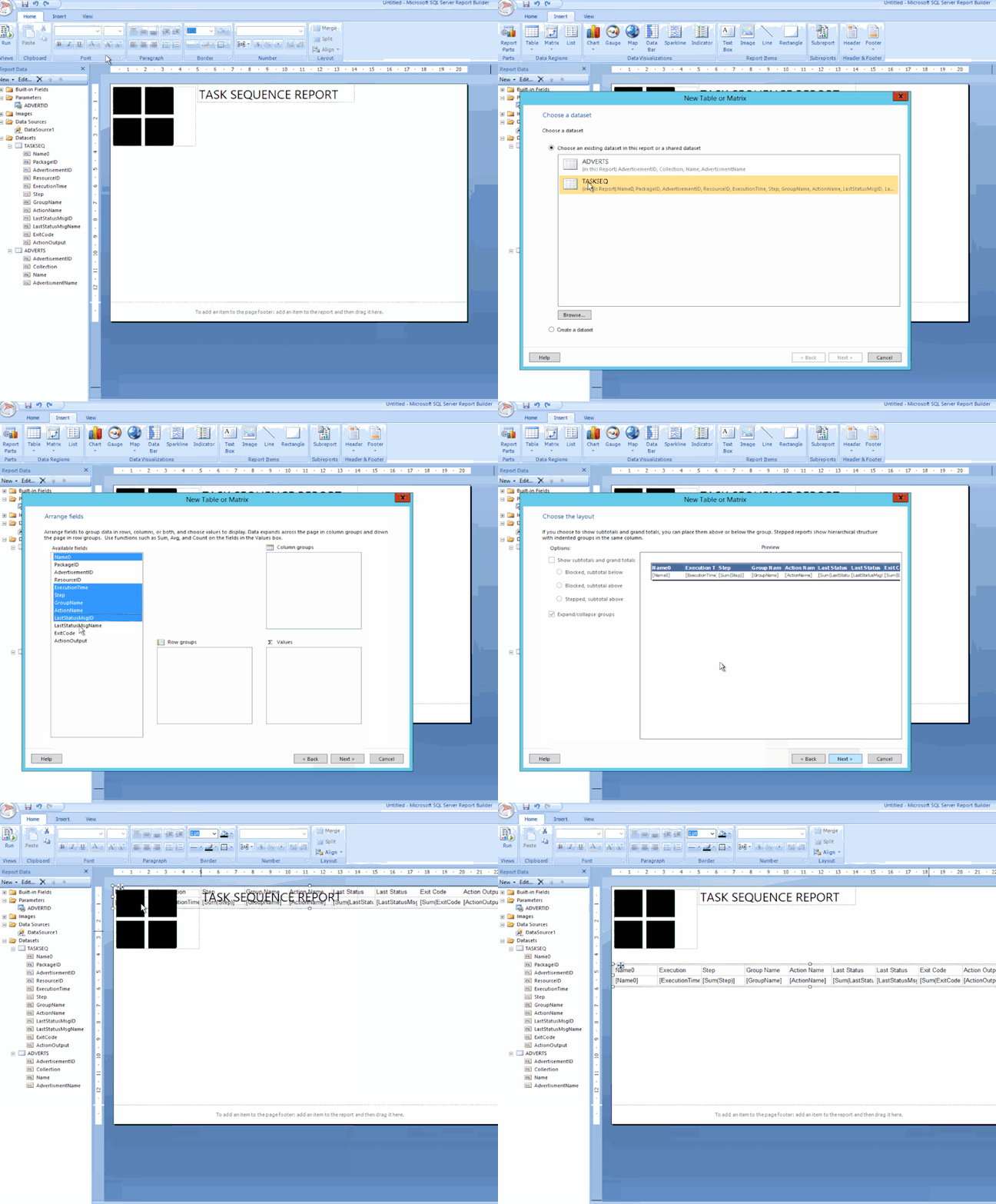
Next click on Table, choose Table Wizard… / Select the TASKSEQ dataset and click Next / Hold down shift key and select all the fields except PackageID, AdvertisementID & ResourceID.
Drag the highlighted fields to the Values box and click Next / Click Next to skip the layout options / Now choose the Generic style and click Finish.
Drag the table under the logo.
STEP 5 – SPIT POLISHING YOUR REPORT
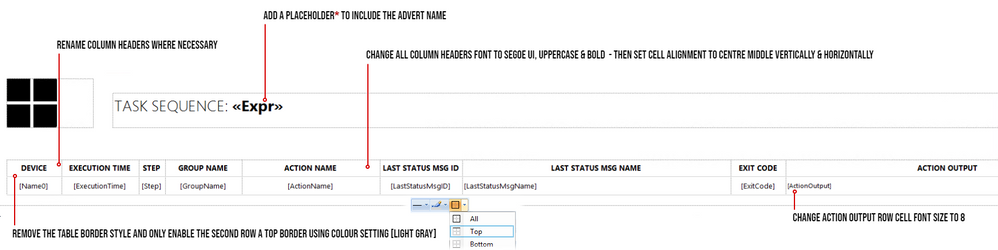
* A Placeholder is a field where you can apply an expression for labels or text, you wish to show in your report.
In my example, I would like to show the Deployment name which is next to the Task Sequence title:
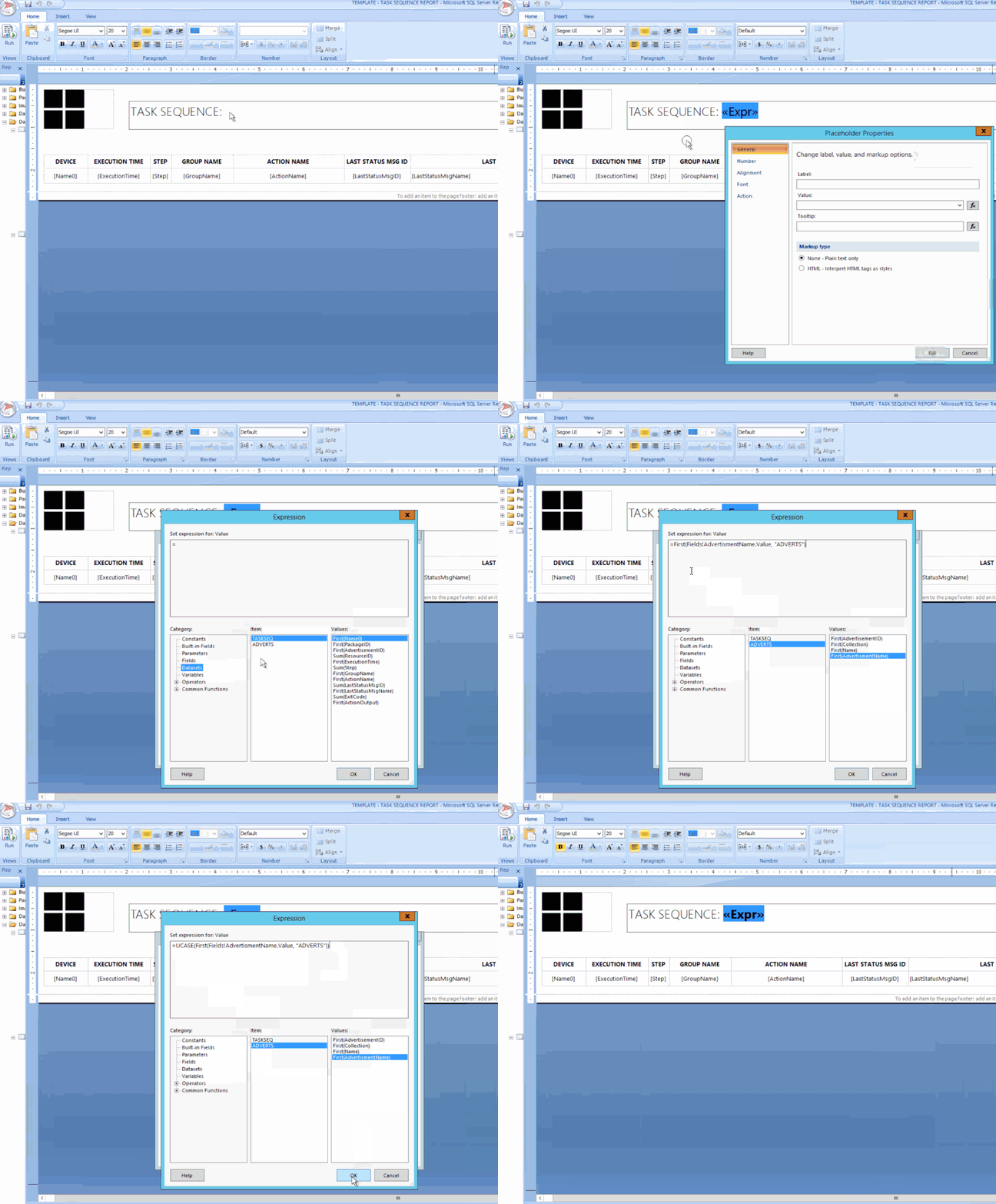
In the title text box, right-click at the end of the text TASK SEQUENCE: / Click Create Placeholder… / under Value: click on the fx button / click on Datasets / Click on ADVERTS and choose First(AdvertisementName).
Finally, I wanted the value in UPPERCASE and bold. To do this I changed the text value to: =UCASE(First(Fields!AdvertisementName.Value, “ADVERTS”)) , click on OK.
I then selected the <<Expr>> and changed the font to BOLD.
Do not forget to save your report into your folder of choice!
Once you have finished all the above settings and tweaks, you should be good to run the report. Click the Run button from the top left corner in the Home ribbon.
If you followed all the above step by step, you should have now a report fit for your business – this is the output after a Deployment has been selected from the combo list:
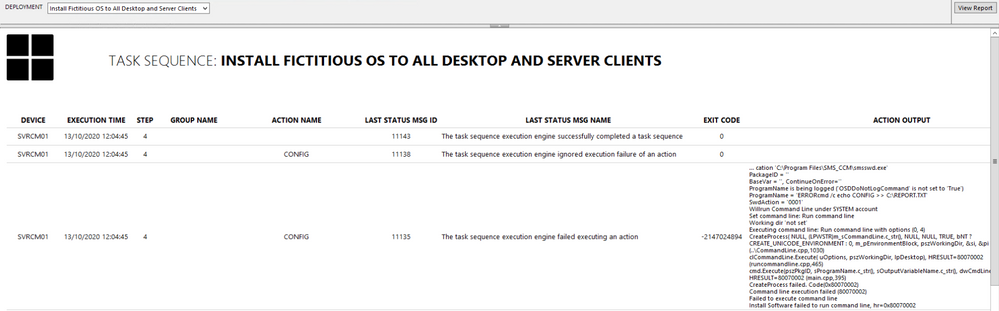
- To test the Action Output column, I created a task sequence where I intentionally left some errors in the Run Command Line steps, just to show errors and draw out some detail.
- To avoid massive row height sizes, I set the cell for this column to font size 8.
- To give it that Azure report style look and feel, I only set the second row in the table with the top border being set. You can change this to your own specification.
Please feel free to download my report RDL file as a reference guide (Attachment on the bottom of this page)
LESSONS LEARNED FROM THE FIELD
- Best advice I give to my customers is to start by creating a storyboard. Draw it out on a sheet of blank or grid paper which gives you an idea where to begin.
- What data do you need to monitor or report on?
- How long do these scripts take to run? Test them in SQL SERVER MANAGEMENT STUDIO and note the time in the Results pane.
- Use the free online SQL formatting tools to create proper readable SQL queries for the rest of the world to understand!
- Who will have access to these reports? Ensure proper RBAC is in place.
- What is the target audience? You need to keep in mind some people will not understand the technology of the data.
COMING NEXT TIME…
My next blog will go into a deep dive in report design. I will show you how to manipulate content based on values using expressions, conditional formatting, design tips, best practices and much more….Thanks for reading, keep smiling and stay safe!
DISCLAIMER
The sample files are not supported under any Microsoft standard support program or service. The sample files are provided AS IS without warranty of any kind. Microsoft further disclaims all implied warranties including, without limitation, any implied warranties of merchantability or of fitness for a particular purpose. The entire risk arising out of the use or performance of the sample files and documentation remains with you. In no event shall Microsoft, its authors, or anyone else involved in the creation, production, or delivery of the files be liable for any damages whatsoever (including, without limitation, damages for loss of business profits, business interruption, loss of business information, or other pecuniary loss) arising out of the use of or inability to use the sample scripts or documentation, even if Microsoft has been advised of the possibility of such damages.
Matt Balzan | Modern Workplace Customer Engineer | SCCM, Application Virtualisation, SSRS / PowerBI Reporting


Recent Comments