
by Contributed | Dec 15, 2020 | Technology
This article is contributed. See the original author and article here.
TL;DR – What-if is now Generally Available. We have closed over 90 customer-reported issues, improved the depth of the policy-aware capabilities, and made it easier for resource providers to fix their own what-if noise issues. While you might still encounter noise, these can now be resolved by the owning resource provider team, so issues should be resolved faster.
Why do I need what-if?
Deploying an ARM template can be a time-consuming process, which is why it is particularly frustrating if your deployment does not execute as expected. This creates a challenging and long dev/test loop, which can get frustrating very quickly! To help with this problem, we have introduced a new capability for ARM templates called What-if, which allows you to preview the effects of a template deployment before it is executed, allowing you to validate that the changes are expected before starting the deployment process. In this example, I am updating a Linux VM by upgrading the VM size. Before deploying, I can see that it is the only expected change and I can deploy with confidence.
What-if has been in a public preview for the last few months, and as part of our GA release, we are introducing the following improvements:
- Major noise-reduction and other enhancements to what-if quality. We have closed ~90 publicly reported issues from the what-if noise github repo. In addition, we have set up an internal pipeline to allow each resource provider to resolve their own what-if noise related to ARM API compliance, which is often the root cause of the issue. As a result, we expect to see a rapid, continual improvement of what-if quality going forward.
- What-if is now “policy aware” for the modify effect. This means if a property will be modified by policy, it will be captured in the what-if response. For example, if a tag is going to be added by a modify policy, this will be reflected in the what-if output for the relevant resources. What-if is already policy-aware for the deny effect, so deployments that will fail due to policy will be caught quickly with what-if. We plan to also support the audit effect as part of our post-GA improvements.
How do I get started with what-if?
What-if is available as part of the deployment cmdlets in the PowerShell Az module and the deployment commands in Az CLI. If you have a recent release of either of these tools, you likely already have them available. You will need version 4.2 or later of PowerShell Az and version 2.5 or later for Az CLI.
The easiest way to run what-if is simply by appending either -Confirm in Az PowerShell or –confirm-with-what-if or -c in Az CLI to the commands you are already using:
Az PowerShell:
New-AzResourceGroupDeployment -TemplateFile ./azureDeploy.json -ResourceGroupName my-rg -Confirm
Az CLI:
az deployment group create -f ./azureDepoy.json -g my-rg --confirm-with-what-if
This will emit a user-friendly formatted text output to the console like the screenshot above and ask you if you’d like to proceed with the deployment, but you can also return the results as JSON so you can interrogate the results programmatically. You can also run what-if without the confirm behavior if you’d like to use what-if for a CI/CD approval workflow.
For a full walkthrough, you can use the what-if How To guide.
Some notes on what-if noise
During the public preview, our primary goal was to reduce the amount of noise you would see in the what-if response. These were cases where what-if told you, incorrectly, that a change was going to take place even though no change would occur. You all in the Azure community have done a great job opening issues in the what-if repo and exposing us to the noise you encountered. All told, we have closed ~90 noise issues so far and will continue to burn down the list.
At the same time, we have instituted more quality gates for resource provider teams to ensure their resources are modelled correctly. This quality check will ensure what-if works as expected with no noise in the response. As a result of this, what-if quality should continue to get improve at a quicker pace.
While the quality of what-if has increased dramatically, it is still possible to find what-if noise depending on the resource types you deploy in your templates. If you encounter noise, you should still open an issue in the what-if repo and we can get it routed to the right team to get it fixed quickly.
As always, if you have any questions or problems with deployment scripts, don’t hesitate to reach out at alfran@microsoft.com, on twitter or on GitHub.
by Contributed | Dec 15, 2020 | Technology
This article is contributed. See the original author and article here.
TL;DR – Deployment Scripts is now Generally Available, and as part of this release we’ve made deployment scripts more reliable and easier to use with an improved permissions model.
Why do I need Deployment Scripts?
Often during an ARM Template deployment, there is an operation that needs to be performed that cannot be done natively in the template – either because there is no explicit support or because the operation takes place outside of Azure. For example, you may need to populate data in a database, deploy a Kubernetes manifest, or get a new IP address from an IPAM system. Customers will often fill this gap by running a script in a release pipeline or manually performing the task before or after the deployment occurs.
Deployment Scripts allow you to complete these “last mile” scenarios as part of your ARM Template deployments by running your bash or PowerShell script in a native Deployment Scripts resource. Deployment Scripts has been available in public preview for a few months, and today we are making Deployment Scripts generally available.
What’s new for GA?
With our GA release we are adding the following features and capabilities:
- You are no longer required to provide a User-assigned Managed Identity for the script to be executed. This is for use cases that do not require authentication to Azure, such as a data transformation or communication with a non-Azure API or if you’d rather use a service principal to authenticate to Azure instead of a Managed Identity. This makes executing deployment scripts much lower friction with less prerequisites.
- The underlying resources that are required for a deployment script to execute (Azure Container Instance and Storage Account) will no longer be created with the Managed Identity. Instead, we use the permissions of the AAD principal that created the deployment to create them. For a principal to create a deploymentScript they will now need the following permissions:
"Microsoft.Resources/deploymentScripts/*",
"Microsoft.ContainerInstance/containerGroups/*",
"Microsoft.Storage/storageAccounts/*"
We will use the permissions of the AAD principal executing the deployment to create these resources and register the underlying ContainerInstance Resource Provider. As a result of this change, the permissions granted to the managed identity can be more limited as it only requires what the script needs to run successfully.
- Better error handling for RBAC replication issues. You should now be able to reliably assign permissions to the Managed Identity in the same template that creates the deployment script without any authentication issues. This makes it easier to create a “self-contained” template deployment script template. During the preview, we noticed issues to do replication delays that prevented from working well.
How do I get started?
If you are already familiar with ARM Templates, getting started with Deployment Scripts is easy. Simply add a resource of type Microsoft.Resources/deploymentScripts to your ARM template:
    {
      "type": "Microsoft.Resources/deploymentScripts",
      "apiVersion": "2020-10-01",
      "kind": "AzurePowerShell",
      "name": "[parameters('dsName')]",
      "location": "[parameters('location')]",
      "properties": {
        "azPowerShellVersion": "3.0",
        "scriptContent": "
          $DeploymentScriptOutputs['test'] = 'test this output'
          Write-Host 'I am a deployment script'
        ",
        "forceUpdateTag": "[parameters('timestamp')]", // utcNow()
        "retentionInterval": "PT4H"
      }
    }
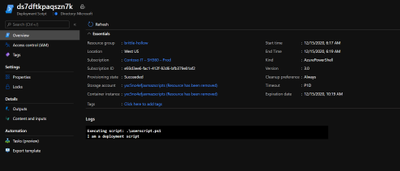
Once the script has executed I can view the details of the script execution in PowerShell, CLI, or in the Azure Portal
For more details, take a look at the below guides and examples.
We have seen a lot of awesome use cases be developed for deployment scripts during the public preview and we are looking forward to hearing how these new GA capabilities improve the experience even further. As always, if you have any questions or problems with deployment scripts, don’t hesitate to reach out at alfran@microsoft.com, on twitter or on GitHub.
Happy Deployment Scripting!

by Contributed | Dec 15, 2020 | Technology
This article is contributed. See the original author and article here.
‘Tis the season! Did you grab a Microsoft-themed sweater? Sold out? Don’t worry. We’ve created three SharePoint-themed winter holiday sweaters to back you up – in Microsoft Teams, or to use as wallpaper on your desktop.
Make your productivity festive and intranet’ty! Grab the png’s and follow the ‘how to’ link below.
SharePoint holiday sweater background – abstract.
Download SharePoint holiday sweater background – abstract.
 SharePoint holiday sweater background – Hanukkah.
Download SharePoint holiday sweater background – Hanukkah.
 SharePoint holiday sweater background – Christmas.
Download SharePoint holiday sweater background – Christmas.
Learn how to change your background for a Microsoft Teams meeting.
Special thanks to our design team for creating the fun.
View more Microsoft background and wallpapers.
Stay safe and happy holidays,
Wenvi Hidayat
by Contributed | Dec 15, 2020 | Technology
This article is contributed. See the original author and article here.
Howdy folks,
Today we are announcing the public preview of password management and autofill capability in the Microsoft Authenticator app. For any sites or apps you visit on your mobile device, Authenticator will help you autofill strong passwords without having to remember them. These passwords can be synced across mobile and desktop, so you can seamlessly autofill passwords as you move across devices. This is currently only available for Microsoft accounts (MSA) and not for Azure AD based work or school accounts.
Rajat Luthra, one of our program managers in the Identity team, has written a guest blog post diving into details of this new capability. You can see his blog post below.
As always, we’d love to hear from you. Please let us know what you think in the comments below or on the Azure AD feedback forum.
Best regards,
Alex Simons (@Alex_A_Simons)
Corporate VP of Program Management
Microsoft Identity Division
——————————————
Hi everyone!
I’m excited to share that Microsoft Authenticator can now securely store and autofill passwords on apps and sites you visit on your mobile device. Once you make Authenticator an autofill provider, it will offer to save your passwords when you enter them on a site or app’s login page. Your synced passwords are protected on mobile with multi-factor authentication. These passwords are synced using your Microsoft account (outlook.com, hotmail.com, live.com, etc.), making them also available on your desktop with Microsoft Edge and the new Google Chrome extension.
While passwordless and multi-factor authentication is the way to go for security, we understand many sites still require passwords and some don’t even support multi-factor authentication. In a previous blog, we showed how no human generated password can be unique enough to beat attackers. That’s where Authenticator can help! Since you no longer need to remember passwords, Authenticator can autofill complex and unique passwords for you.
Here’s a sneak peek of autofill experience on iOS. A similar experience exists for Android.
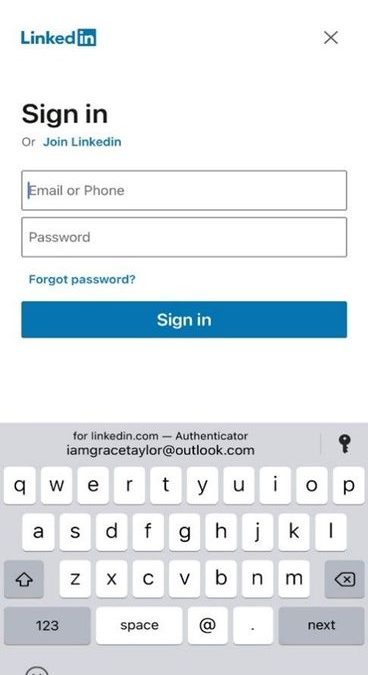
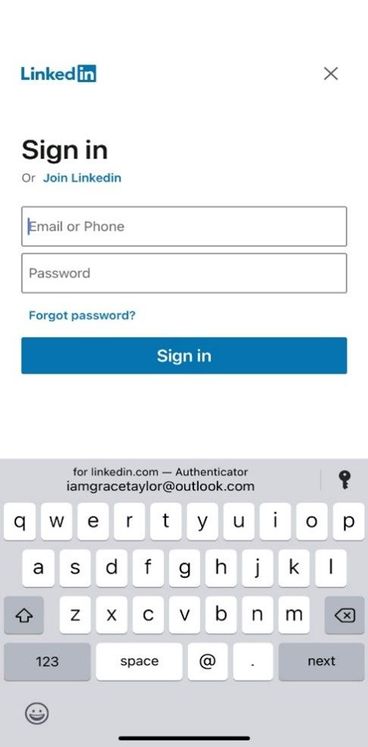
When you visit a site or app for which you have saved a password, Authenticator offers to autofill it.
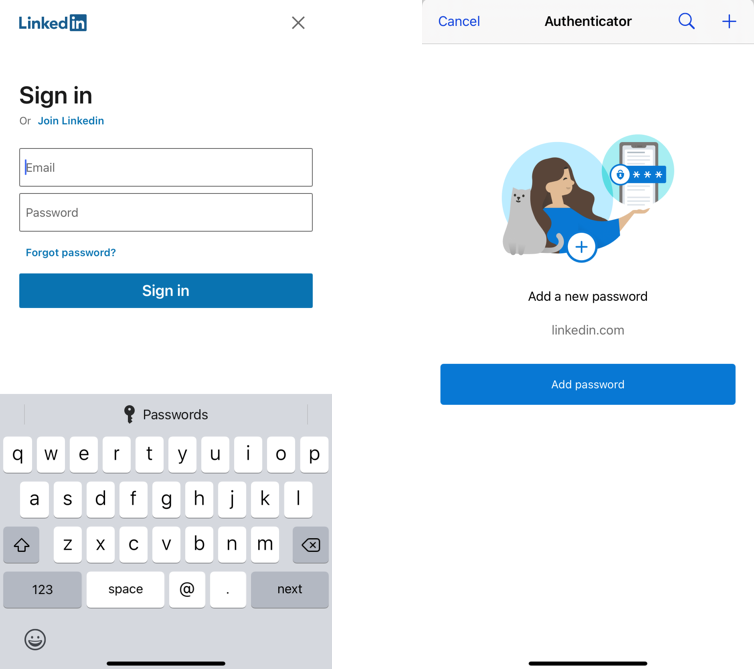
When you visit a site or app where your username and password is not saved, “Passwords” text appears on top of keyboard, clicking on which lets you save password in Authenticator.
Getting started
To use the autofill feature and sync passwords, use your Microsoft account (MSA) and follow these simple steps. We’ve provided iOS screenshots below – the feature is available on both iOS and Android.
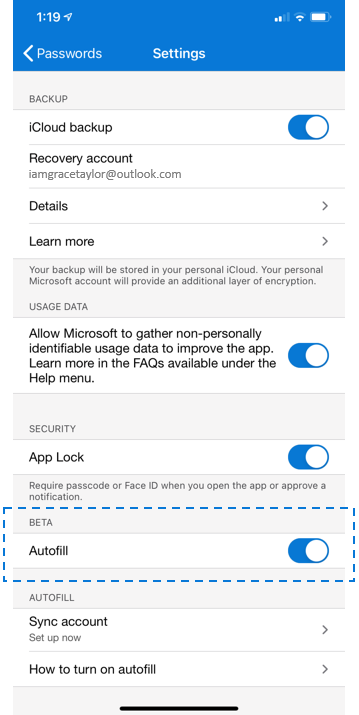
- Open your Authenticator app, go to Settings –> Beta –> Autofill, and turn the toggle ON. Once you toggle ON Autofill in Settings, the Passwords tab will appear.
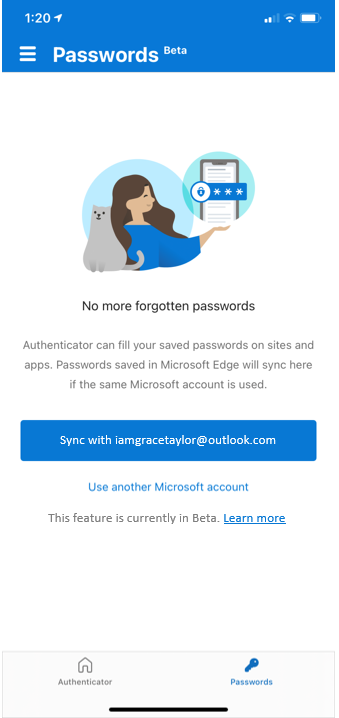
- Then, go to the Passwords tab, and sign-in using your Microsoft account or sync passwords from a Microsoft account already added to your Authenticator app.
- Finally, make Authenticator the default autofill provider on your phone.
- iOS: Open Settings –> Search for “Autofill Passwords” –> Click on “Autofill Passwords” –> Select “Authenticator”
- Android: Open Settings –> Search for “Autofill” –> Select “Auto-fill service” –> Click on “Auto-fill service” on next screen –> Select “Authenticator”
- You can sync and autofill these passwords in Microsoft Edge. If you also use Google Chrome on desktop, you can sync and autofill the same passwords using the Google Chrome extension.
Prerequisites
Autofill experience is rolling out in Authenticator app on iOS (iOS 12.0 and above) and Android (Android 6.0 and above). To learn more about the autofill feature, visit our FAQs page.
Autofill only works with Microsoft accounts (MSA), and is currently disabled for enterprise users who are using the Authenticator app for Phone sign-in or multi-factor authentication on their enterprise accounts. To allow enterprise users to use this feature on their Authenticator app, click here.
We look forward to your feedback!
Thanks,
Rajat Luthra (@_luthrarajat)
Senior Program Manager
Microsoft Identity Security & Protection
by Contributed | Dec 15, 2020 | Technology
This article is contributed. See the original author and article here.
As we wrap up the end of the year, I wanted to share my gratitude for all the partners that have contributed in helping our customers rapidly enable a secure remote workforce. From securing applications to rolling out passwordless solutions or ensuring seamless collaboration across organizations, our partners have been critical in helping our customers adapt to a new way of work.
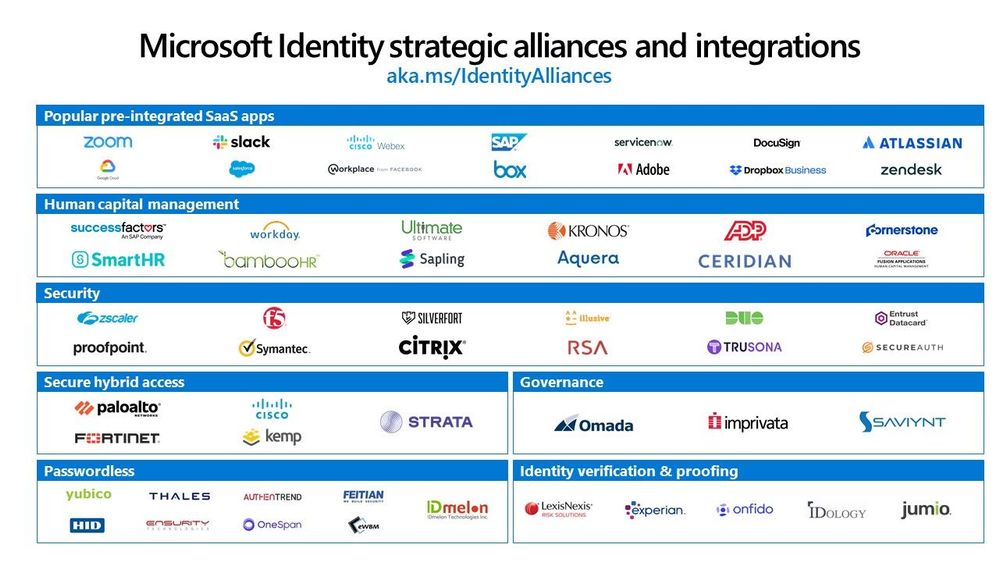
We built Microsoft identity as a platform to bring together all your tools, apps, and services—whether or not we built them—to allow you to deliver better experiences for you and your employees. We now have over 3,400 applications in our Azure AD app gallery and deep partner integrations across categories.
We’ve seen amazing progress in our partner ecosystem and wanted to share 5 recent integrations with partners as we wrap 2020.
Simplifying identity management and access to your apps
As employees continue to work remotely, they need secure, seamless access to all types of applications from cloud apps to on-premises apps. That’s why we continue to partner with software providers to integrate with Azure AD to simplify and secure application access. Last month we added over 52 new federated applications and 9 new provisioning connectors in our Azure AD app gallery for you to quickly enable single sign-on and automate user provisioning.
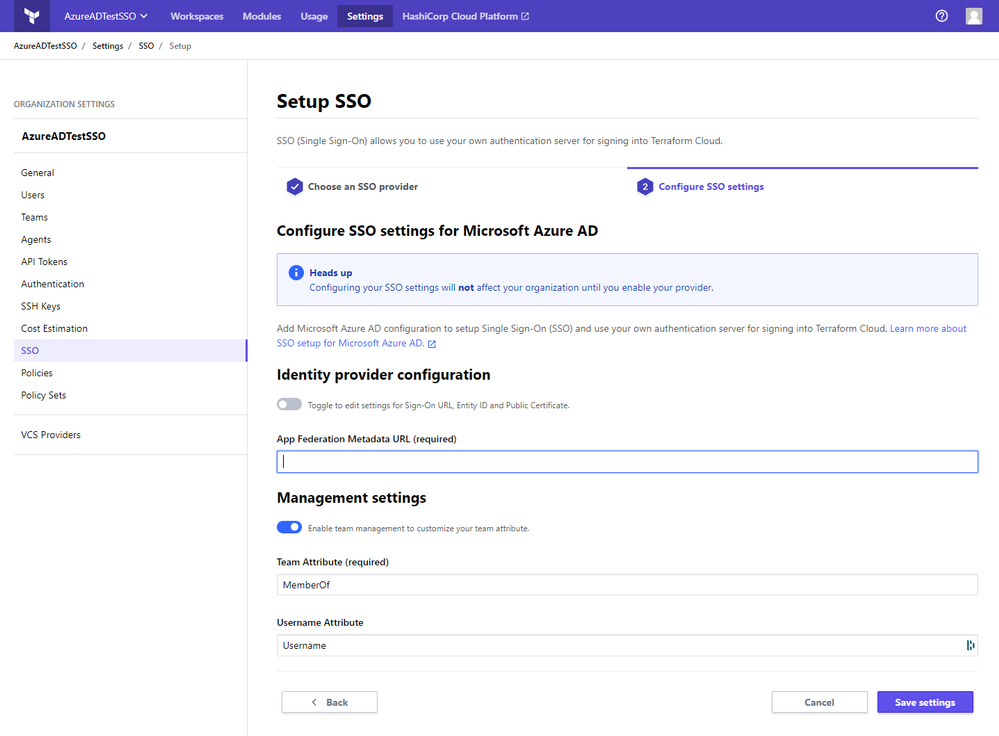
Hashicorp Terraform SSO
One new federated application that has been recently added to our Azure AD app gallery is Terraform Cloud from Hashicorp. Terraform Cloud provides infrastructure automation-as-a-service for the open source project Terraform. Many of our customers have adopted Terraform as a mechanism to automate the provisioning of resources in their Azure environments. Terraform Cloud helps customers manage infrastructure provisioning, collaborate across teams, and provide governance and security across an organization. By integrating with Azure AD, Terraform Cloud customers can easily secure and manage organizational access to their Terraform environment. Users can get the convenience of single sign-on for Terraform Cloud, and admins can assign each user to the Terraform Cloud team with the appropriate permissions for their role in minutes. You can learn more and sign up for Terraform Cloud for free at terraform.io/cloud.
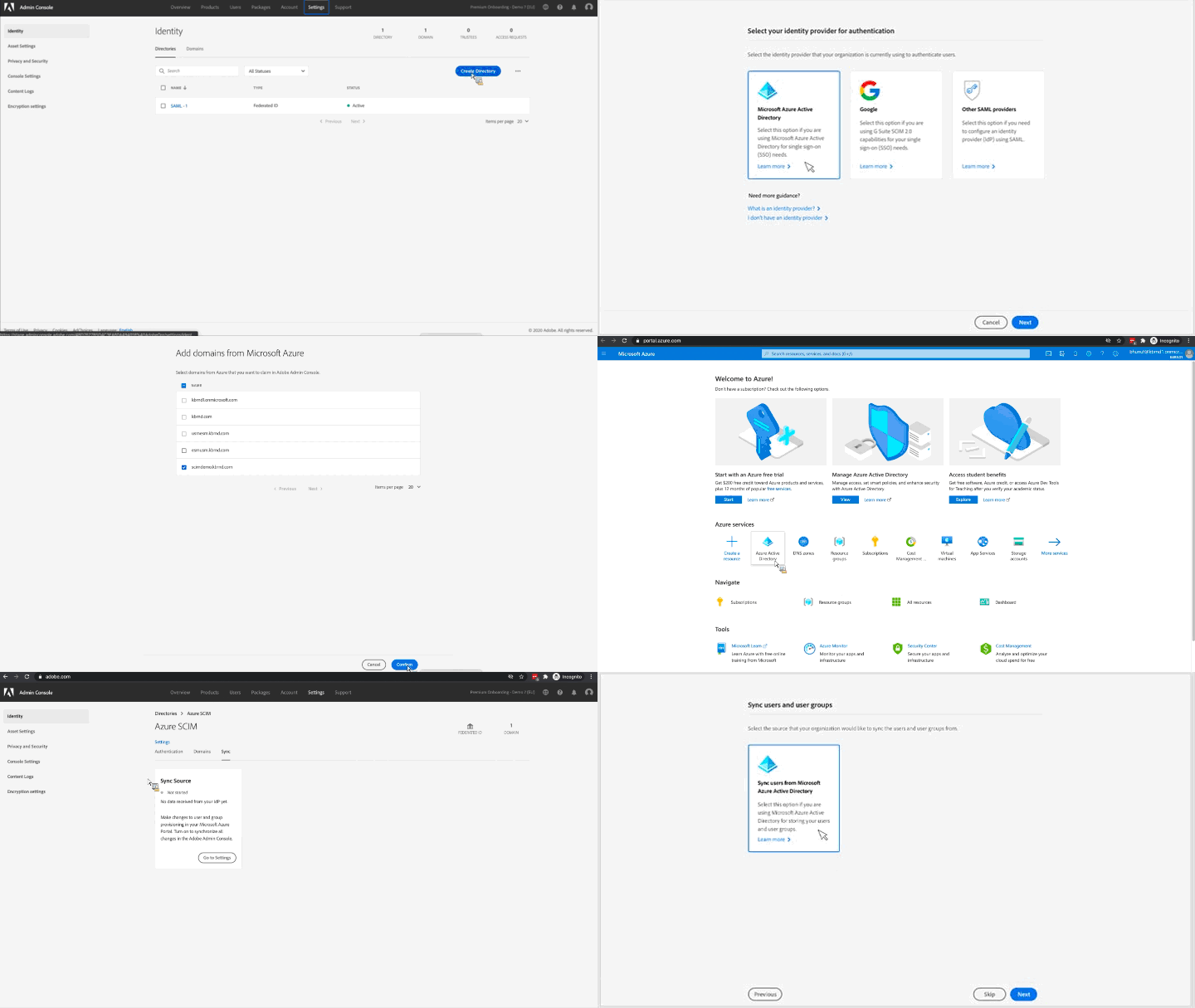
Adobe rolls out support for SCIM-based provisioning
At Microsoft Ignite, Adobe announced a private preview of SCIM standard-based app provisioning integration for its core Adobe Identity Management platform. The updated admin experience makes it easier to manage user lifecycles across Adobe Creative Cloud, Adobe Document Cloud, and Adobe Experience Cloud. We are excited to announce that this integration is now publicly available for all Adobe and Azure AD customers. Get started setting this up by going to the documentation here.
Protect legacy applications through new secure hybrid access partnerships
To help customers secure and manage access to their legacy authentication-based apps, we continue to expand our secure hybrid access partnerships. Our secure hybrid access partnerships allow our customers to use their existing application delivery networks, VPNs and software defined perimeter solutions to secure access to legacy applications.
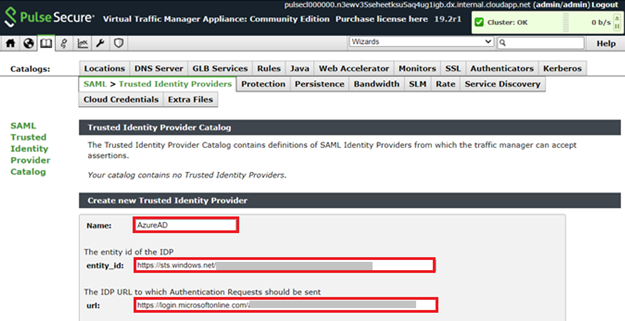
Pulse Secure SSO
One new solution that we recently added is Pulse Connect Secure. Pulse Connect Secure is a VPN solution that provides secure, authenticated access for remote and mobile users from any web-enabled device to corporate resources. With our integration, employees can easily sign-in to Pulse Connect Secure with their Azure AD credentials to access legacy application and admins can secure access to Pulse Connect Secure.
Enabling the move to passwordless
Weak passwords are a vulnerable attack vector for bad actors, which is why we are such strong advocates of passwordless technologies. According to Forrester, passwordless technology is top security trend that customers are evaluating to ensure secure yet easy to use experiences. To help customers adopt passwordless methods, including FIDO2 security keys, we’ve worked with hardware partners like Yubico to pilot a program to accelerate deployment of passwordless solutions through our services partners.
Yubico Passwordless Pilot Program
Services partners like System Integrators are an important catalyst to help customers accelerate their passwordless deployment. That’s why we’ve partnered with Yubico to provide services partners the ability to nominate their customers to pilot YubiKeys. Services partners can leverage our joint pilot program and receive 25 YubiKeys to deploy with customers. Here’s what one partner, Metsys, who has participated in the pilot program and deployed YubiKeys for Groupe Bel had to say:
“The passwordless campaign run by Microsoft and Yubico is the opportunity to show our customers the benefits of the YubiKeys in the Microsoft environment: a simplified user experience for a maximum level of security”- Laurent Cayatte, President of Metsys
New FIDO2 security keys from VinCSS
We are always seeking new partnerships with FIDO2 security key vendors who enhance our ability to provide customers with passwordless authentication options. We’ve recently added VinCSS, the cybersecurity affiliate of VinGroup in Vietnam, to our list of FIDO2 security key vendors that are compatible with our passwordless experience. With this latest addition, customers in Vietnam and Asia Pacific have another FIDO2 solution to go passwordless.
See you next year!
Look out next month for another update on how our partners are contributing to help enable a secure remote workforce and ensuring seamless access to all your apps and resources. Be sure to check out the Azure AD partner page to learn more about all the partnerships we have to help you with solving your identity needs.
Have a great holiday season and Happy New Year!
Best Regards,
Sue Bohn
Partner Director of Program Management
Microsoft Identity Division


Recent Comments