by Contributed | Dec 15, 2020 | Technology
This article is contributed. See the original author and article here.
As we approach the end of 2020, we wanted to take the opportunity to highlight some notable milestones for Microsoft Video Indexer. In recent months, we’ve added deep search for spoken words in multi-language videos and topics, lowered transcription costs, made enhancements to VI portal experience and more. The most notable advances we’ve made span the following areas:
- General availability (GA) of multi-language identification and transcription in Video Indexer
- Usability enhancements in Video Indexer portal experience addressing top customer feedback
- Extended functionality in the search API that enables search by topics
- Expanded region availability
GA of Multi-Language Identification and Transcription in Video Indexer
Video Indexer provides the unique capability of automating the identification of spoken languages within a video for transcription. This is especially useful when analyzing multi-language source content. This solution allows users to easily transcribe multi-language content without going through tedious manual preparation steps before starting the analysis. It saves time and money when it comes to processing large archives of videos. It also enables enhanced discoverability and improves accessibility.
By auto-detecting multiple languages before indexing your videos, Video Indexer simplifies the transcription and translation processes within your organization. In July, the multi-language identification capability was moved from preview to GA and is now ready for production use. There is no pricing impact from the “Preview to GA” transition. You can find a more detailed overview of this capability in this blog post. You can also refer to the Video Indexer documentation for full details.
New Portal Experience
The Video Indexer Portal is an out-of-the-box offering that allows customers to explore, learn, try, and even run limited Proof-of-Concepts (PoCs). It provides intuitive UI experience and is especially useful for low-scale scenarios such as video archives with 50 videos. We recently enhanced the portal offering with the addition of the following capabilities:
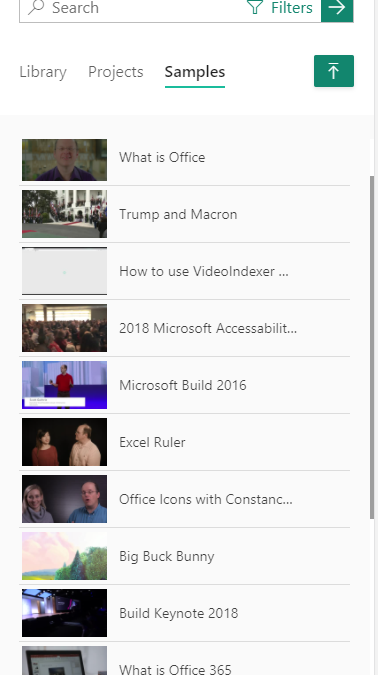
- The portal UI now supports mobile devices. By adapting to your mobile screen size (excluding customization UIs), the new portal gives you more seamless experience across the full range of desktop to mobile device form factors.
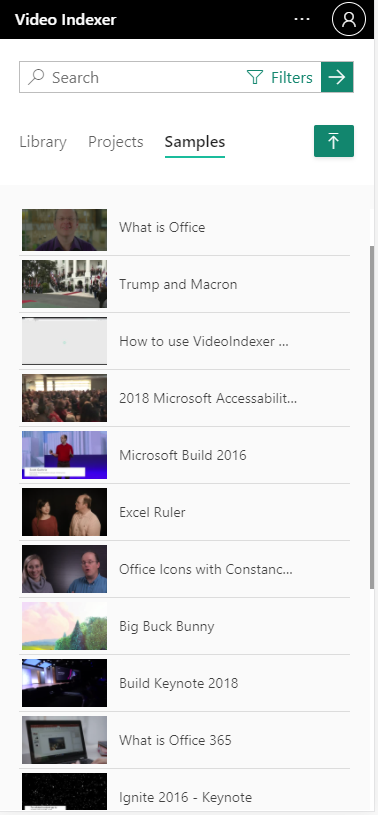
- The Video Indexer website experience is fully aligned with WCAG2.1, as part of Microsoft Accessibility standards. Several improvements related to keyboard navigation, programmatic access, and screen-reader were released to improve accessibility for our users.
- Improved Video Gallery. We now have a new search bar for deep insight search, with additional filtering capabilities and enhanced search results. The video gallery includes a new list of views with the ability to sort and manage video archives with multiple files (No API changes).
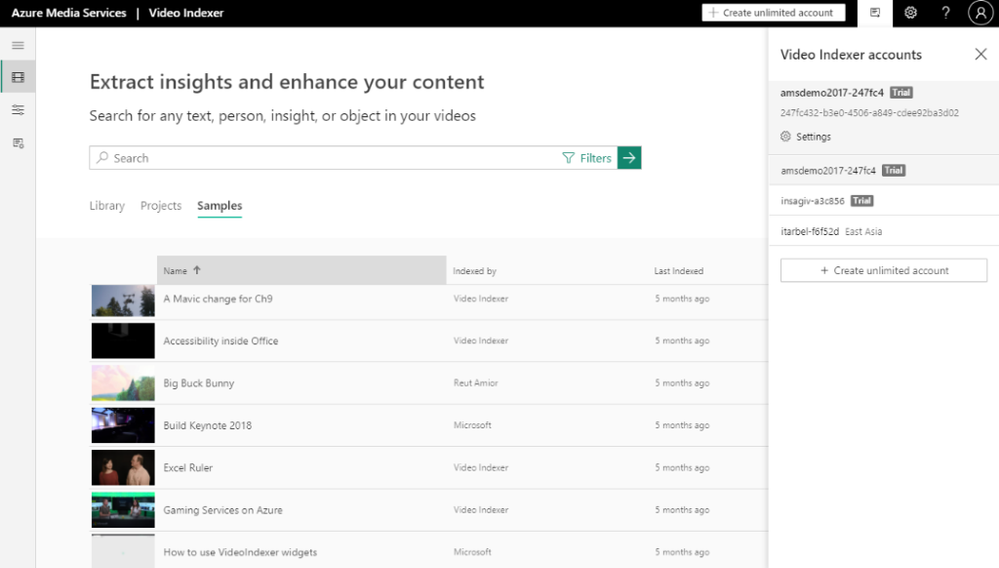
- There’s also a new side panel for easy selection and user configuration. It allows for simple and quick account creation and sharing and simplifies setting the configuration. The side panel is also used to provide convenient access to user preferences and help.
Search by Topics
We have enhanced the search API to enable searching on inferenced Topics to further enable you to optimize your search results. You can use the search API to search for videos with specific topics. Topics are added as part of the textScope (optional parameter).
Let’s say you have a video archive, and you would like to find videos in English-US only about web design, you would need to add the following request params: ‘&query=web+design’ (search for videos with all the words) and ‘&textScope=Topics’. You can use this C# sample or refer to the Video Indexer API documentation for more details and code samples.
using System;
using System.Net.Http.Headers;
using System.Text;
using System.Net.Http;
using System.Web;
namespace CSHttpClientSample
{
static class Program
{
static void Main()
{
MakeRequest();
Console.WriteLine(“Hit ENTER to exit…”);
Console.ReadLine();
}
static async void MakeRequest()
{
var client = new HttpClient();
var queryString = HttpUtility.ParseQueryString(string.Empty);
// Request headers
client.DefaultRequestHeaders.Add(“x-ms-client-request-id”, ””);
client.DefaultRequestHeaders.Add(“Ocp-Apim-Subscription-Key”, ”{subscription key}”);
// Request parameters
queryString[“sourceLanguage”] = ”en-US”;
queryString[“isBase”] = true;
queryString[“query”] = ”web+design”;
queryString[“textScope”] = ”Topics”;
var uri = ”https://api.videoindexer.ai/{location}/Accounts/{accountId}/Videos/Search?“ + queryString;
var response = await client.GetAsync(uri);
}
}
}
Video Indexer Region Availability in East US
Video Indexer paid accounts can now be created in the East US region. We will continue to expand our data center availability in the coming months. See the full list of regions that Video Indexer currently supports.
If you’re not already using Microsoft Video Indexer, please sign up for a free trial.
Got questions or feedback? We would love to hear from you!
by Contributed | Dec 15, 2020 | Technology
This article is contributed. See the original author and article here.
Update: Tuesday, 15 December 2020 22:17 UTC
Root cause has been isolated to new feature rollout which was causing duplicate notification when resource was unhealthy for some customer in the azure portal. Specifically, any metric alert names with non ascii characters see this impact. To address the issue, we’ve started mitigation to disable the feature. Some customers may continue to see notifications and we estimate 4 hours before all is addressed.
Root Cause: New feature rollout which was causing duplicate notification.
Incident Timeline: 14 day 23 hours – 12/01, 11:00 PM UTC through on going 12/15, 10:00 PM UTC
Next Update: Before 12/16 01:30 UTC
-Vincent
by Contributed | Dec 15, 2020 | Technology
This article is contributed. See the original author and article here.
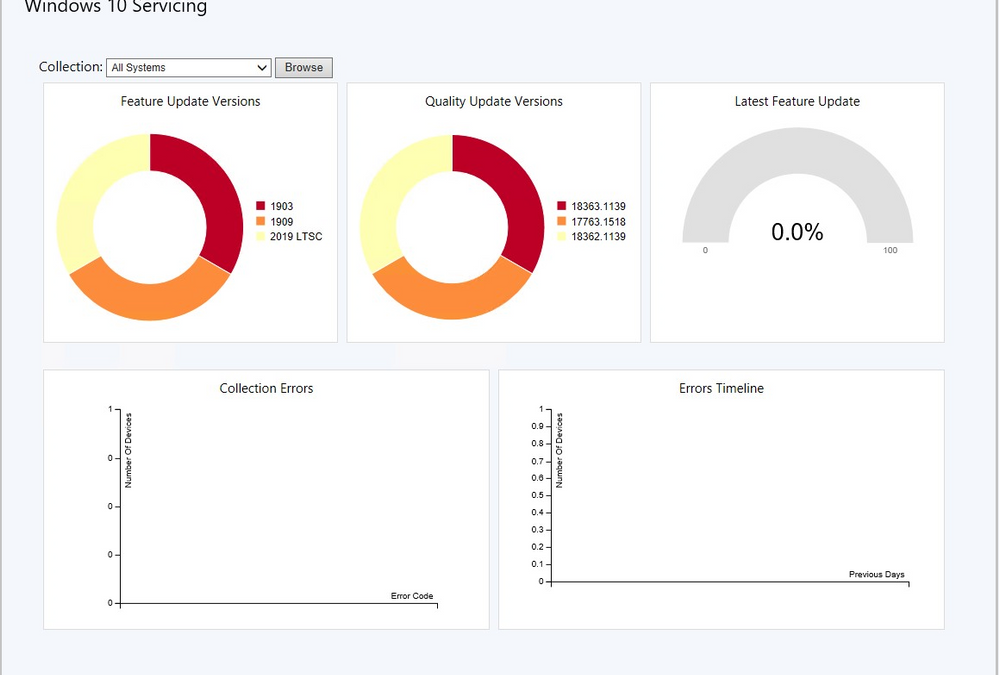
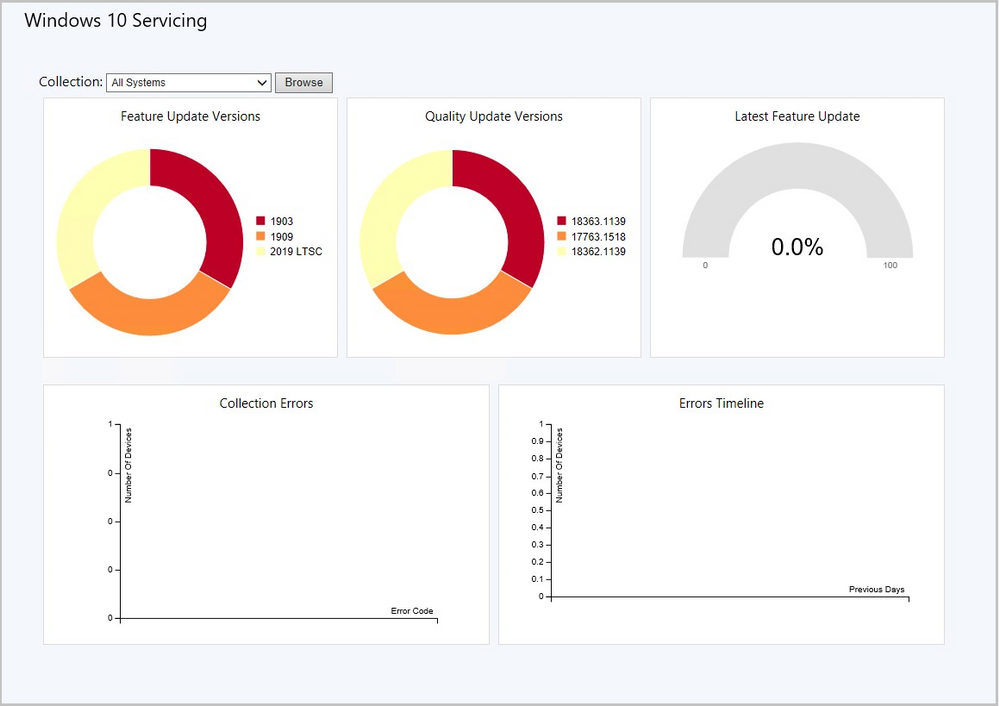
Update 2012 for the Technical Preview Branch of Microsoft Endpoint Configuration Manager has been released. We’ve simplified the Windows 10 Servicing dashboard to make it more relevant. The new Quality Update Versions chart displays the top five revisions of Windows 10 across your devices. The Latest Feature Update chart shows the number of devices that installed the latest feature update. The Windows 10 Usage chart, showing the distribution of Windows 10 major releases, was renamed to Feature Update Versions. Servicing plan and Windows 10 ring information were removed from the dashboard.
 Windows 10 Servicing dashboard
Learn more about the Windows 10 Servicing dashboard changes.
This preview release also includes:
Task sequence error shows more check readiness details – Based on your UserVoice feedback, the task sequence progress can now display more information about readiness checks. If a task sequence fails because the client doesn’t meet the requirements configured in the Check readiness task sequence step, the user can now see more details about the failed prerequisites. They still see the common “task sequence error” message, but can now select an option to Inspect. This action shows the checks that failed on the device.
Tenant Attach: Application details – When tenant attach is enabled, the applications pane in the Microsoft Endpoint Manager admin center will show an Error Description if the application status is Failed. The Learn more link for application installation error will take you to an article where you can review the code and troubleshooting steps.
Windows 10 Servicing dashboard changes – We’ve simplified the Windows 10 Servicing dashboard to make it more relevant. The new Quality Update Versions chart displays the top five revisions of Windows 10 across your devices. The Latest Feature Update chart shows the number of devices that installed the latest feature update. The Windows 10 Usage chart, showing the distribution of Windows 10 major releases, was renamed to Feature Update Versions. Servicing plan and Windows 10 ring information were removed from the dashboard.
Disable application deployments – Based on your UserVoice feedback, you can now disable application deployments. For device-based deployments, when you disable the deployment or object, use the client notification action to Download Computer Policy. This action immediately tells the client to update its policy from the site. If the deployment hasn’t already started, the client receives the updated policy that the object is now disabled.
Get console extensions from the Community hub – The Community hub now supports sharing extensions to the Configuration Manager console. When you get an extension from the hub, it’s available in a new Console extensions node in the console. Getting an extension from the hub doesn’t make it immediately available. First, an administrator has to approve the extension for the site. Then console users can install the extension to their local console.
Access the top queries shared in the Community hub from CMPivot– You can now access the top CMPivot queries shared in the Community hub from on-premises CMPivot. By leveraging pre-created CMPivot queries shared by the broader community, CMPivot users gain access to a wider variety of queries. On-premises CMPivot accesses the Community hub and returns a list of the top downloaded CMPivot queries. Users can review the top queries, customize them, and then run on-demand. This improvement gives a wider selection of queries for immediate usage without having to construct them and also allows information sharing on how to build queries for future reference.
Community hub support for application content – This release continues to iterate on the scenario to share apps via the Community hub. You can now download linked content for Windows Installer apps in the hub. This improvement helps you to easily get a fully functional app from the Configuration Manager community.
OneTrace support for jump lists – Support Center OneTrace now supports jump lists for recently opened files. Jump lists let you quickly go to previously opened files, so you can work faster.
There are now three methods to open recent files in OneTrace:
- Windows taskbar jump list
- Windows Start menu recently opened list
- In OneTrace from File menu or Recently opened tab.
Improved user experience and security with Software Center custom tabs – Since current branch version 1906, you can add up to five custom tabs to Software Center. These custom tabs let you give your users easy access to common web apps and other sites. Previously, to display websites Software Center used the Windows built-in Internet Explorer browser control. Starting in this release, Software Center can now use the Microsoft Edge WebView2 browser control. The WebView2 browser control provides improved security and user experience. For example, more websites should work with these custom tabs without displaying script errors or security warnings.
PowerShell release notes preview – These release notes summarize changes to the Configuration Manager PowerShell cmdlets in technical preview version 2012.
Update 2012 for Technical Preview Branch is available in the Microsoft Endpoint Configuration Manager Technical Preview console. For new installations, the 2010 baseline version of Microsoft Endpoint Configuration Manager Technical Preview Branch is available on the Microsoft Evaluation Center. Technical Preview Branch releases give you an opportunity to try out new Configuration Manager features in a test environment before they are made generally available.
We would love to hear your thoughts about the latest Technical Preview! Send us Feedback about product issues directly from the console and use our UserVoice page for ideas about new features.
Thanks,
The Configuration Manager team
Configuration Manager Resources:
Documentation for Configuration Manager Technical Previews
Try the Configuration Manager Technical Preview Branch
Documentation for Configuration Manager
Microsoft Endpoint Manager announcement
Microsoft Endpoint Manager vision statement
Configuration Manager Forums
Configuration Manager Support
by Contributed | Dec 15, 2020 | Technology
This article is contributed. See the original author and article here.
Hopefully, you had a chance to read Get a bird’s eye view of your data estate with Azure Purview Data Insights blog, to get an understanding of all that you can achieve with Azure Purview Data Insights. Below I offer a deeper dive into how you can convert the Data Insights into actionable measures.
Answer questions with Purview Insights
Imagine you are a member of the governance team in your company and you have a charter that requires all assets with Credit Card Number to be stored in a specific location within a database. Like most companies today, critical information is typically secured in a single location. But monitoring over time is a challenge.
With Azure Purview however, you can map and classify the data comprehensively. Here’s how we can help you ratify your earlier decision regarding critical information.
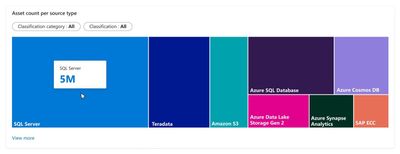
1) Start at Asset Insights. First, you see the data estate has multiple source types with millions of assets, which is expected. You pick classification category as Personal and classification as Credit Card Number. You notice, however, that Credit Card Number is stored in multiple locations including your petabyte sized data lake that is generously accessed. This violates your corporate credit card storage policy and must be addressed.
Figure 1
2) You dive into ADLS Gen 2 where you discovered data classified as Credit Card Number. Click on “View more” and pick ADLS Gen 2 from the list.
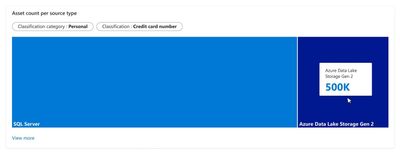
Figure 2
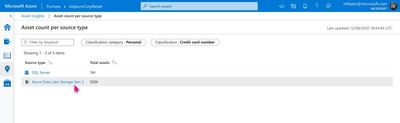
Figure 3
3) You can click on Asset count and view the list of assets that are classified as containing Credit Card Number.
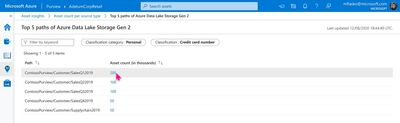
Figure 4
4) Contact the owners of the Data Lake – You can now find out the data owners by clicking on the assets from the list and contact them with next steps.
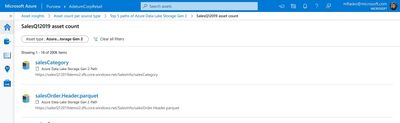
Figure 5
Conclusion
Azure Purview Data Insights helps you get a bird’s eye view of your data estate and deep dive into a specific area to answer a question or solve a problem.
Azure Purview Data Insights caters to a diverse set of users – from technical and business oriented users. Learn more about how we answer a business user’s questions using Glossary insights.
If you manage scans in Azure Purview, Insights can help you get an overview of all your scans through Scan insights. Learn more about Insights concepts today and Create an Azure purview account.
For more information, check out a demo of Azure Purview or start a conversation within the Azure Purview tech community.
More Resources
Read more about Azure Purview
Have a question? Check out our Frequently Asked Questions
by Contributed | Dec 15, 2020 | Technology
This article is contributed. See the original author and article here.
You’ve started scanning, classifying, and discovering the data at your company with Azure Purview. You’re now ready to engage with Azure Purview Data Insights – you can now assess data usage across your company with specific insights for data catalog administrators, data stewards, data officers, compliance and security officers. In Azure Purview Data Insights, you will gain access to important, eye-opening details about data residing in on-premises, multi-cloud and SaaS apps.
Azure Purview Data Insights creates a bird’s eye view across your data estate and allows you to drill into report data and take to understand your data, govern your data, govern your data glossary, and address anomalies in your data estate from inside the Azure Purview experience. Data officers and security officers can answer questions through Azure Purview Data Insights such as: what data does your company have, where is your company’s data, what classification of data is held within a data asset, what is the sensitivity of data in an asset, and how is my data estate changing over time. Let’s look at the Purview Data Insights reports you can check out right away!
Azure Purview Data Insights
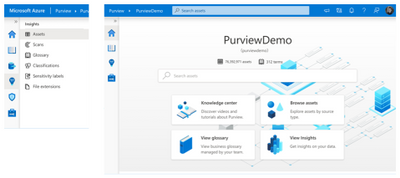
Azure Purview Data Insights can be found by navigating to the Insights icon.
Asset Insights
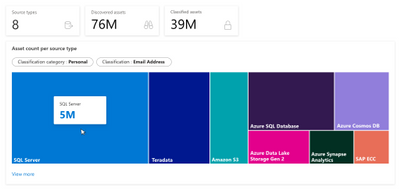
Asset insights provides a panoramic view across the data estate managed by Azure Purview. This experience offers insights into the progression of data assets including how many data sources have been scanned, how many assets were discovered, and how many discovered assets were classified. You can select a system- or user-defined classification and view the distribution of assets by source type, for the classification. For example, below shows the distribution of assets classified as ‘Email Address’. With View more, you can also see the top 5 folders containing the filtered classification.
For file-based assets (Azure Blob, ADLS Gen 1 and ADLS Gen 2), Asset Insights enables a deeper look into size and file type trends, as well as files not associated with resource sets. This enables you to quickly identify anomalies in data assets. For instance, if you have a specific resource set pattern for your ADLS Gen 2 account, use the “Assets without Resource set” graph to identify files that do not follow the resource set pattern. Asset Insights allows you to drill down and contact the asset owner to address the anomaly.
To learn more, visit Asset Insights documentation
Scan Insights
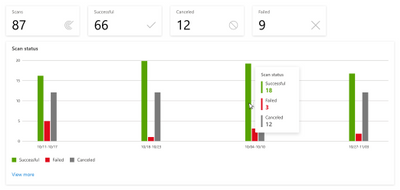
Scan insights provides a view of scan progress across the last 30 days. This allows you to gain insights about scans and understand when scans are failing. Scanning sets the stage for the additional insights. With View more, you can see scan names by count of successful, canceled, and failed scans. If you want to drill deeper, Insights can help you navigate to scan history to see exactly when the scans were run with a failed, canceled, or successful outcome.
To learn more, visit Scan Insights documentation
Glossary Insights
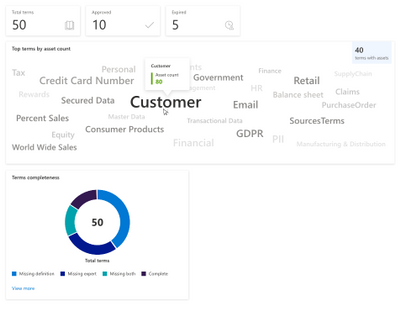
A glossary provides a vocabulary for business users to manage business terms attached to assets. Glossary Insights enables you as a business user, to understand total terms in the glossary, count of approved and expired terms and understand the usage of terms applied to assets. Glossary Insights also helps business users complete their glossary by showing terms with missing experts or stewards. With View more, you can see which terms are missing information and you can navigate to Glossary to remediate immediately.
To learn more, visit Glossary Insights documentation
Classification Insights
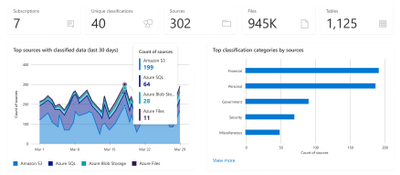
Classification insights help you understand the types of information found in your organization’s data estate, and where classified data is located. In Azure Purview, classifications are used to identify content of a specific type in your data estate.
Classifications insights showcase what set of assets contain sensitive information types like Credit Card information, SSNs and email addresses were found. .Use the report to identify data with specific classifications and understand required actions, such as adding additional security to the repositories, or moving data to a more secure location.
To learn more, visit Classification Insights documentation
Microsoft Information Protection sensitivity labels Insights
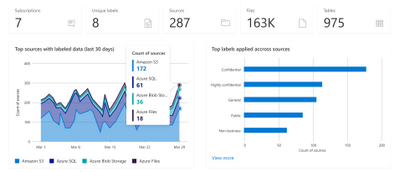
Microsoft Information Protection sensitivity labels enable you to classify and protect your organization’s data, while ensuring user productivity and their ability to collaborate isn’t hindered. With Azure Purview, you can now extend these sensitivity labels to your Azure assets and gain insights into the state of your data. Sensitivity labels insights provide you an overview of the sensitivity labels applied in your data estate, as well as a drilldown to the labeled files and databases.
To learn more, visit Sensitivity label insights documentation
File Extensions Insights
After scanning your assets, Azure Purview will detect the file types found in your data estate and provide you with details about each file type as part of File Extensions Insights report. Use the report to identify how many different file types you have, how many files of each type are found, where those files are, and whether they can be scanned for sensitive data or not.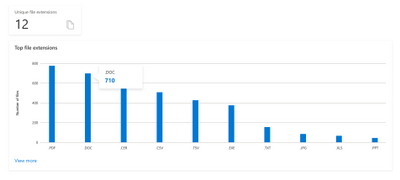
To learn more, visit File extension Insights documentation
Filter for Close-up Insights
Each set of Insights offers you the ability to filter to dimensions that help you understand your data estate. Use the time, source type, file type, classification category, and classification to customize the report. Please read about these concepts in the documentation here

Conclusion
Azure Purview data insights offers a wealth of information to help you understand your data. From the panoramic view across your data of Asset Insights to in-depth view to act on specific assets to understanding the sensitivity of data with Classification Insights and Sensitivity Labels.
Create an Azure Purview account today and start understanding your data supply chain from raw data to business insights with free scanning for all your SQL Server on-premises and Power BI online.
For more information, check out a demo of Azure Purview or start a conversation within the Azure Purview tech community.
Read More
Read more about Azure Purview
Have a question? Check out our Frequently Asked Questions


Recent Comments