by Contributed | Dec 16, 2020 | Technology
This article is contributed. See the original author and article here.
Configuring transactional replication with Azure SQL Managed Instance there are some limitations that we need to take into consideration. One of them is that both the publisher and distributor need to be placed either on Managed Instance or on the on-premises server. The other requirements can be found here.
In the docs there are already covered two types of topologies:
- Azure SQL Managed Instance Publisher, Distributor and Subscriber
- Azure SQL Managed Instance Publisher and Distributor, Azure SQL VM Subscriber
In this article we will focus more on the scenario in which instead of a Azure SQL VM Subscriber, we will have an on-premises Subscriber. Being similar to the second above topology type the steps will also be alike, after configuring the on-premises and Managed Instance servers we need to do the following:
After that comes the create subscription step where the difference will be in the @subscriber parameter. For an on-premises subscriber we will not need a private DNS zone so the syntax will be similar to this:
use [ReplTutorial]
exec sp_addsubscription
@publication = N'ReplTest',
@subscriber = N'OnPremServerName',
@destination_db = N'ReplSub',
@subscription_type = N'Push',
@sync_type = N'automatic',
@article = N'all',
@update_mode = N'read only',
@subscriber_type = 0

exec sp_addpushsubscription_agent
@publication = N'ReplTest',
@subscriber = N'OnPremServerName',
@subscriber_db = N'ReplSub',
@job_login = N'azureuser',
@job_password = '<Complex Password>',
@subscriber_security_mode = 0,
@subscriber_login = N'azureuser',
@subscriber_password = '<Complex Password>',
@dts_package_location = N'Distributor'
GO
Common issues
- Failed to connect to Azure Storage
2019-11-19 02:21:05.07 Obtained Azure Storage Connection String for replstorage 2019-11-19 02:21:05.07 Connecting to Azure Files Storage ‘replstorage.file.core.windows.netreplshare’ 2019-11-19 02:21:31.21 Failed to connect to Azure Storage ” with OS error: 53.
Recommendations:
– Ensure that the port 445 is open in the outbound security rules of the Network Security Group (NSG) that your Managed Instance is using
– Check Distributor properties as below:
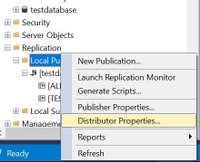
Right-click on Local Publications and access Distributor properties:
After that access the Publishers page and press on the below highlighted area:
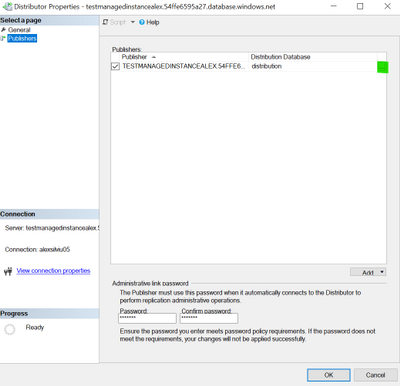
After that you should have a window similar to this:
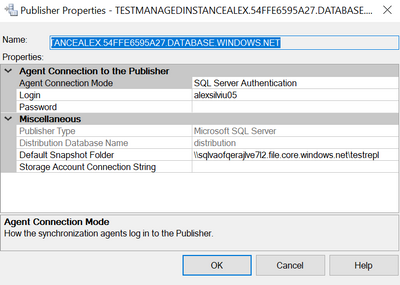
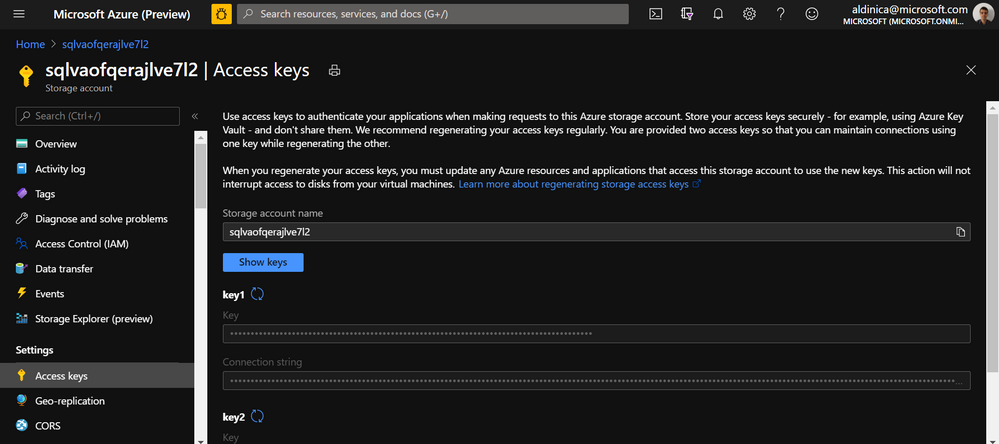
In here please check that the Default Snapshot Folder is in the correct format and for the Storage Account Connection String you can also re-enter it here from here:
More details on this error are accessible here Failed to connect to Azure Storage.
- Could not connect to Subscriber
Error messages:
The process could not connect to Subscriber ‘REPLMITOVM.REPLDNS.COM’. (Source: MSSQL_REPL, Error number: MSSQL_REPL0)
Get help: http://help/MSSQL_REPL0
Named Pipes Provider: Could not open a connection to SQL Server [53]. (Source: MSSQLServer, Error number: 53)
Get help: http://help/53
A network-related or instance-specific error has occurred while establishing a connection to SQL Server. Server is not found or not accessible. Check if instance name is correct and if SQL Server is configured to allow remote connections. For more information see SQL Server Books Online. (Source: MSSQLServer, Error number: 53)
Get help: http://help/53
Query timeout expired, Failed Command: (Source: MSSQLServer, Error number: HYT00)
Get help: http://help/HYT00
Recommendations:
– Ensure that the port 1433 is open in the outbound security rules of the Managed Instance NSG
– As an alternative to T-SQL script mentioned here you can also add the subscription directly from the GUI of SSMS:
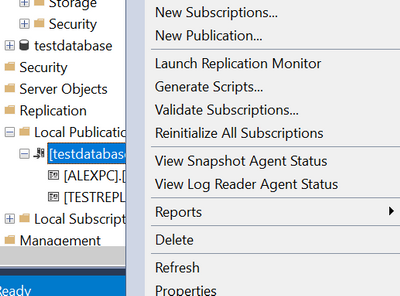
Right-click on the publication and click New Subscriptions
Click Next, select the publication name and click Next, Run all agents at the Distributor, Add SQL Server Subscriber:
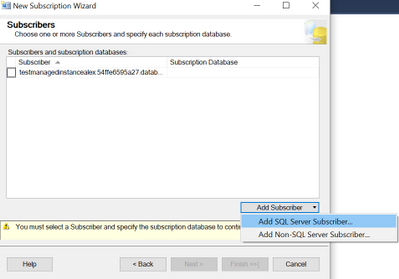
Here we will need to connect to the on-premises server with SQL Authentication as mentioned in the first part of the requirements.
After the subscription was added click on the highlighted area below:
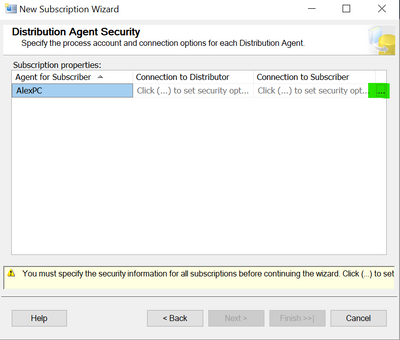
On the top part use login that you are using for the distributor (SQL login that you are accessing the Azure SQL Managed Instance) and on the bottom part of the window enter the SQL login used previously to access the on-premises server.
After that you can leave the Synchronization Schedule together with the Initialize Subscription steps as default and Finish the New Subscription Wizard.
As a short summary the recommendations for the Could not Connect to Subscriber error would be:
- Ensure that the port 1433 is open and that the other requirements are met
- Try as an alternative to add the subscription with SSMS
- Provide the IP address of the on-premises server in the sp_addsubscription stored procedure
- Check if the @@SERVERNAME is the same with SERVERPROPERTY(N’servername’)
SELECT SERVERPROPERTY(N'servername')
SELECT @@SERVERNAME
If the results are different this can be fixed by using this script:
DECLARE @actualname NVARCHAR(100)
DECLARE @currentname NVARCHAR(100)
SELECT @actualname = CONVERT(NVARCHAR(100), SERVERPROPERTY(N'servername'))
SELECT @currentname = @@SERVERNAME
EXEC sp_dropserver @currentname
EXEC sp_addserver @actualname, local
Reference article: SQL SERVER – FIX – Replication Error: SQL Server replication requires the actual server name to make a connection to the server
More details about the Could not connect to Subscriber error can also be found here.
by Contributed | Dec 16, 2020 | Technology
This article is contributed. See the original author and article here.
As part of this year’s Festive Tech Calendar event which is being run by Gregor Suttie and Richard Hooper, myself and a couple of my colleagues will be doing a fun Q&A or Ask Me Anything session.
On the 16th December at 3pm UK time, 4pm Switzerland time and 10am Ottawa time, myself, Pierre Roman and Thomas Maurer will be answering your questions on Azure, Hybrid Cloud, Windows Server or we are happy to take questions on our home office setups, what certification tips we have, or what our favourite Christmas movie is.
The stage is open for you to ask us a question and we’ll try and answer it. This session will be an hour long and we’d love to have you all join us LIVE.
You can tune into the event on our YouTube channel, be sure to hit that reminder button so you are reminded of the event, or download the calendar ICS file here and add it to your diary and block out that time. :calendar:
The recording will be available on demand after the live event so if you aren’t able to tune in but would love to ask a question please drop it in the comments below and we’ll try our best to get to it and you can watch the recording for the answer. ;)
A massive thank you to Gregor and Richard for organising this event and for all those that have contributed so far this month.
by Contributed | Dec 16, 2020 | Technology
This article is contributed. See the original author and article here.
PROBLEM:
I began configuring a Windows Server 2019 Storage Space Direct (S2D) cluster using 3 virtual machines running on a physical Windows 2019 Hyper-V server. I started the installation using Windows Admin Center (v2009 Bld: 1.2.2009.21002) Cluster Creation wizard. I selected the Windows Server Deploy a failover cluster to run VMs or cluster roles and apps on Windows Servers option. I filled in all the screen information until I got to the end of the Networking: Virtual Switch page. When I clicked Next: Clustering it took me to the Validate Cluster page and presented the following error:
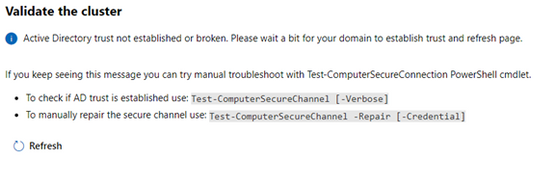
Active Directory trust not established or broken. Please wait a bit for your domain to establish trust and refresh page…
The error message leads you to believe there is an Active Directory trust relationship issue with at least one of the nodes. Therefore, I started testing the nodes trust relationships with Active Directory. I confirmed all the nodes were in the domain and had connectivity with each other and the domain. Running the Test-ComputerSecureChannel command confirmed all the connections and did not show any errors. I could not find any issues with the trust relationship between the nodes and Active Directory.
SOLUTION:
The time zone was off/misconfigured on one of the nodes. I corrected it, the error went away, and I was able to proceed to Validate the cluster.
Therefore, confirm that the trust relationship with the nodes in the cluster and Active directory is healthy.
If they are all set properly, ensure that the time zone is the same on all S2D nodes. If necessary, set the time zone to the same zone on all the cluster nodes. If it is different on even one of the nodes, you will get the error when entering the Validate Cluster page.
And that is it. The steps above were successful in resolving the issue I had with the S2D-Active Directory trust not established or broken… I hope this post saves you time if you ever encounter these errors.
by Contributed | Dec 15, 2020 | Technology
This article is contributed. See the original author and article here.
Scenario:
Within Logic App constructing a string variable – sendtosftp
Using this data creating a new file on the SFTP server.
If the constructed variable size exceeds 50 MB size limit, get an error similar to:
{
“status”: 400,
“message”: “The provided file size ‘58100000’ for the create or update operation exceeded the maximum allowed file size ‘52428800’ using non-chunked transfer mode. Please enable chunked transfer mode to create or update large files.rnclientRequestId: xxxxxxxx-xxxx-xxxx-xxxx-xxxxxxxxxxxx”,
“error”: {
“message”: “The provided file size ‘58100000’ for the create or update operation exceeded the maximum allowed file size ‘52428800’ using non-chunked transfer mode. Please enable chunked transfer mode to create or update large files.”
},
“source”: “sftpwithssh-eus.azconn-eus.p.azurewebsites.net”
}
This issue happens even though “Allow Chunking” property is set to “On”.
Resolution:
Before sending the data to SFTP, create a Componse action and set its value to the previous string variable.
Add the “body” to the Compose action.
e.g.
“Compose”: {
“inputs”: {
“body”: “@variables(‘sendtosftp’)”
},
“runAfter”: {
“Until”: [
“Succeeded”
]
},
“type”: “Compose”
},
“Create_file”: {
“inputs”: {
“body”: “@body(‘Compose’)”,
by Contributed | Dec 15, 2020 | Technology
This article is contributed. See the original author and article here.
Today we are excited to announce the public preview of two new highly desired features, Availability Zone spanning using a single VMSS, and stateless node types!
Availability Zone spanning using a single VMSS
We are simplifying the deployment of Service Fabric clusters which span availability zones by enabling you to create a zone spanning cluster using a single VMSS. Previously it was required that you deploy three independent scale sets with each one pinned to a single zone. It is now possible to create the same cluster topology using a single VMSS greatly simplifying the deployment and management of these clusters.
Use it today!
To try out availability zone spanning using a single VMSS, see the documentation and sample templates.
Stateless Node Types
Stateless node types are a new property which will only place stateless services on the specific node type. This enables several benefits for stateless workloads:
- Faster scale out operations.
- Support for scale sets with greater than 100 nodes. (Support for >100 nodes in a scale sets to simplify meeting demand)
- Support for VMSS Automatic OS upgrades on bronze durability to further simplify OS patching.
Use it today!
To try out stateless node types, see the documentation and sample templates.
Use it, and tell us about it
As with other previews, the public preview features should not be used for production workloads until they reach general availability.
We look forward to hearing your feedback on these new capabilities. Please provide feedback via GitHub here with any features or issues you encounter.


Recent Comments