
by Contributed | Nov 6, 2020 | Technology
This article is contributed. See the original author and article here.

SharePoint vs. Microsoft Teams: Why They’re Better Together
Norm Young is an Office Apps & Services MVP working as the Director of Collaborative Analytics at UnlimitedViz, the makers of tyGraph. He is focused on SharePoint and the Power Platform and shares his passion through his blog and speaking at conferences. Norm is also an active community contributor and helps to organize the Citizen Developers User Group. Follow him on Twitter @stormin_30 and visit his blog.

MODERN DATAWAREHOUSE DYNAMICS365 FINANCE AND OPERATIONS
Aurelien Clere is a French global solutions architect who has worked for more than 10 years in Microsoft Business Applications. Recently, Aurelien has been working to best leverage Dynamics 365 Finance and Operations with the Power Platform, as well as Azure components (Data Lake, Synapse, Cognitive Services, Integration Services). For more, visit his Twitter @aurelien_clere

SQL Server function to calculate a GS1 barcode check digit
Sergio Govoni is a graduate of Computer Science from “Università degli Studi” in Ferrara, Italy. Following almost two decades at Centro Software, a software house that produces the best ERP for manufacturing companies that are export-oriented, Sergio now manages the Development Product Team and is constantly involved on several team projects. For the provided help to technical communities and for sharing his own experience, since 2010 he has received the Microsoft Data Platform MVP award. During 2011 he contributed to writing the book: SQL Server MVP Deep Dives Volume 2. Follow him on Twitter or read his blogs in Italian and English.

What’s SharePoint Syntex in a nutshell?
Mohamed El-Qassas is a Microsoft MVP, SharePoint StackExchange (StackOverflow) Moderator, C# Corner MVP, Microsoft TechNet Wiki Judge, Blogger, and Senior Technical Consultant with +10 years of experience in SharePoint, Project Server, and BI. In SharePoint StackExchange, he has been elected as the 1st Moderator in the GCC, Middle East, and Africa, and ranked as the 2nd top contributor of all the time. Check out his blog here.

Windows Admin Center and The Container Extension #WAC #Containers #Winserv
James van den Berg has been working in ICT with Microsoft Technology since 1987. He works for the largest educational institution in the Netherlands as an ICT Specialist, managing datacenters for students. He’s proud to have been a Cloud and Datacenter Management since 2011, and a Microsoft Azure Advisor for the community since February this year. In July 2013, James started his own ICT consultancy firm called HybridCloud4You, which is all about transforming datacenters with Microsoft Hybrid Cloud, Azure, AzureStack, Containers, and Analytics like Microsoft OMS Hybrid IT Management. Follow him on Twitter @JamesvandenBerg and on his blog here.
by Contributed | Nov 6, 2020 | Technology
This article is contributed. See the original author and article here.
I ran into a problem that I would like to share with everyone in hopes that this will save you some time if you ever run into it.
PROBLEM:
I have recently been working with virtualized SDNv2 networks. I create a virtual network to test some security settings in an Active Directory forest. In my configuration, I have two Hyper-V servers (HV1 and HV2) configured as standalone systems (No Clusters). SCVMM 2019 was used to configure virtual switches that are configured/managed between the NICs on the Hyper-V hosts. On HV1, I added two VMs (DC1 and DC2) and created a Windows 2019 forest (CONTOSO.LOCAL).
I then created a test VM (W10-01) on HV2. I connected the W10-01 VM to the same virtual network as DC1 and DC2. I then attempted to join W10-01 to the CONTOSO.LOCAL domain. The domain join failed with the following error:
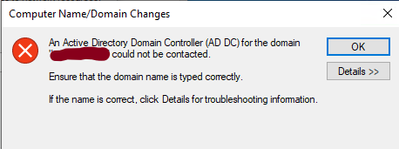
I then tried to ping the domain from the W10-01 VM by using the FQDN (CONTOSO.LOCAL) and it failed. Pinging the IP address of the DCs or any other IP address on the subnet is successful. It is also successful from any systems on the virtual network on HV2 to the W10-01 VM using the IP address.
At this point I started thinking it’s a firewall blocking issue. Therefore, I turned off the firewall on the DC and the W10-01 system, but this did not resolve the problem. The symptoms would lead you to believe it is a DNS related problem because all DNS queries from the W10-01 on HV2 fails.
CAUSE:
The problem is not the DNS servers. It turned out to have nothing to do with DNS. After working with some very smart networking engineers, we determined the packets being sent from the W10-01 VM on HV2 was being dropped by the VMs on HV1. When the VMs on the virtualized network on HV2 sends a packet to a VMs on HV1, it traverses the NIC in the Hyper-V host, its then analyzed by the VM and determines the checksum is invalid and drops it.
The checksum can be handled by the NIC card if the card has the proper Checksum Offloading (IE…VXLAN Encapsulated Task Offload) option under the Advanced property of the NIC card. My Broadcom NetXtreme Gigabit NIC cards did not. Below is a packet captured on the DC1 VM on HV1 while a Nslookup was being ran on the W10-01 VM on HV2. Notice the reason for the dropped packet below:
0]0000.0000::2020-10-01 15:12:43.723000200 [Microsoft-Windows-TCPIP]TCPIP: Transport (Protocol UDP , AddressFamily = IPV4 ) dropped 1 packet(s) with Local = 192.168.4.4, Remote = 192.168.4.21. Reason = Checksum is invalid.
SOLUTION
You have two options to resolve this issue:
OPT#1 – The first option is to place all the VMs on a particular virtual network on the same Hyper-V host. With this option, the packets never go through the NICs in the Hyper-V host therefore, you avoid the issue with the packets and the checksums offloading.
OPT#2 – The second option is to replace the NICs in the Hyper-V host with ones that supports Checksum Offloading (VXLAN Encapsulated Task Offload) properly.
My NICs did not support the checksum offloading option to correct the problem so I moved the W10-01 VM to Hyper-V host (HV1) the DCs VMs are on and now I can join the system to the Active Directory domain and all is well.
And that is it. The steps above were successful for me to resolve the issue with joining the system to the domain. I hope this post saves you time if you ever encounter these errors.
by Contributed | Nov 6, 2020 | Technology
This article is contributed. See the original author and article here.
Related Content:
Enable User and Entity Behavior Analytics (UEBA) in Azure Sentinel
Introducing User and Entity Behavior Analytics (Public Preview)*UEBA is now Generally Available
@Cristhofer Munoz @Itay Argoety @joross
In today’s cybersecurity landscape, bad actors have almost made a game of trying to breach through various defenses, as defense tools are becoming obsolete. Today, organizations have such a vast and porous digital estate that it has become unmanageable to obtain a comprehensive picture of the risk and posture their environment may be facing. As organizations focus heavily on reactive efforts such as analytics and rules, bad actors are quickly finding ways to evade them. This is where UEBA comes to play by providing risk scoring methodologies and algorithms to figure out what is really happening.
What is UEBA in the context of Azure Sentinel?
Within Azure Sentinel we leverage UEBA to get an understanding of the behavior of entities. For more introductory information on UEBA capabilities in Azure Sentinel and how to enable the feature please view the above referenced blog post. The focus of this blog will be to share major customer scenarios and entry points where UEBA has been used to investigate and mitigate malicious activity
USE CASES FOR UEBA
1. Proactive Routine Search on entities (UEBA Workbook)
The following use case comes into play by leveraging the Azure Sentinel’s UEBA workbook to proactively look for information on the user activity (this information is usually the top users, different anomalies/ incidents attached to the user) and this is definitively used to create leads for investigation.
You can find additional information on the UEBA workbook here .
For example, while leveraging the UEBA Workbook, we have the ability to surface the top risky users with Incidents and anomalies. We can also narrow down the security review to specific users and determine whether the subject has indeed been compromised or whether it’s an insider threat due to action deviating from the profile .
Additionally, we are able to capture non routine actions in the UEBA workbook which can be leveraged to determine anomalous activities and potentially non-compliant practices e.g. a user connecting via a VPN connection while his/her behavior denotes never having done so before.
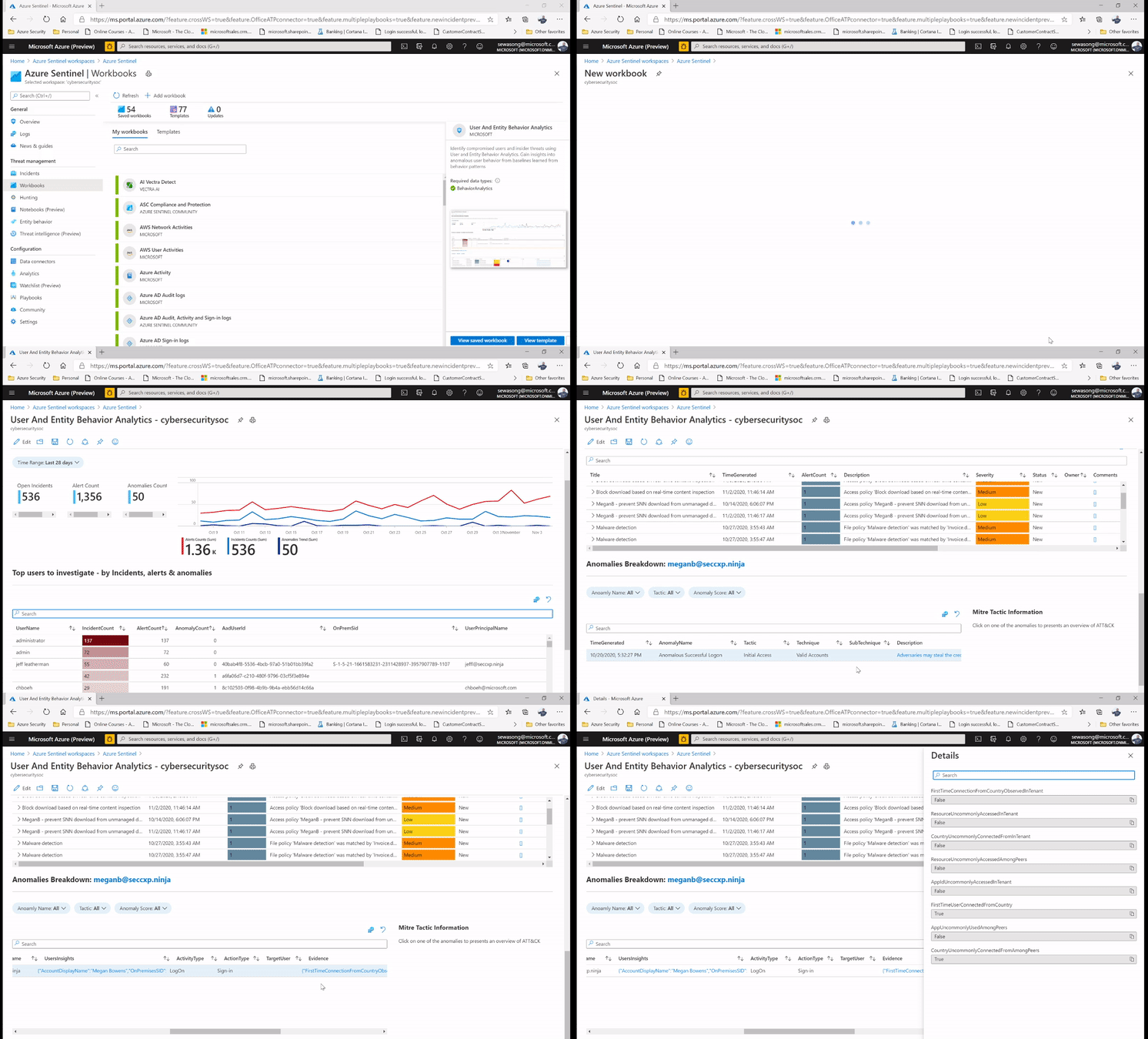
Figure 1: SecOps analyst investigating the top user leveraging UEBA workbook.
2. Leveraging UEBA for False Positive analysis during incident investigation
The investigation process allows the user the ability to get a detailed overview of incidents that are captured. Through the incident panel one can gain visibility of the entities involved in the incident – this is important due to the fact that one can easily determine which entities are involved in the incident and narrow down your remediation activities to them.
Now, in certain scenarios the incident captured could be of a false positive nature, a common example for this is the frequent incident of impossible travel activity as seen in the image below:
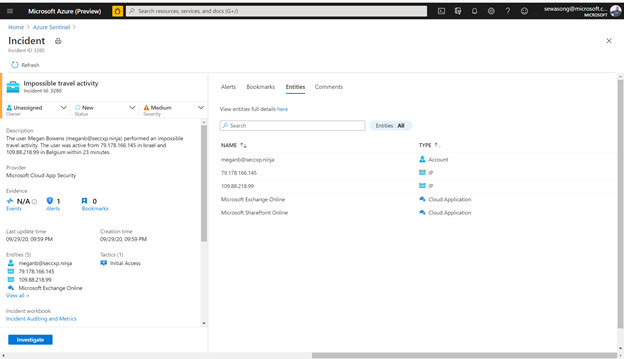
Figure 2: impossible Travel activity alert /incident
In this scenario we have an incident indicating that a user – meganB@secxp.ninja has either logged on to an application/ portal through multiple destinations within a short period of time, deeming that the user wouldn’t have been able to travel between locations within the time period. By clicking “investigate” on the Impossible travel activity incident, a security analyst will be able to determine the scope of the potentially malicious activity as seen below:
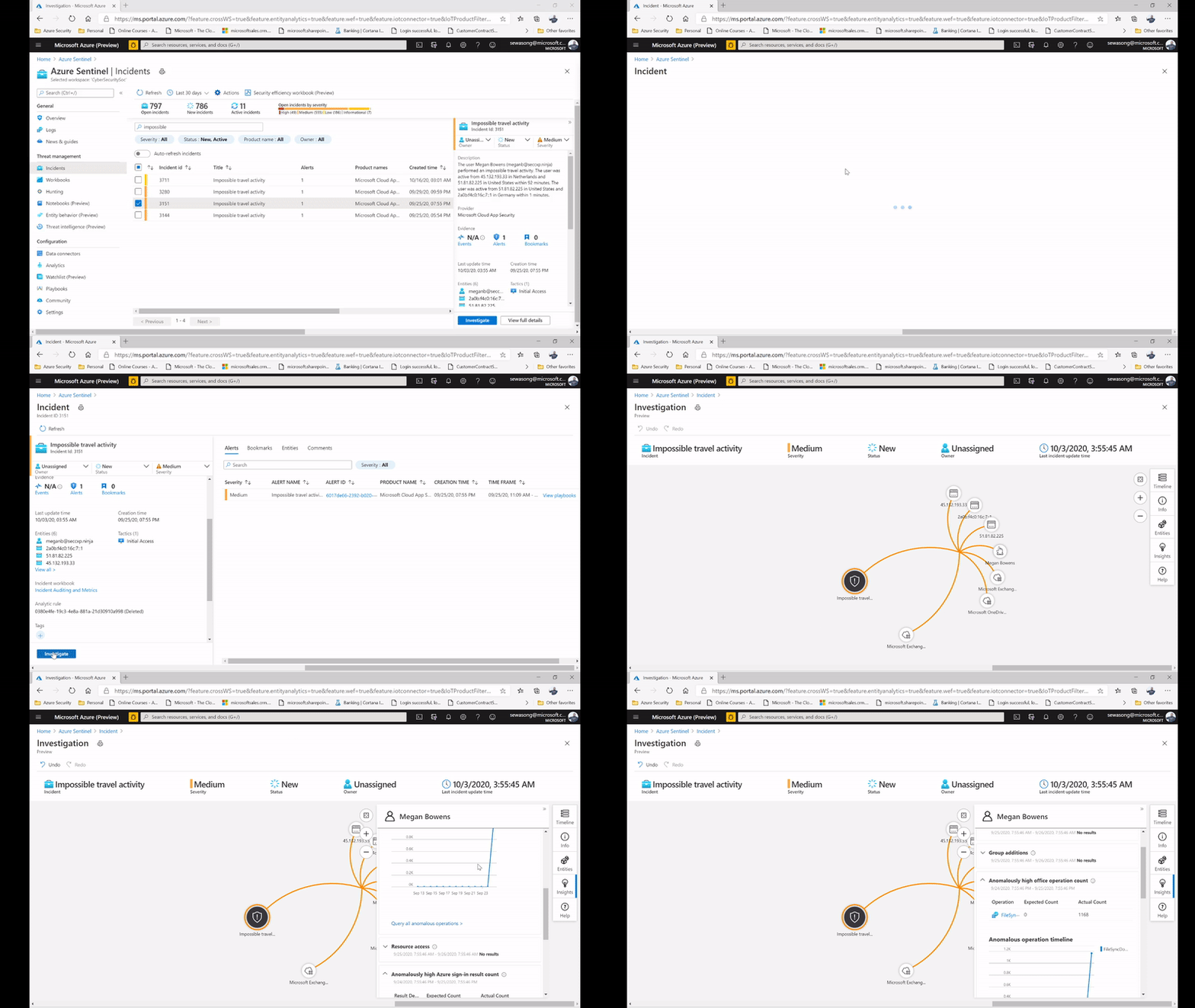
Figure 3: impossible Travel activity alert /incident and leveraging the Insights on investigation.
Azure Sentinel captures this as an anomaly, however after confirming with the user directly we realize that a VPN connection was used, and this provided an alternative location to where the user actually was. In the figure below, we can then leverage the user page, and its timeline, to drill down to the user and determine whether the locations captured are part of their commonly known locations.
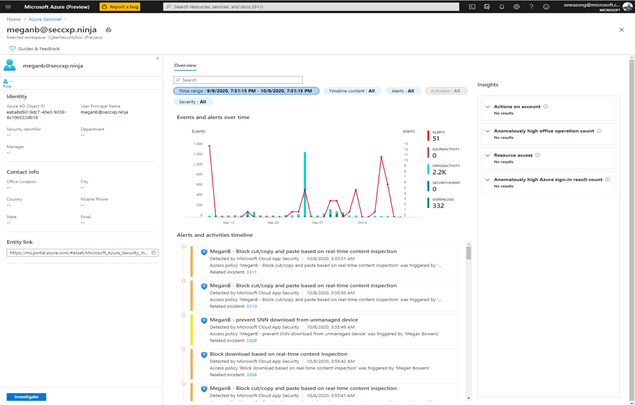
Figure 4: UEBA Entity page for the user meganb@seccxp.ninja
After gaining insights from the Users entity page (powered by UEBA) we can then proceed to close the incident and label it as a false positive. Azure Sentinel’s UEBA capabilities can provide ML powered insights after being enabled for 1 week.
Another entry point for investigation is by leveraging a UEBA hunting query, the hunting query in this example is known as Anomalous Geo Location Logon. The hunting query picks critical information such as user insights, device insights and activity insights of defined users that helps with the identified scenario.
Additionally using a simple query we can discover her peers usually connect from the same locations as well – making it even clearer that it’s a false positive This can be showcased in the following figures below:
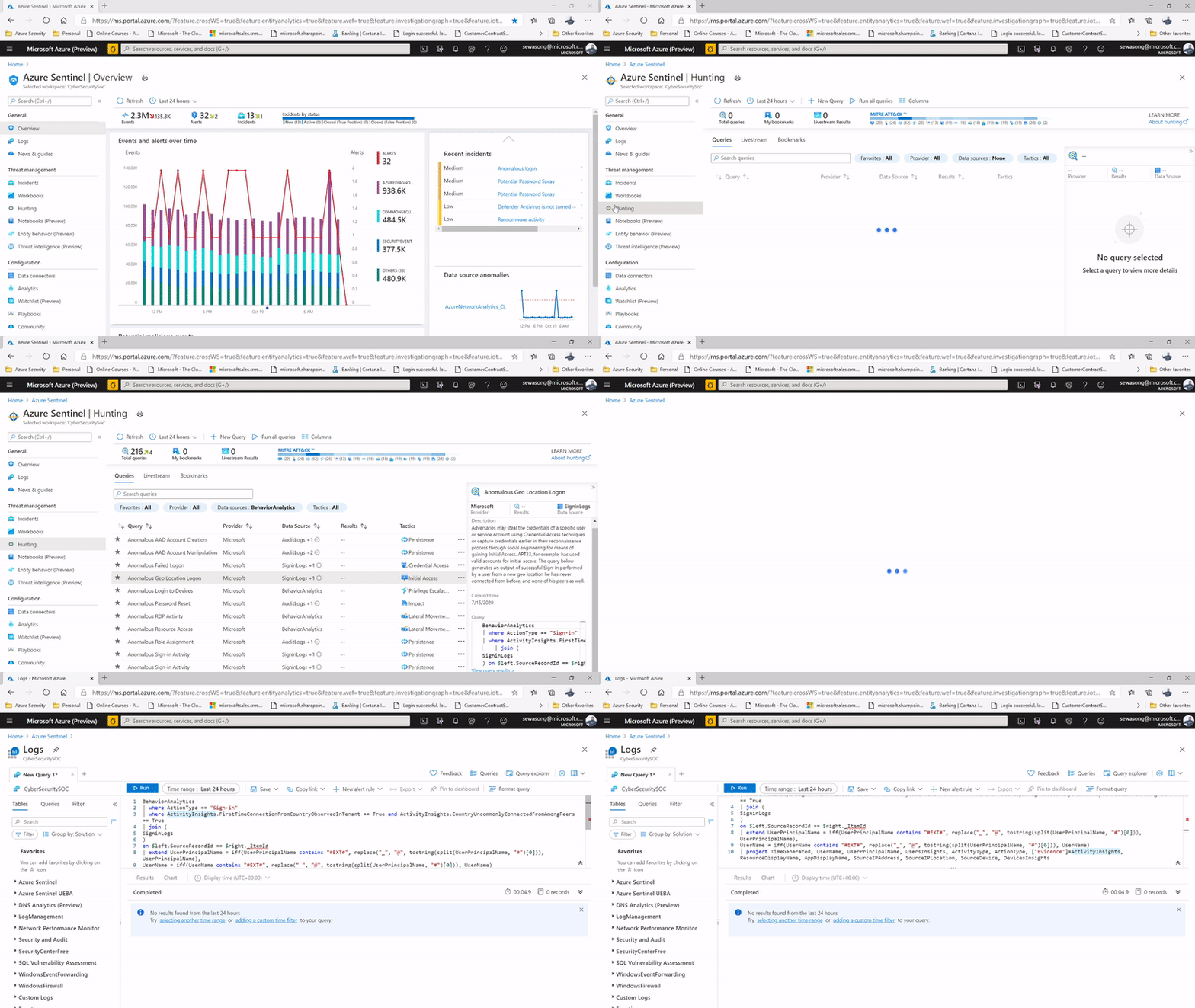
Figure 5: Geo Location Anomaly Hunting Query & hunting query capturing information on user insights, device insights & activity insights.
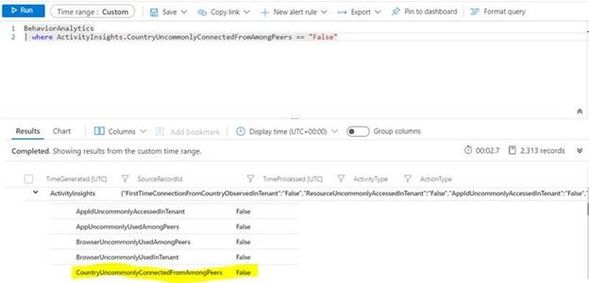
Figure 6: Hunting Query capturing uncommon logins based on Peers
3. Identify Password Spray and Spear Phishing Attempts
Without MFA, user credentials are preyed upon by attackers looking to compromise accounts with password spraying and spear phishing attempts. Let’s look at an example of how you can use Azure Sentinel’s UEBA to easily determine whether password guessing is expected in your organization’s environment or part of a malicious operation.
From the Azure Sentinel Overview page, we see that one of the most recent incidents was a Potential Password Spray attack. Putting our Security Analyst hat on, let’s investigate!
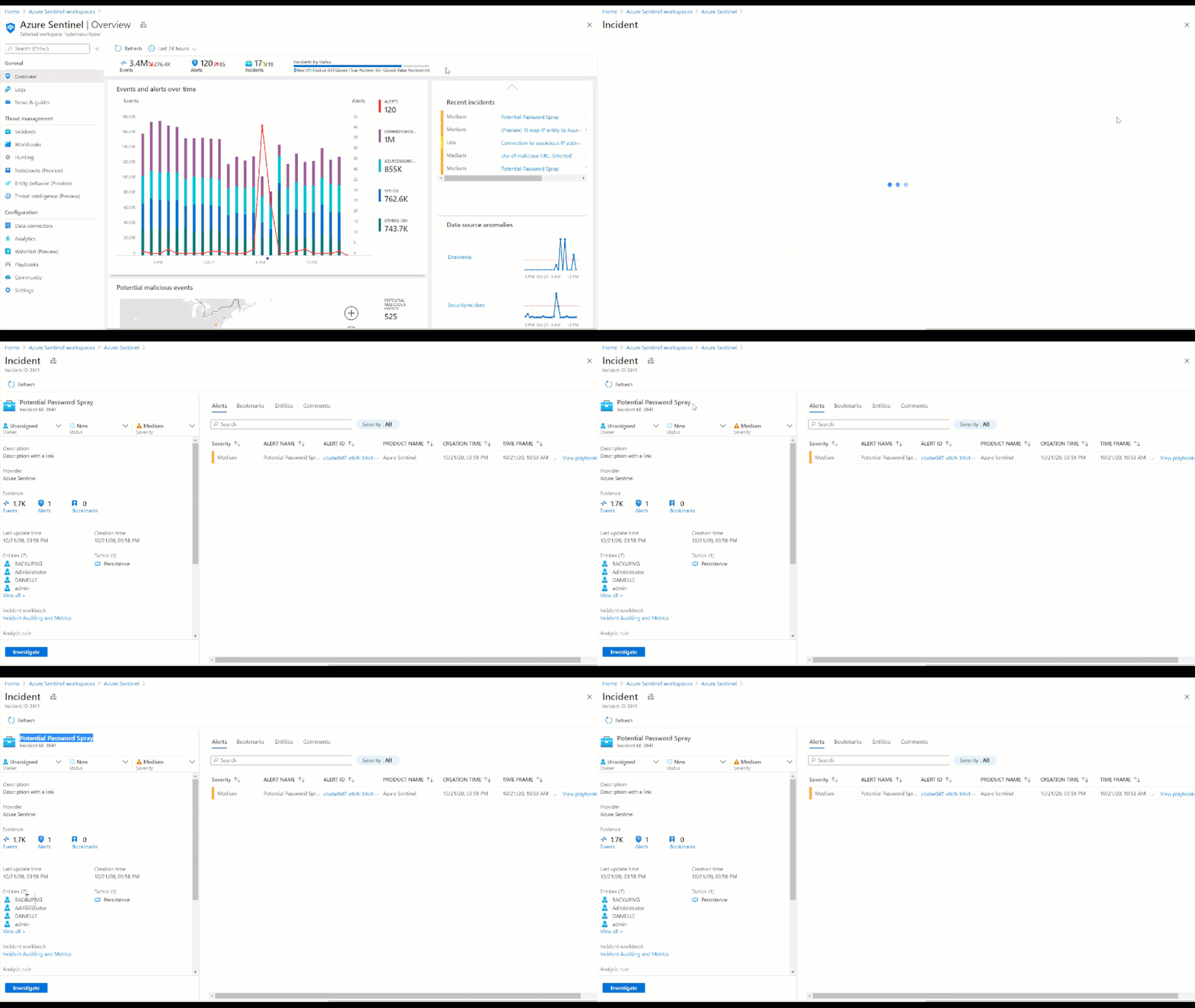 Figure 6: Potential Password Spray Incident
Figure 7: Potential Password Spray Incident
From the Medium Severity Incident, we see that across 6,800 events and 7 accounts there was unusual activity that could have been part of a potential password spray attack. By clicking investigate we see which accounts, machines, and other data points were potentially targeted.
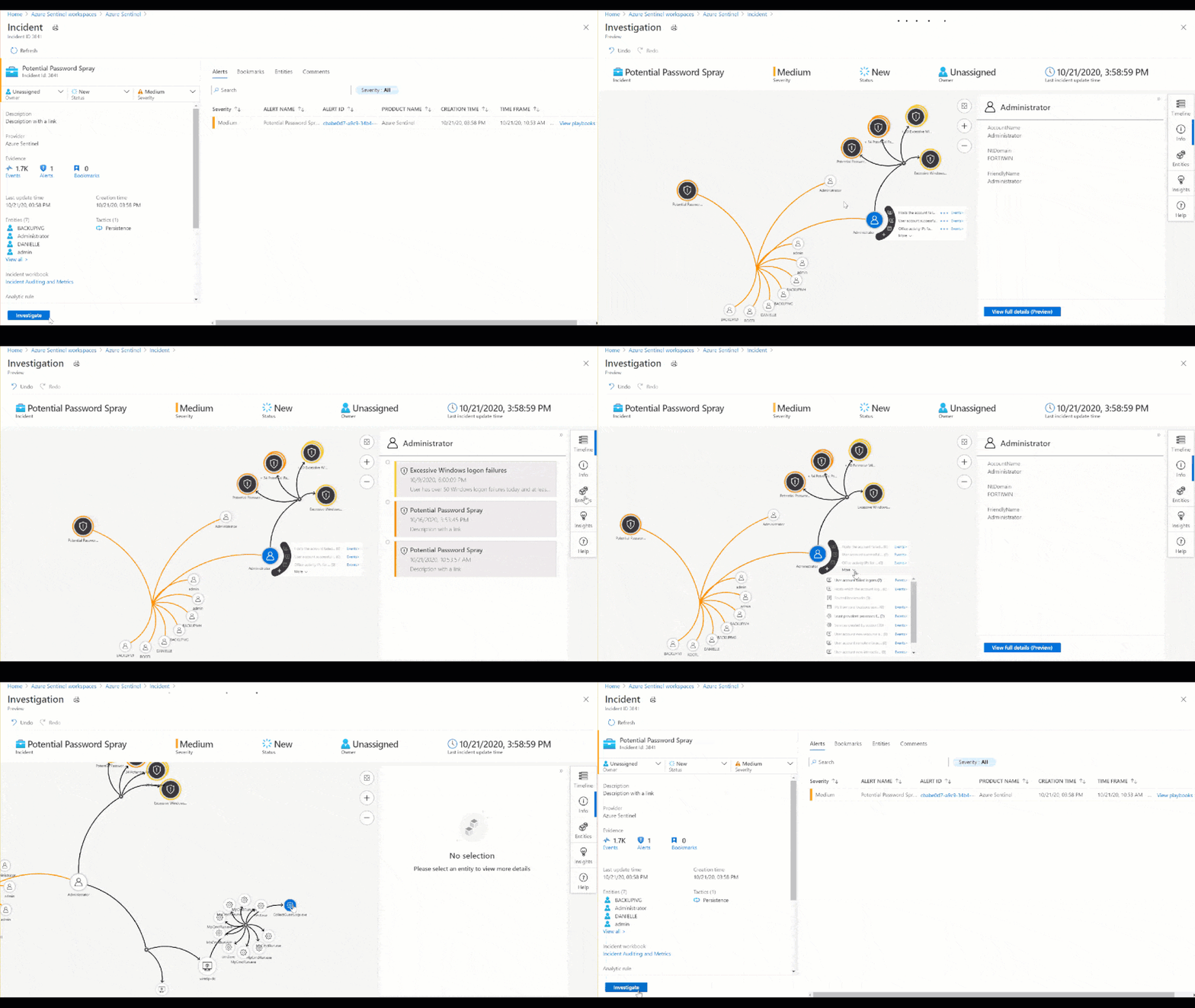
Figure 8: Investigation Graph
As part of this investigation, we saw that an administrator account had over 50 Windows logon failures. While this is a significantly high amount of logon failures, that may not always be the case. For example, without user confirmation would you take action to restrict the account based on 3 sign-in failures? Choosing not to restrict the admins access could allow an attacker to go by undetected. So, let’s look at the built-in insights blade on the investigation graph related to the administrator involved in the password spray attack.
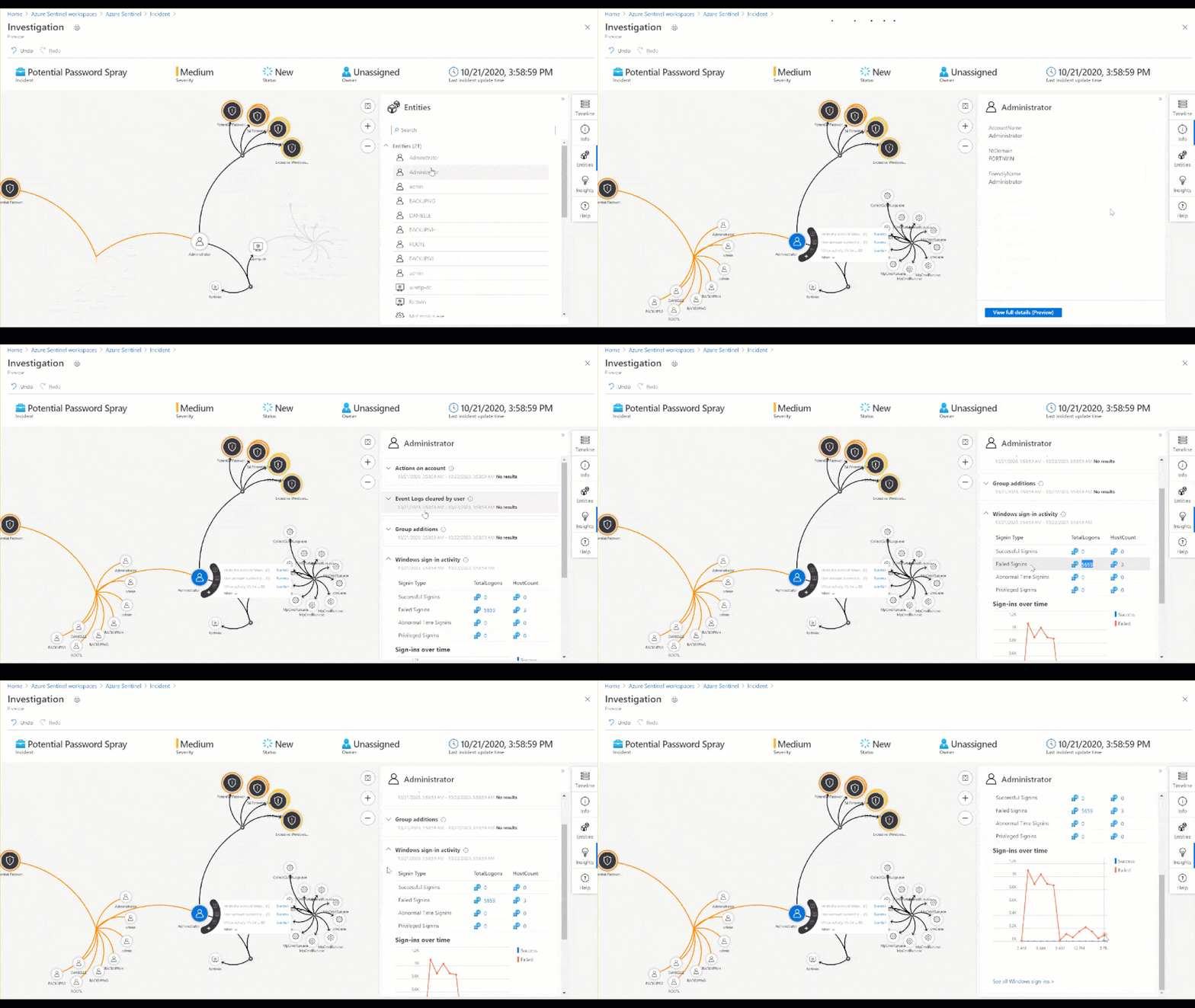
Figure 9: Insights blade in the Investigation Graph
For more detail we can view the full Entity Behavior page related to the administrator, which can surface historical alerts related to the user as well as past sign in anomalies.
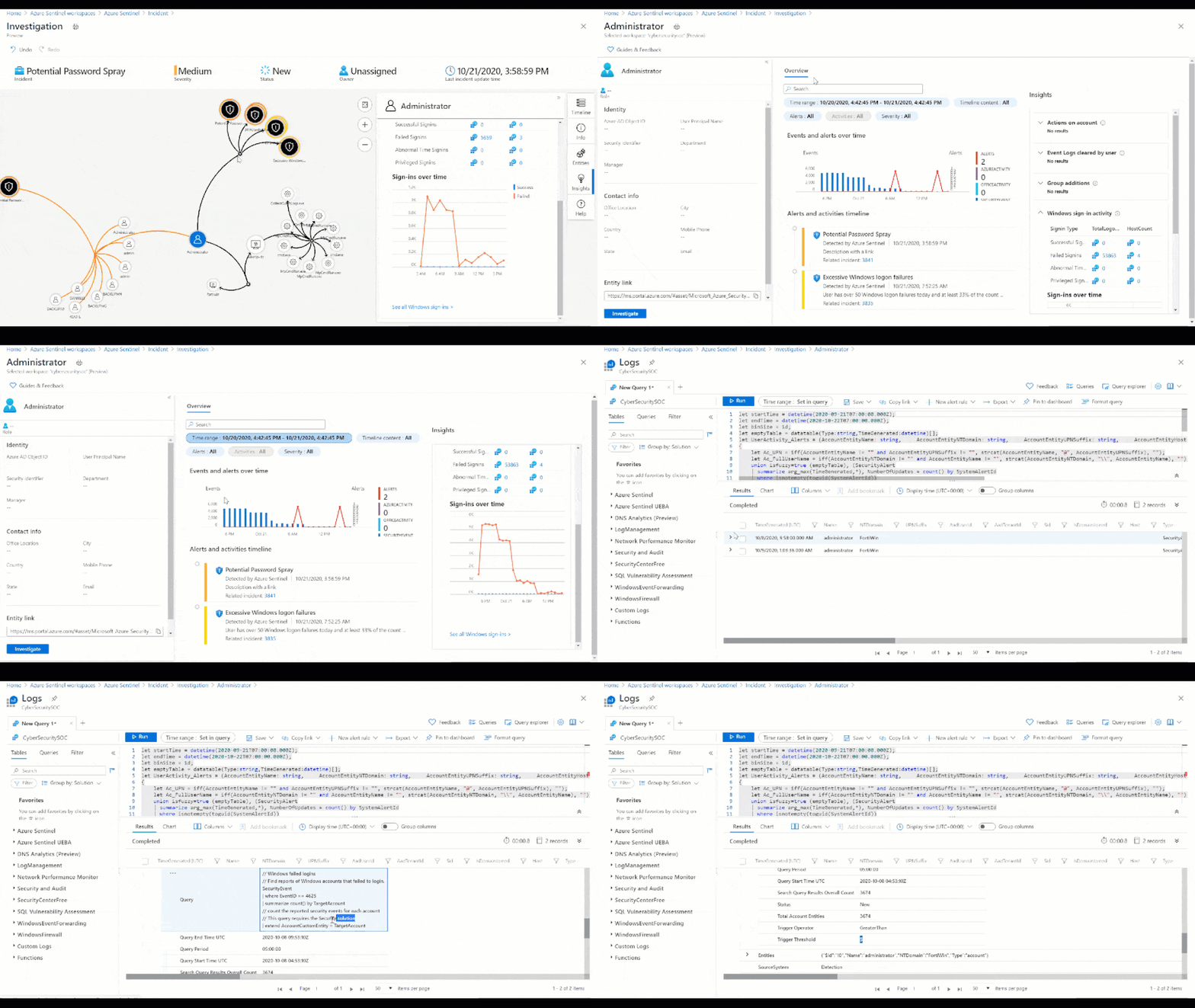
Figure 10: Past user behavior observed from the users Entity Behavior page
As you can see in the above timeline, this is not the first time we have seen an incident of a Potential Password Spray attack for this admin. Additionally, Machine Learning powered insights would appear in the right column. These insights can quickly inform you whether the sign-in activity was anomalous or typical (as seen below).
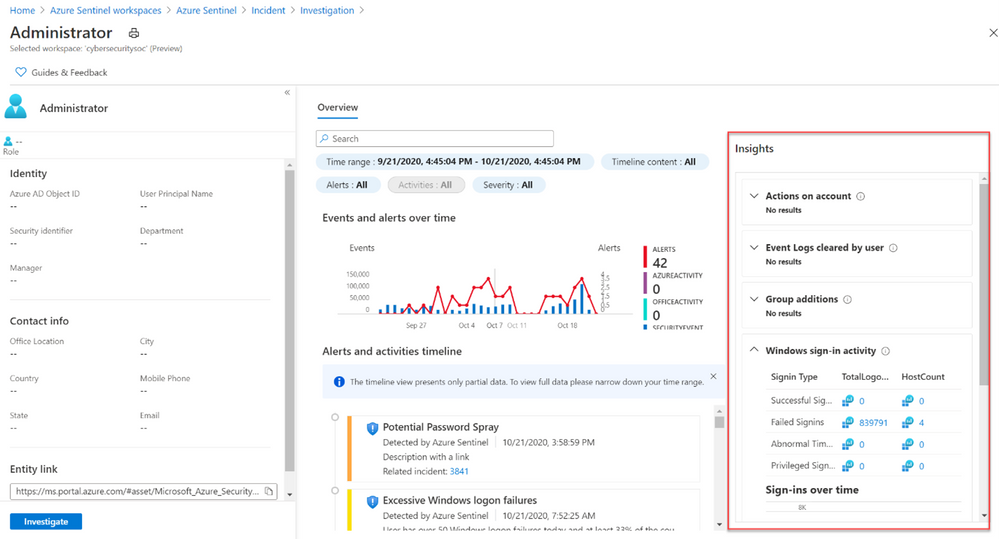
Figure 11: Entity Insights Powered by Machine Learning
While the above example showed how you can investigate an incident and gain context with UEBA, you can also start an investigation directly from an entity page or from evidence found as part of hunting. As part of Azure Sentinel’s hunting experience, you can benefit from UEBA in the form of anomaly driven queries. For example, below you can see how a hunting query can run to monitor all of an organization anomalous failed logins. The results can serve as the basis to start an investigation into a potential password spray attack.
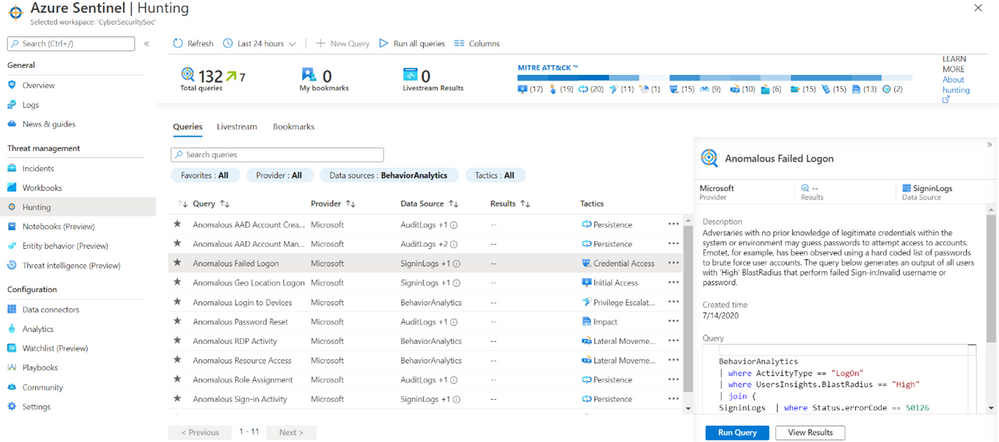
Figure 12: Anomalous Failed Login (UEBA) Hunting Query
By leveraging Azure Sentinel’s UEBA as part of an investigation or general security monitoring you can gain greater context to potentially malicious activity occurring in your organization. Try out UEBA in Sentinel today by navigating to the Entity Analytics page.
For more information view the official documentation page and the blog on Entity Insights.
Happy Investigating! 
by Contributed | Nov 5, 2020 | Technology
This article is contributed. See the original author and article here.
Issue Background:
=======
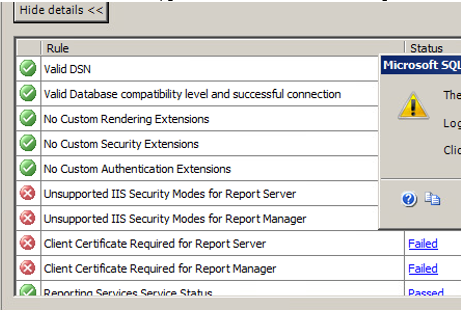
Customer is running SQL Server 2005(X64) on Windows Server 2008, and they want to upgrade to SQL Server 2014 with in-place(can’t accept side by side). But during the upgrading, the following rules are failed, this is related to Reporting Service, but actually customer never use it.
Rule “Unsupported IIS Security Modes for Report Server” failed.
Rule “Unsupported IIS Security Modes for Report Manager” failed.
Rule “Client Certificate Required for Report Server” failed.
Rule “Client Certificate Required for Report Manager” failed.

Troubleshooting Steps:
========
1. As this related to SSRS, so check if we can ignore the SSRS service only upgrade the other SQL service, but we can’t change the feature to be upgraded.
http://download.microsoft.com/download/7/1/5/715BDFA7-51B6-4D7B-AF17-61E78C7E538F/SQL_Server_2014_Upgrade_technical_guide.pdf
2. And then discussed with customer about the side by side upgrading, but they can’t accept.
3. Suggest customer to upgrade the OS first, but we also can’t make sure this will 100% work.
4. Then we go back to the error itself, this is related to IIS. So I open up Server Manager, and check IIS related service, WAS and W3SVC already running, but we saw IIS Admin Service is stopped.
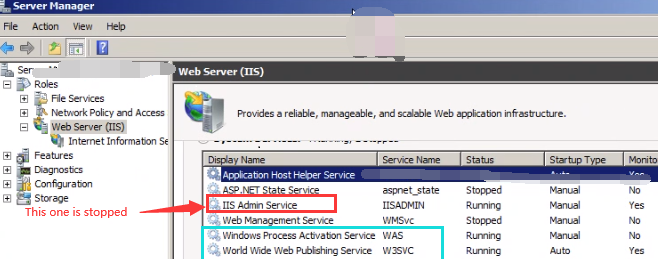
5. We go to Services.msc and then set the Startup type to Manual and then start this “IIS Admin Service”, and then after re-run the rule, all rules are passed.
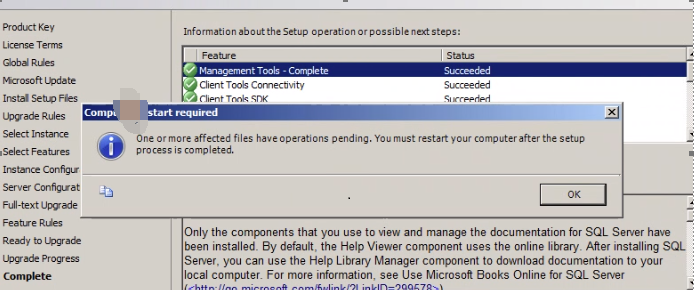
6. And then we continue Upgrading, after a while, upgrade completed without any other issue,
Solution:
======
GO to Server Manager, and check IIS related service, make sure IIS related service is up and running, especially for WAS/W3SVC/IIS Admin Service.


Recent Comments