by Scott Muniz | Sep 15, 2020 | Uncategorized
This article is contributed. See the original author and article here.
People come to Yammer to have meaningful conversations, to share knowledge, and to build communities. Conversations on Yammer can inform you about a colleague’s personal milestone, help you seek information from a colleague who is more than one degree away in your organization and help you recognize the amazing accomplishments of your team. You may need more than a ‘like’ to express yourself on these conversations. That is why we are rolling out reactions for every conversation or reply in the new Yammer. You can now express yourself through gratitude and celebration, laughter, and sadness-just like in real life. This gives you more ways to respond or express your feelings in the conversations you care most about, while gaining insight about how others feel about your content and conversations.
How we decided which reactions to start with
It would’ve been easy for us to look across the landscape of existing reactions that you see in other apps and just copy those into Yammer. However, we wanted to take a more thoughtful approach and make sure that Yammer reactions were expressive, meaningful, constructive, and globally understood.
The first phase of developing this new feature involved conducting global research through surveys and interviews to identify the reactions that would be most helpful to our users and community managers. We also looked at feedback and top GIF usage to identify signals on how users are expressing themselves today. The next phase was to help us deliver on our goal of being universally understood. So we reached out to users to ensure our icons communicated the same sentiment to all users. Armed with this data, we finally had the reaction set for Yammer.

Different reactions to Yammer conversations
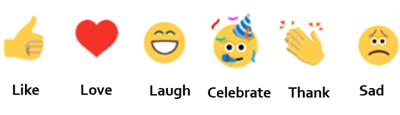
You can now ‘love’ a post that deeply resonates with you, or ‘celebrate’ a personal or professional milestone. With ‘thank’, you can express your appreciation towards a person or a situation, helping build a sense of gratitude within your communities. ’Sad’ would let you express compassion in difficult times, or express sadness over a situation when words fail you. We hope these reactions add a little bit of delight, and help you feel more connected to your Yammer communities. We will continue to listen and learn from your feedback so you can be your most expressive self on Yammer.

General availability starts now!
Reactions are starting to roll out today, and will be available to all users globally in the next couple of weeks. To add a reaction, hover on the like button on web or hold down the like button on mobile, to see the reaction options of like, love, laugh, celebrate, thank and sad show up. Then tap or click on one of these to select them. Learn more at our support page.
What’s next?
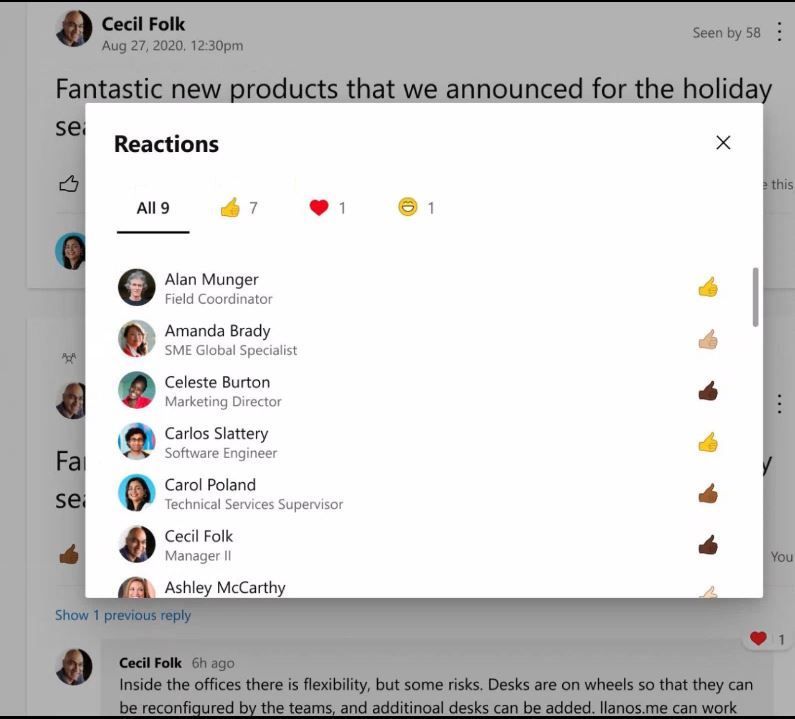
Yammer is inclusive by design, with communities and conversations at the center. And we continue to think about inclusive features as we build new features. Soon we will be introducing diverse skin tones on reactions to help every reaction feel sense of representation while interacting on Yammer.
by Scott Muniz | Sep 15, 2020 | Azure, Technology, Uncategorized
This article is contributed. See the original author and article here.
To master data in the cloud, you need the right foundation—a solid understanding of core data concepts, such as relational data, nonrelational data, big data, and analytics. Plus familiarity with the roles, tasks, and responsibilities in the world of data and data analytics. Are you there? Certification can help you prove it.
Certification in Azure Data Fundamentals offers the foundation you need to build your technical skills and start working with data in the cloud. Mastering the basics can help you jump-start your career and prepare you to dive deeper into other technical opportunities Azure offers.
The Azure Data Fundamentals certification validates your foundational knowledge of core data concepts and how they’re implemented using Azure data services. You earn it by passing Exam DP-900: Microsoft Azure Data Fundamentals.
You can use your Azure Data Fundamentals certification to prepare for other Azure role-based certifications, like Azure Database Administrator Associate, Azure Data Engineer Associate, or Data Analyst Associate, but it’s not a prerequisite for any of them.
What are the prerequisites?
If you’re new to the cloud or just starting out with Azure, first choose Azure Fundamentals training and certification. Find out how to Master the basics with Microsoft Certified: Azure Fundamentals.
If you’re just beginning to work with data in the cloud, this certification is for you. You should be familiar with the concepts of relational and nonrelational data and with different types of data workloads, such as transactional or analytical.
How can you get ready?
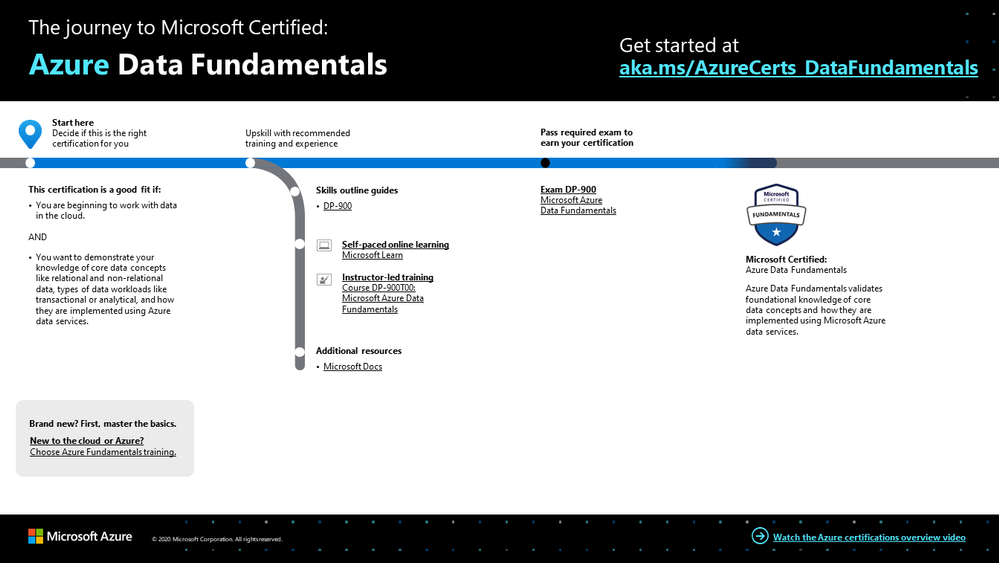
To help you plan your journey, check out our infographic, The journey to Microsoft Certified: Azure Data Fundamentals. You can also find it in the resources section on the certification and exam pages, which contains other valuable help for Azure professionals.
 The journey to Microsoft Certified: Azure Data Fundamentals
To map out your journey, follow the sequence in the infographic. First, decide whether this is the right certification for you.
Next, to understand what you’ll be measured on when taking Exam DP-900, review the skills outline guide on the exam page.
Sign up for training that fits your learning style and experience:
After you pass the exam and earn your certification, continue mastering the basics with Azure AI Fundamentals, level up with the Azure Database Administrator Associate, Azure Data Engineer Associate, or Data Analyst Associate certifications, or find the right Microsoft Azure certification for you, based on your profession (or the one you aspire to).
It’s time to master the basics!
Use your Azure Data Fundamentals certification as a starting point to explore more training on Azure, SQL Server and other technologies and to chart your path forward. If you’re looking to advance your career or to jump-start a new one, the message is the same: establish your foundations. Earn your certification, and open up new possibilities for your career and for turning your ideas into solutions on Azure.
Related posts
Understanding Microsoft Azure certifications
Finding the right Microsoft Azure certification for you
Master the basics of Microsoft Azure—cloud, data, and AI
by Scott Muniz | Sep 15, 2020 | Uncategorized
This article is contributed. See the original author and article here.
Today we are announcing the availability of quarterly servicing cumulative updates for Exchange Server 2016 and 2019. These updates include fixes for customer reported issues as well as all previously released security updates.
A full list of fixes is contained in the KB article for each CU, but we wanted to highlight the following.
Calculator Updates
A few bug fixes are included in this quarterly release of the Exchange Sizing Calculator. The calculator was updated to ensure CPU usage was correctly calculated in some scenarios and an issue in which when the second node was removed in worst case failure scenario, and which resulted in a zero transport DB size when Safety Net was enabled was also resolved.
Surface Hub Teams and Skype Experience
When Exchange Server 2019 CU5 and Exchange Server 2016 CU16 were released we subsequently discovered issues with Surface Hub devices configured with on-premises mailboxes. In those cases if both the Teams and Skype for Business clients were installed side by side, the Surface Hub would pick the incorrect client when joining meetings. The CU’s issued today resolved these issues.
Release Details
The KB articles that describe the fixes in each release and product downloads are available as follows:
Additional Information
Microsoft recommends all customers test the deployment of any update in their lab environment to determine the proper installation process for your production environment. For information on extending the schema and configuring Active Directory, please review the appropriate documentation.
Also, to prevent installation issues you should ensure that the Windows PowerShell Script Execution Policy is set to “Unrestricted” on the server being upgraded or installed. To verify the policy settings, run the Get-ExecutionPolicy cmdlet from PowerShell on the machine being upgraded. If the policies are NOT set to Unrestricted you should use the resolution steps in here to adjust the settings.
Reminder: Customers in hybrid deployments where Exchange is deployed on-premises and in the cloud, or who are using Exchange Online Archiving (EOA) with their on-premises Exchange deployment are required to deploy the currently supported cumulative update for the product version in use, e.g., 2013 Cumulative Update 23; 2016 Cumulative Update 18 or 17; 2019 Cumulative Update 7 or 6.
For the latest information on the Exchange Server and product announcements please see What’s New in Exchange Server and Exchange Server Release Notes.
Note: Documentation may not be fully available at the time this post is published.
The Exchange Team
by Scott Muniz | Sep 15, 2020 | Uncategorized
This article is contributed. See the original author and article here.
 Microsoft Ignite 2020
We’re a week away from Microsoft Ignite 2020 and this year’s event will be a free 48-hour all-digital experience. If you have not registered yet, secure your spot today and browse the session catalog to build your personalized schedule.
Here’s a quick rundown of sessions to get you started if you’re looking to learn more about Planner, Tasks in Teams, and other task management capabilities across Microsoft 365.
Keg Segment
The Future of Work by Jared Spataro
When, where, and how we work is fundamentally changing. Microsoft is in a unique position to understand the secular trends that are reshaping the future of work today, and for decades to come. Learn about the risks and durable trends impacting teamwork, organizational productivity, and employee wellbeing. Jared Spataro, CVP of Modern Work, will share the latest research and a framework for success for every IT professional and business leader to empower People for the new world of work, as well as the latest innovation in Microsoft 365 and Teams empowering human ingenuity at scale.
Tuesday, September 22 | 10:00 AM – 10:20 AM PDT
Tuesday, September 22 | 6:00 PM – 6:20 PM PDT
Wednesday, September 23 | 2:00 AM – 2:20 AM PDT
Digital Breakout
DB136 | Embrace a New Way of Work with Microsoft 365 by Angela Byers and Shin-Yi Lim with Ed Kopp (Rockwell Automation) and Magnus Lidström (Scania)
In an unprecedented time of workplace transformation, opportunities to thrive belong to those who embrace and adapt to the new normal. How do we collaborate remotely, stay connected and produce excellent work as a team? How do we stay productive while working from home? Join us for a new way to think about and manage work with Microsoft 365. Learn how Microsoft 365 makes it easier for your team to organize, share and track work all in one place – so you save time and accomplish more together.
Wednesday, September 23 | 12:15 PM – 12:45 PM PDT
Wednesday, September 23 | 8:15 PM – 8:45 PM PDT
Thursday, September 24 | 4:15 AM – 4:45 AM PDT
Ask the Experts
ATE-DB136 | Ask the Experts: Embrace a New Way of Work with Microsoft 365
Wednesday, September 23 | 9:00 PM – 9:30 PM PDT
Thursday, September 24 | 5:00 AM – 5:30 AM PDT
Pre-Recorded for On Demand
OD258 | Enable Business Continuity for your Firstline Workforce with Microsoft Teams by Scott Morrison and Zoe Hawtof
As organizations continue to adjust their operations and workforce to maintain business continuity, new capabilities in Microsoft Teams help Firstline workers stay focused on meeting customer needs. This session will focus on Shifts, Tasks and core communication along with Walkie Talkie capabilities to create a secure and centralized user experience that saves you time and money.
OD260 | Office Apps and Teams: Enabling virtual collaboration for the future of our hybrid work environment by Shalendra Chhabra
Connecting our solutions in a way that helps you stay productive and saves you time and effort is a priority to us. Our modern Office apps including Microsoft Teams as your hub for teamwork, and Outlook for direct communications and time management – we continue to create connected experiences to simplify how you stay organized and get things done. Learn how to manage your time more efficiently in your hybrid work environment by leveraging our collaboration capabilities.
Skilling Videos
Check out more content and resources in the Virtual Hub and Microsoft Tech Community Video Hub – all links will be live when Ignite officially kicks off.
Get more done with Microsoft Planner by Si Meng
Microsoft Planner gives teams an intuitive, collaborative, and visual task management experience for getting work done. Whether you’re new to Planner or consider yourself an expert, learn how to use Planner and find out more about recent new enhancements. We’ll also share the latest Planner integrations with Microsoft 365 applications, including the new Tasks app in Microsoft Teams.
Managing task capabilities across Microsoft 365 by Holly Pollock
Find out how task management across Microsoft 365 helps you find your tasks where you need them, regardless of where you captured them. In this session, we’ll share the latest integrations of tasks from Teams, Outlook, To Do, Planner, Office documents, Cortana and more.
Automate your Planner tasks workflow by Jackie Duong
Learn how to use Microsoft Power Automate to customize your Microsoft Planner tasks workflow for your organization.
Transform change management by syncing Message Center posts to Planner by Paolo Ciccu
A lot of actionable information about changes to Microsoft 365 services arrives in the Microsoft 365 message center. It can be hard to keep track of which changes require tasks to be done, when, and by whom, and to track each task to completion. You also might want to make a note of something and tag it to check on later. You can do these things and more when you sync your messages from the Microsoft 365 admin center to Microsoft Planner. Learn more about the new feature that can automatically create tasks based on your message center posts. Demo showing newly added message center feature where one can automatically create tasks in planner based on their message center posts.
Cortana – what’s new and what’s next for your personal productivity assistant in Microsoft 365 by Malavika Rewari, Saurabh Choudhury, Srikanth Sridhar, and A.J. Brush
Discover new ways to get time back on your busy schedule and focus on what matters with Cortana, now a natural part of Microsoft 365. From staying connected hands-free with voice assistance in Microsoft Teams and Outlook mobile to preparing for the day’s meetings with your personalized briefing email to finding what you need fast using natural language in Windows 10 – learn what’s possible with Cortana as well as what’s coming next.
Digitize and transform business processes with no-code building blocks and app templates in Teams by Weston Lander and Aditya Challapally
Organizations are already transforming many of their business processes on Teams – from approvals and task management, all the way to crowd sourcing the organization for top ideas. Learn how to use embedded building blocks and production-ready app templates to digitize and streamline key processes. In this session we’ll share how customers are leveraging these solutions without any custom development required, as well as how some recent innovations can help simplify these processes
Post-Ignite Expert Connections
If you like engaging in conversation with Microsoft product experts and peers, come join us after this year’s Ignite digital experience starting on September 24, 2020 through October 2020. Sign up here and choose from over 200 topics – and we would like to highlight two topics from the Planner team:
Using Microsoft Planner to better manage work remotely
How has your team adopted Planner during remote work? Tell us about your experience and what could help your team manage work more efficiently.
Task management: Plan your work
We’re curious to know how users typically manage their tasks and plan out their workday, work week, and workload. Join us to discuss topics like how you manage personal tasks in addition to group tasks, the importance of keeping tasks in one location, etc.
See you at Ignite on September 22-24, 2020 and follow the #MSIgnite action on Twitter: @MS_Ignite, @MSTCommunity, @MSFTMechanics. Be sure to check back here on this blog for the latest product updates and news.
******
“Tasks in Microsoft Teams” – The Intrazone podcast
In case you missed it, several members from our team sat down with the hosts of The Intrazone, a biweekly podcast series, to talk about Tasks in Teams and our journey on connecting task experiences across Microsoft 365. You can listen to that conversation below.
by Scott Muniz | Sep 15, 2020 | Azure, Technology, Uncategorized
This article is contributed. See the original author and article here.
One of the main SIEM use cases is incident management. Azure Sentinel Offers robust features that help the analyst to manage the life cycle of security incidents, including:
- Alert grouping and fusion
- Incident triaging and management
- An interactive investigation experience
- Orchestration and response using Logic Apps
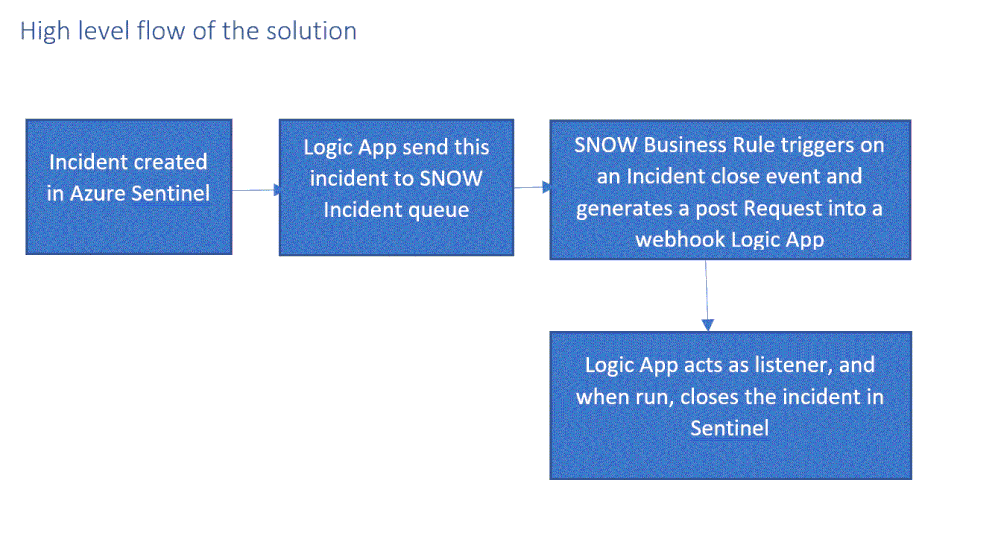
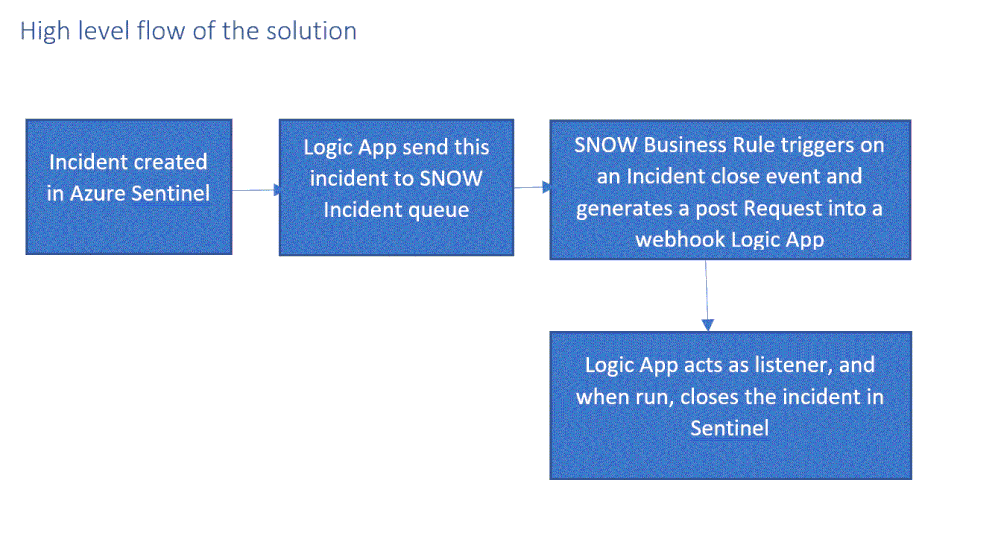
In our customer engagements we learned that in some cases our customers need to maintain incidents in their existing ticketing (ITSM) system and use it as a single pane of glass for all the security incidents across the organization. One critical request that raises is the need for a bi-directional sync of Azure sentinel incidents.
This means, for example, that if a security incident is created in Azure Sentinel, it needs to be created in the ITSM system as well, and if this ticket is closed in the ITSM system, this should be reflected in Azure sentinel.
In this article, I demonstrate how to use Azure sentinel SOAR capability and ServiceNow (SNOW) Business Rules feature to implement this bi-directional incident sync between the two.
High level flow of the solution
Send an Azure Sentinel incident into ServiceNow incident queue
The playbook, available here and presented below, works as follows:
- Triggers automatically on a new Alert.
- Gets relevant properties from the Incident.
- Populates the workspace name variable.
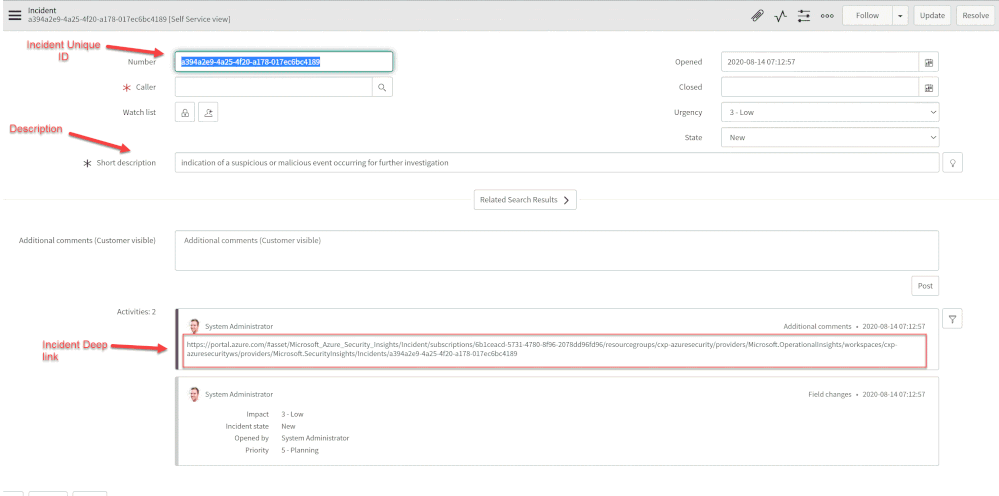
- Creates a record of incident type in ServiceNow and populate the Azure Sentinel Incident properties into the SNOW incident record using the following mapping:
|
ServiceNow
|
Sentinel
|
|
Number
|
Incident Unique ID
|
|
Short Description
|
Description
|
|
Severity
|
Severity
|
|
Additional comment
|
Incident Deep link
|
Deploying the solution
- Deploy the above Logic APP
- Attached this logic app to every analytics rule that you want to sync to ServiceNow
by selecting it on the automated response section. (currently you need to run this process for each analytics rule that you want to sync)
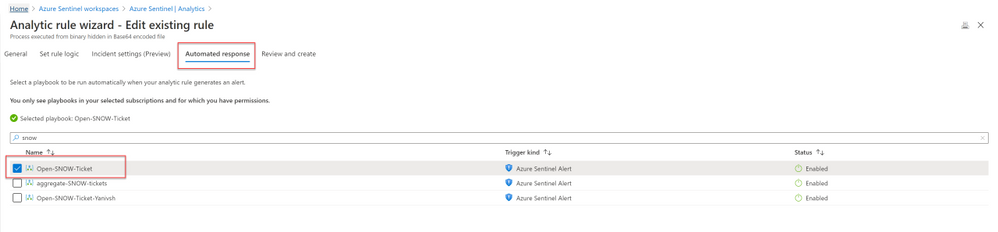
Once an analytics rule generates a new incident, a new incident will pop-up on the ServiceNow incident Page.
Close Sentinel Incident When it closed in ServiceNow.
Closing the incident in Azure Sentinel when it is closed in ServiceNow requires two components:
- A Business Rule in ServiceNow that run custom JS code when the incident is closed.
- A Logic App in Azure Sentinel that waits to the Business Rule POST request.
Step 1: Deploy the Logic App on Azure Sentinel.
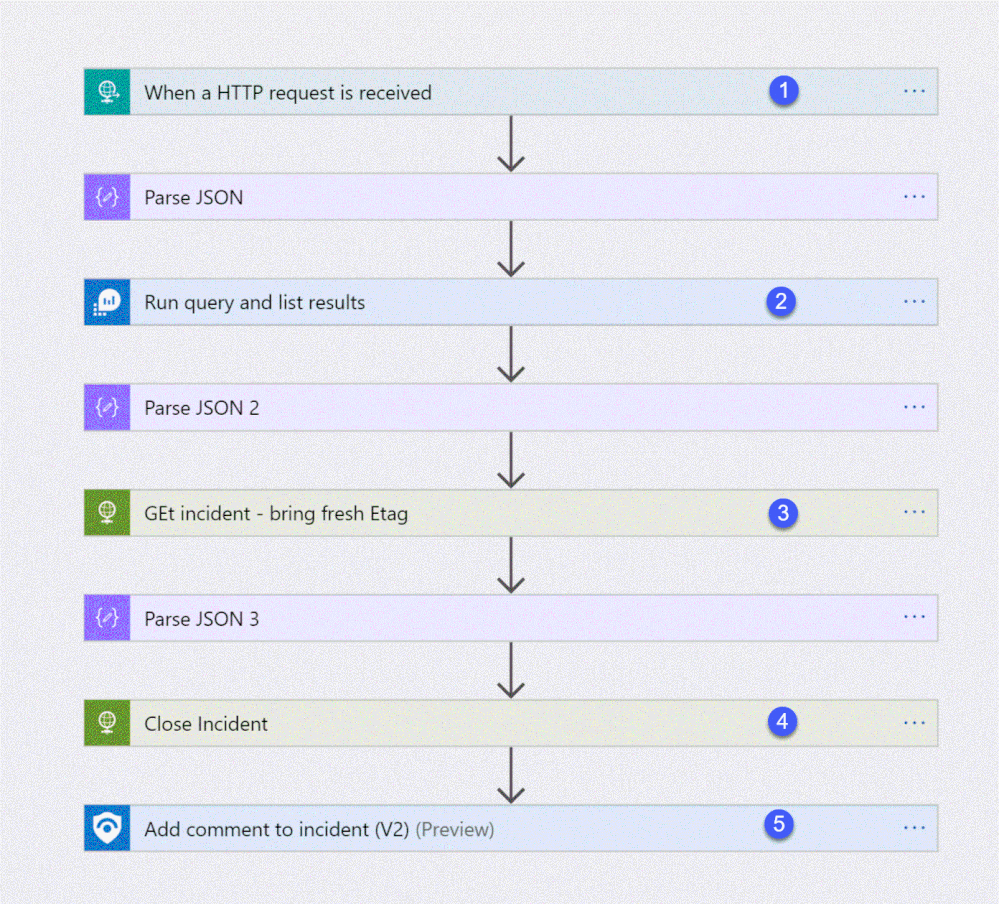
The playbook, available here and presented below, works as follows:
- Triger when an HTTP POST request hits the endpoint (1)
- Get relevant properties from the ServiceNow Incident.
- Close the incident on Azure Sentinel (4)
- Add comment with the name of the user who closed into an Azure sentinel incident comment (5)
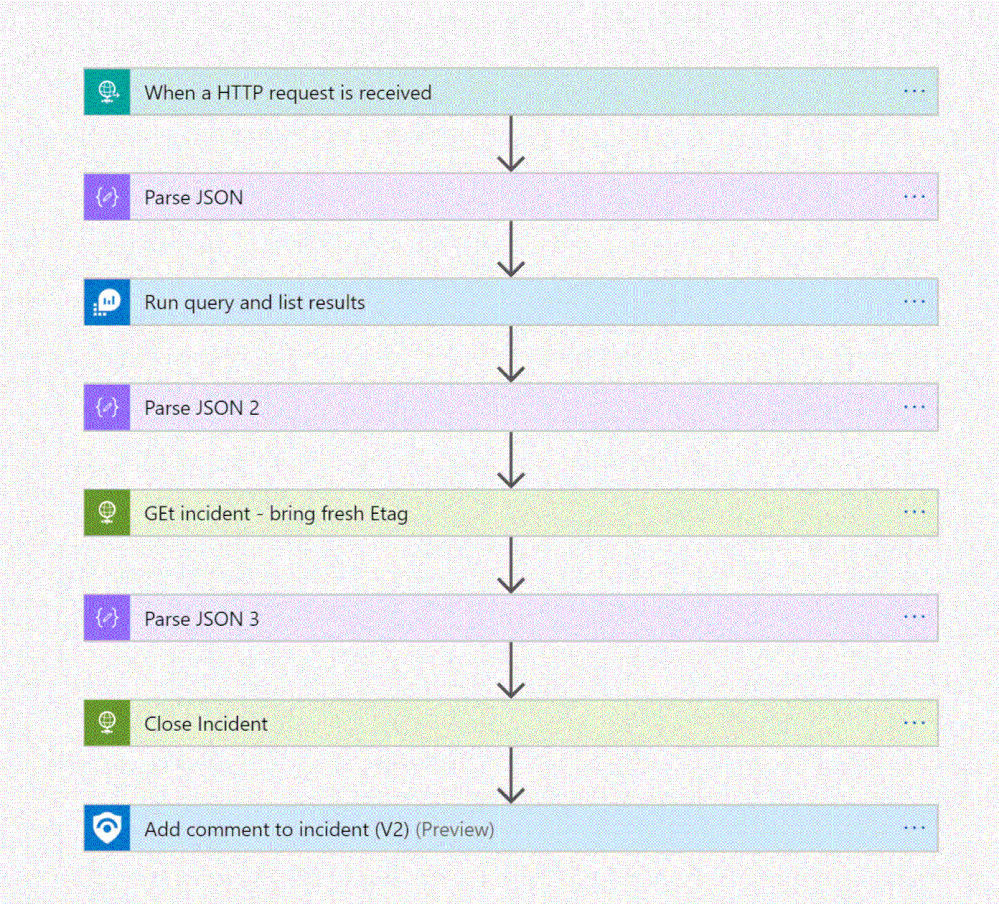
Step 2: Configure the Logic App
- Copy the HTTP endpoint URL from the Logic App trigger part.
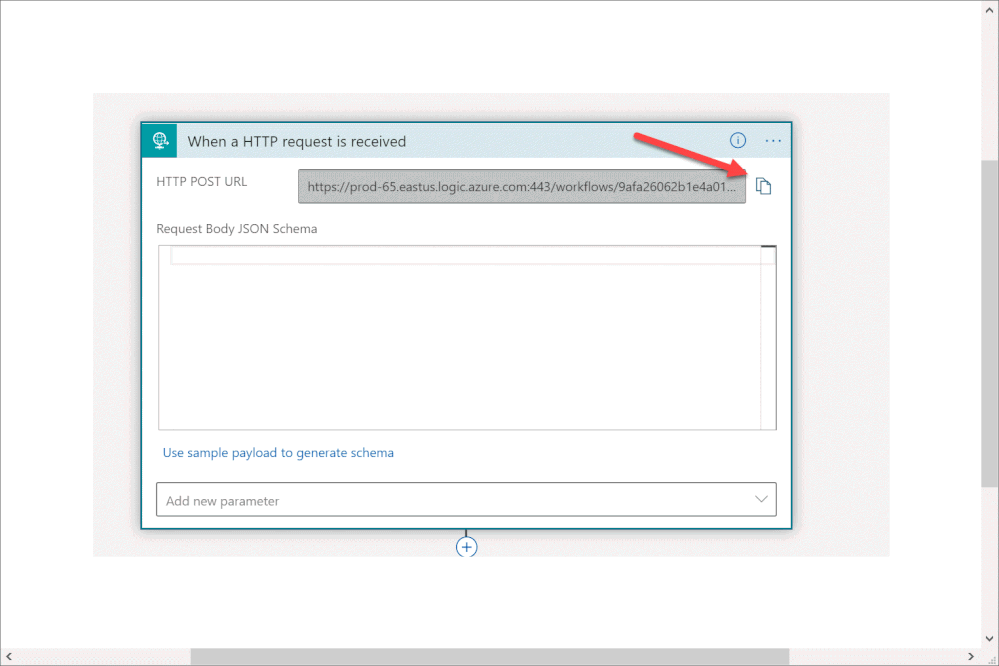
2. In “run query and list results” (2) authenticate with user that has log analytics read permission or Azure Sentinel Reader role as a minimum requirement.
3. In “get incident – bring fresh ETAG” (3) authenticate to AAD APP with a user that has an Azure Sentinel Reader role, or with a Managed identity with the same permission.
4. On “add comment to incident” (5) use a user that has an Azure Sentinel Contributor account.
Step 3: ServiceNow Business Rule
What is Business Rule?
Per ServiceNow documentation, a business rule is a server-side script that runs when a record is displayed, inserted, updated, or deleted, or when a table is queried.
To create the business rule
- Login to your ServiceNow Instance.
- In the left navigation type business rules, press New to create a new business rule.
(For a business rule types and scopes refer to ServiceNow documentation)
- Give the business rule a name, select Incident as the table, and check the Active and the Advanced checkboxes.
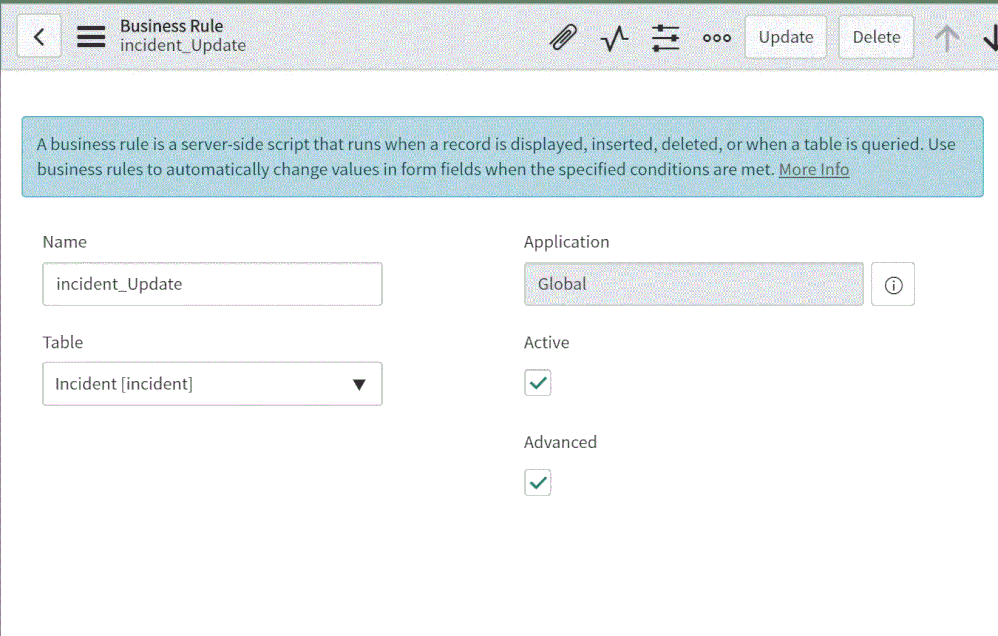
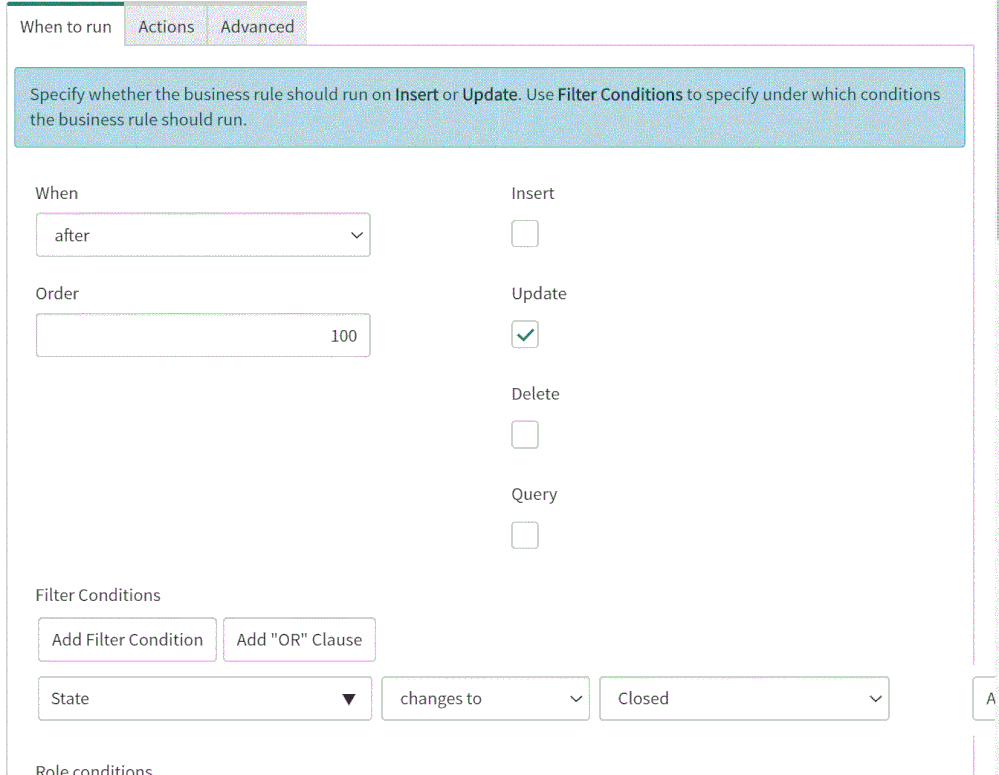
4. On the “When to run” tab, configure the controls as depicted on the screenshot below.
5. On the Advance tab, paste the above (like the picture below)
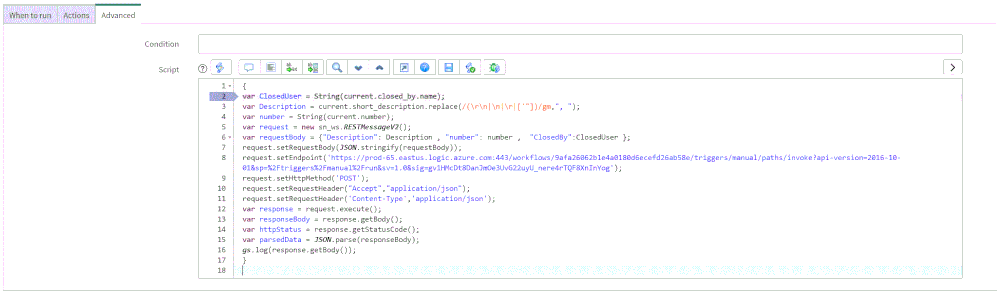
In line 8, replace the URL with the URL that we copied from the webhook Logic App above; this will be the endpoint that the business rule will interact with.
{
var ClosedUser = String(current.closed_by.name);
var Description = current.short_description.replace(/(rn|n|r|['"])/gm,", ");
var number = String(current.number);
var request = new sn_ws.RESTMessageV2();
var requestBody = {"Description": Description , "number": number ,  "ClosedBy":ClosedUser };
request.setRequestBody(JSON.stringify(requestBody));
request.setEndpoint('https://prod-65.eastus.logic.azure.com:443/workflows/9afa26062b1e4a0180d6ecefd26ab58e/triggers/manual/paths/invoke?api-version=2016-10-01&sp=%2Ftriggers%2Fmanual%2Frun&sv=1.0&sig=gv1HMcDt8DanJmOe3UvG22uyU_nere4rTQF8XnInYog');
request.setHttpMethod('POST');
request.setRequestHeader("Accept","application/json");
request.setRequestHeader('Content-Type','application/json');
var response = request.execute();
var responseBody = response.getBody();
var httpStatus = response.getStatusCode();
var parsedData = JSON.parse(responseBody);
gs.log(response.getBody());
}
In the above example I only send to sentinel 3 properties:
- ClosedBy – the username that closed the incident in Service Now
- Description – the incident description
- Number – the incident ID, originally received from Azure Sentinel.
You can modify the business rule Java Script code and add other properties that can add value to your use case.
Summary
Once the user closes the incident in ServiceNow, the listener Logic App triggers and closes the incident in Azure Sentinel, adding a relevant comment as you can see below:
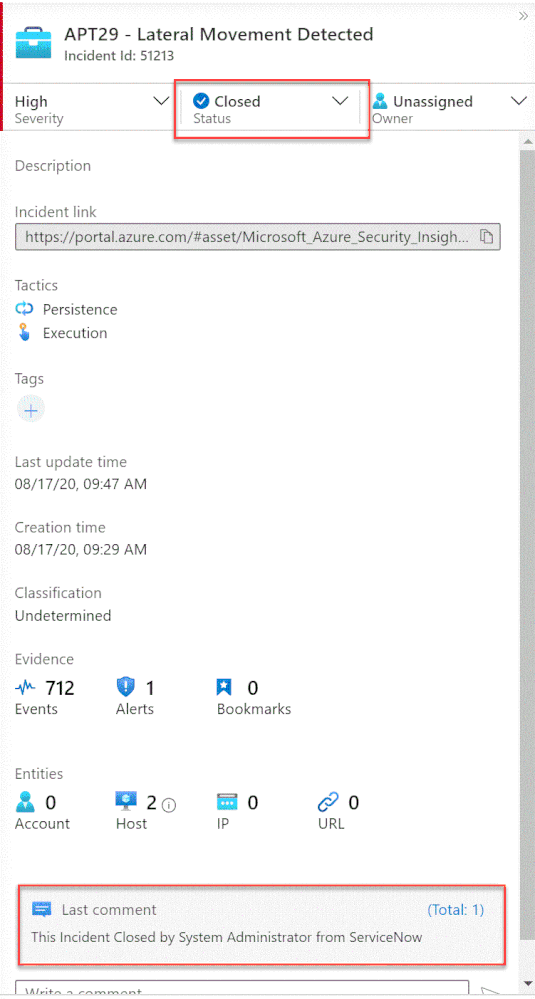
We just walked through the process of implementing incident sync between Azure Sentinel and Service Now by leveraging a Logic App and a ServiceNow business rule.
Thanks @Ofer_Shezaf for all the help during this blog creation.


Recent Comments